Upgrade from Versions 12 to 15
The following describes upgrading from versions 12 to 15.
Record the Serial Number
Make note of the serial number in the current version.
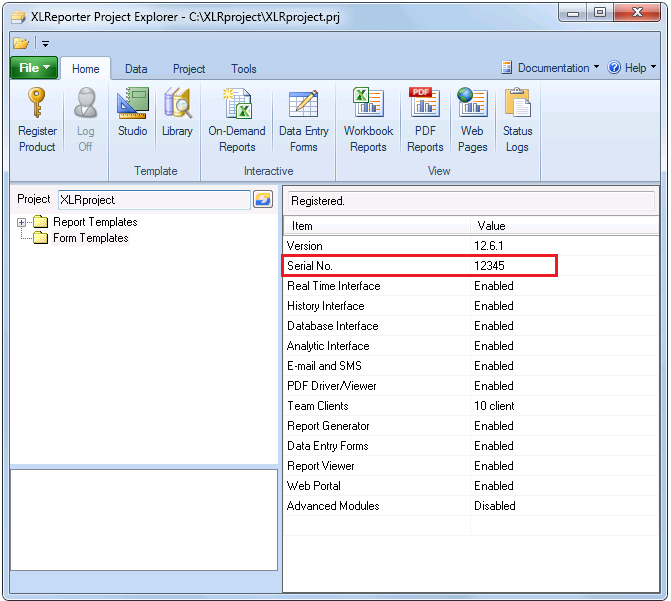 |
The serial number can be found in the Project Explorer in the lower right panel.
Stop the Schedule
From the Project Explorer, under the Project tab, in the Schedule section click the Start/Stop option and choose Stop.
Upgrade the Same Machine
If XLReporter is being upgraded on the same machine, at this point close all XLReporter applications including the Project Explorer.
Installation
Run the installation for the latest version. As part of the installation the project is upgraded automatically.
Upgrade to a New Machine
If XLReporter is being installed on a new machine, the license will have to be transferred to the new machine.
Transfer Registration
To transfer, from the Project Explorer, under the Home tab select Register Product.
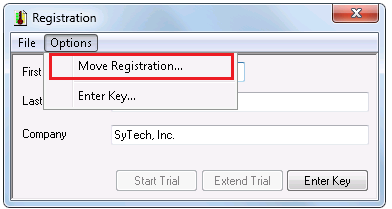 |
In Registration select Options, Move Registration. Make note of the Transfer Code, it will be needed when registering the latest version on the new machine.
Installation
Run the installation for the latest version on the new machine. When complete the Project Explorer is opened with the Demo project loaded.
Copy Project
At this point the project used with the previous version should be copied from the original machine to the new machine.
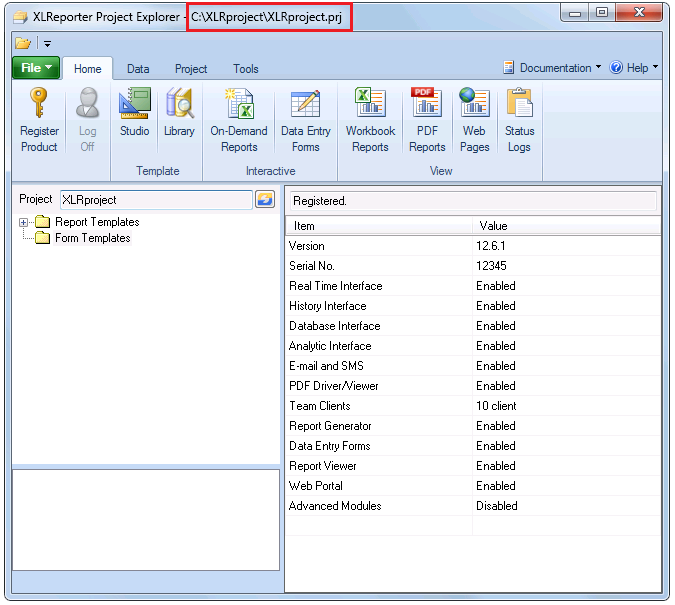 |
The location of the project is displayed in the title bar of the Project Explorer on the original machine. This folder must be copied from this machine and pasted on the new machine.
Once the project is pasted on the new machine, in the Project Explorer of the new machine select File, Open Project. Browse to the project folder and open.
This triggers an upgrade of the project to the latest version.
After opening the project on the new system, navigate to Diagnostics, System Check in the Project Explorer.
In the System Check, go to the General tab and select Start. This will create any required directories that are missing and check your data connectors for a basic connection.
At this point the previous XLReporter can be uninstalled from the original machine.
License the new Version
If you have not done so already, request a license upgrade by going to:
https://smartsights.com/xlreporter-licensing-upgrades
Once you receive your new license activation, follow the XLReporter Product Registration Guide to complete the licensing process.