Deployment
Overview
XLReporter provides various methods to deploy the viewers, either as a standalone product or as part of an HMI system.
Deployment Considerations
Before deploying a viewer, consider the following:
Which reports will be accessible by a user?
Will the viewer permit report annotations?
How will the viewer be opened and refreshed?
Viewer Accessibility
User can only access reports is their user credentials permits. The credentials are configured by enabling security on the project and defining users (see Implement Project Security). If User Security is not enabled, then any user can use all the features of the viewers.
Template Security
If a template is designed with Password Protection (see Implement Project Security), any report from the template will require the password in order to open it. Passwords are retained during a viewing session to avoid having to re-enter each time a protected report is opened.
Electronic Signatures
With the workbook viewer, electronic signatures can be applied to a report to validate its content. The procedure for setting up electronic signatures is discussed in detail in the Security help document.
Viewer Annotations
By default, the viewer opens reports in read-only mode, not permitting any edits. However, if the cells of a template are UnLocked, then the user will be able to enter information in those cells only.
To unlock cells, open the template in the Design Studio. Highlight the cells to be unlocked and select Format, Unlock cells. A similar procedure is followed using the design studio add-in in Excel where it is called Protection.
When a report is generated from the template, the unlock cells can be edited and the changes can be Stored using the button in the Left View.
XLReporter supports various editing options such as lists and popups. These are configured by adding Data Validation to the cells using the option on the Worksheet tab of the Design Studio. Again, a similar feature is provided by the add-in in Excel.
Annotations are permitted locally or from any Distributed Client, even to reports that are actively being updated. However, the users must have appropriate credentials to do this (see Implement Project Security).
Viewer Open and Refresh
The viewer can be opened in various ways. Note that it is possible to open multiple copies of the viewer at the same time.
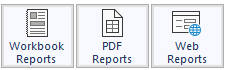
From where XLReporter is installed, the viewers are opened from the right-side Tools tab of the Project Explorer in the Report section by selecting one of the following:
 |
If there is a need to open the viewer externally from the XLReporter Scheduler (Run an Application), command line or from a pushbutton click in the HMI, then the following application are executed:
Workbook C:\XLReporter\bin\XLRxView.exe
PDF C:\XLReporter\bin\XLRxViewPDF.exe
HTML C:\XLReporter\bin\XLRxViewWeb.exe
Shortcuts to these applications are provided in the Start Menu of the XLReporter folder. Without parameters, the viewer will show the last viewed file.
If a specific file is needed, then this can be specified as follows:
Workbook C:\XLReporter\bin\XLRxView.exe ”Scheduled!ReportFolder\ReportName”
The ReportFolder represents a sub folder in the projects Report folder and the ReportName is a specific file. If the latest file in the folder is required, then set the ReportName to *.
Since it is possible to configure the viewer to automatically refresh the above opens the possibility of launching the viewer to open and automatically refresh the report (which is probably being update by the scheduler in the background)
XLReporter Ultimate
XLReporter Ultimate is a distributed edition of where reports in a central location are accessible from remote clients (distributed clients). The clients can be web clients using a web browser or windows clients creating the possibility of integrating the clients into distributed displays of HMI systems.
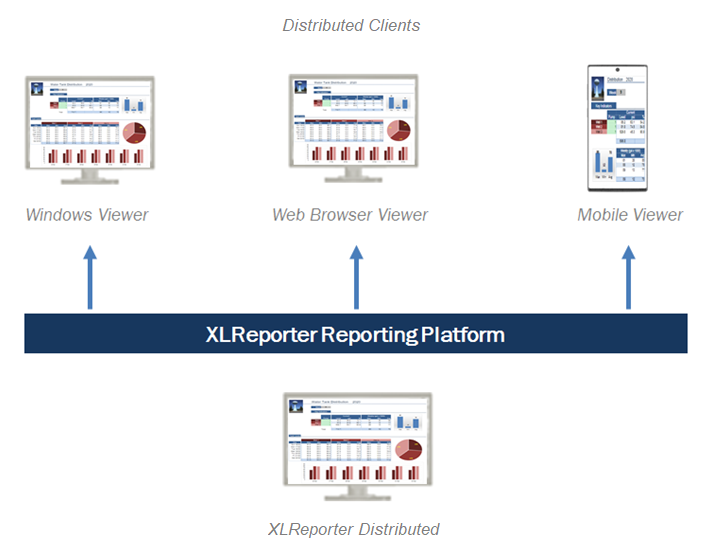 |
Reports can be viewed from both the Web Portal and the Distributed Windows Clients. For more information, see REPORT, Setup the Web Portal.
If annotating, e-signatures, template access protection and/or auto refresh are required, it is recommended to use the Distributed Windows Client.