Setup
Enable Read API
In Canary Labs, the Read API needs to be enabled so that clients like XLReporter can access historical data.
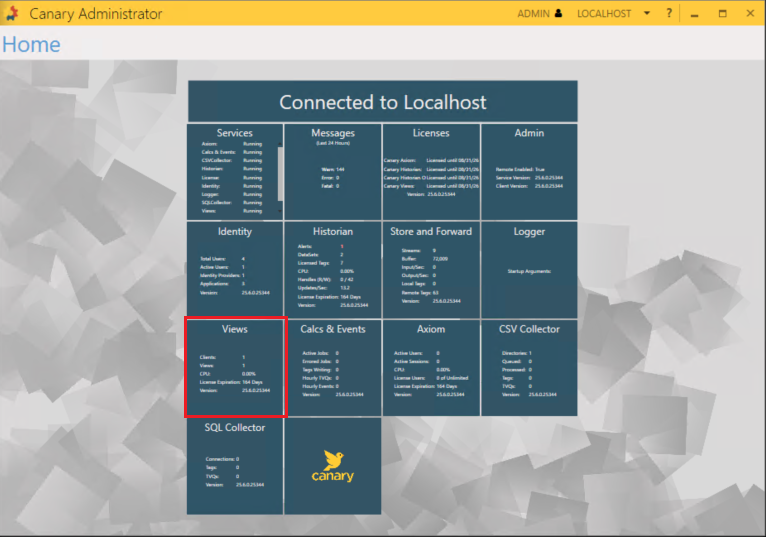 |
From the Canary Labs Administrator utility, under Home, select the Views service tile.
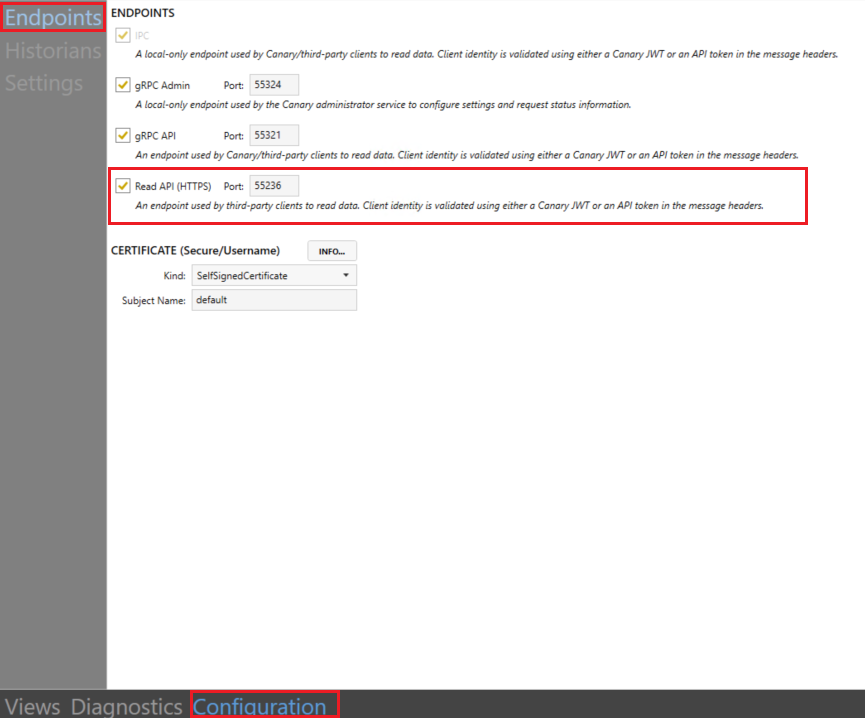 |
At the bottom, select the Configuration option. On the left, select Endpoints. Check the Read API (HTTPS) option. Be sure to note the Port setting as any client (including XLReporter) will need this in order to connect. By default, this is 55236.
API Token
In order for XLReporter to connect to the Canary Labs READ API, an API token needs to be generated within the Canary Labs Administrator utility and provided to the connector in XLReporter.
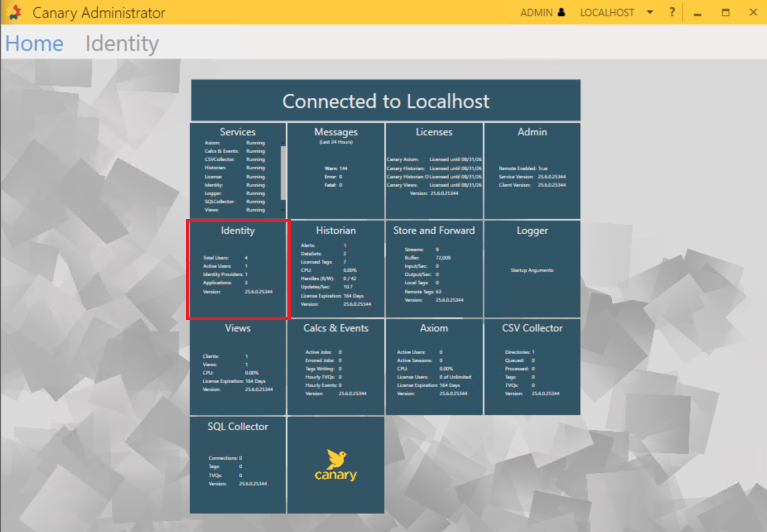
From Home, select the Identity service tile.
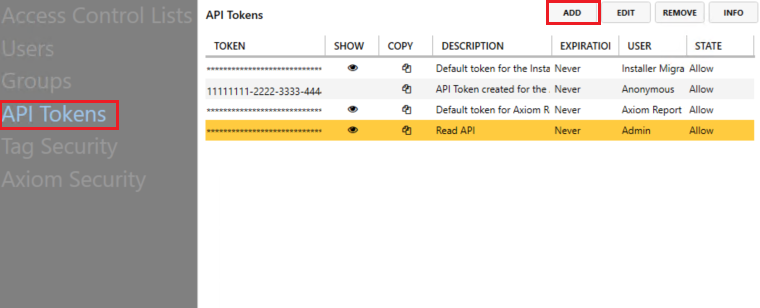
On the left, select API Tokens. On the right, click ADD to add a new API token.
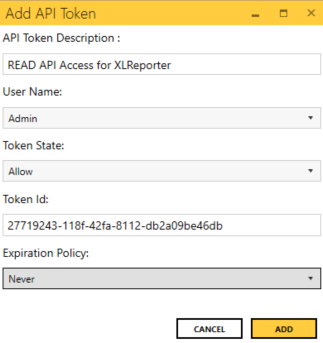
Fill out the following information:
For User Name, select a user that has access to the historical data you want XLReporter to report on.
For Expiration Policy, if you set a specific date, be aware that after that date, XLReporter will not be able to access the historical data without providing a new token.
Click ADD to add this token.
Click Apply to save the token.
Once added, you can copy the API Token ID so that you can use it with any application that can interface with the Read API.