SQL Server Prerequisites
Verify Database
To verify, open Microsoft SQL Server Management Studio and connect to the SQL Server instance where the AVEVA Historian database is configured.
Once connected,
Expand the Runtime database.
Expand Views.
Select the Tag view.
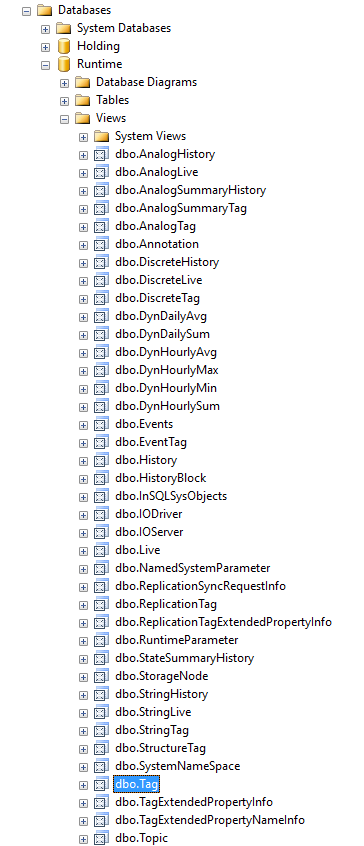 |
Right click the Tag view and choose SELECT TOP 1000 Rows. This should display data from the view representing the tags configured in the historian.
If the database or table does not exist or no data is displayed, contact AVEVA technical support to troubleshoot and correct these issues.
SQL Server Considerations
When using SQL Server there are some things to take into consideration including remote connectivity and user authentication. For information on what to consider, see the setup document for Microsoft SQL Server.