Weave Into Range
The Weave Into Range function weaves a Collection range into the Apply To range, preserving the formatting of each if requested.
The function compares each value in leftmost column of the Collection range to the leftmost column of the Apply To range. When a match is found, the row in the Collection range is placed into the Apply To range based on the Weave Mode setting. If a match is not found, then the location of the closest match is determined. Note that the values of the leftmost column of the Apply To range must be ordered.
Settings
Settings | |
|---|---|
Weave Mode | This setting determines how the values from the Collection range are written to the Apply To range.
|
Use Collection Format | If set to Yes when values are copied from the Collection to the Apply To range, the format from the Collection is pasted with it. Otherwise, the formatting of the Apply To range is used. |
Add Grouping | Grouping allows rows or columns to be shown and hidden in a worksheet. When grouping is set on a number or rows or columns a button is added to the left or top that allows you to expand or contract the rows or columns on the sheet. This can be added automatically to the rows or columns of data woven in from the Collection range so that data can be easily shown or hidden within the Apply To data by setting Add Grouping to Yes. |
Initial State | If Add Grouping is set to Yes, this setting determines if the Collection data is Expanded or Collapsed when the report is initially generated. |
Clear Collection | This setting determines if the Collection range is cleared after the function is complete.
|
Example
Combine alarm data into process data.
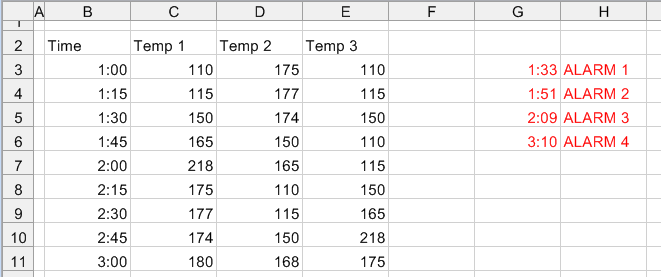
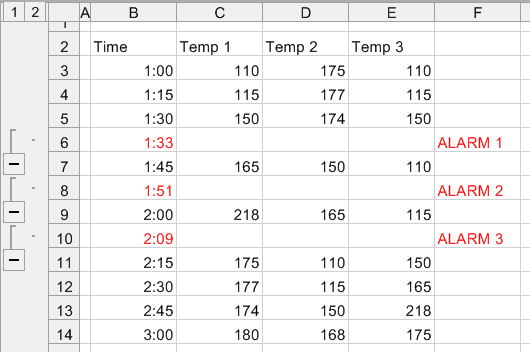
Apply To | |
|---|---|
Cell | $B$3:$E$3 |
Direction | Down |
End | All cells are empty |
Collection | |
|---|---|
Cell | $G$3:$H$3 |
Setting | Value |
|---|---|
Weave Mode | Column Insert |
Use Collection Format | Yes |
Add Grouping | Yes |
Initial State | Expanded |
Clear Collection | All |