Data Entry with Advanced Settings
Setup a Data Entry Connector
This section can be skipped if the connector was setup in the previous chapter.
From the Connect tab on the right-side Tools menu of the Project Explorer select Connectors.
 |
Click Add.
Expand XLReporter and select the Manual Data Entry values connector.
Enter the Connector Name and the connection to the Primary Database.
 |
If you do not have a database, use or make a copy of the Access database called DB_Form.mdb, located in the Data folder of the project.
Variables
As you have seen the variables {Form Start} and {Form End} are used in Data Entry Forms to restrict what the user is shown in the form. However, these are not the only variables that can be used in a Data Entry Form.
This chapter takes you through an advanced, custom form where not only is the date specified but also the specific name of a compressor to populate the form.
Before creating the form, define this variable for later use. From the Project Explorer, under the Connect section on the right, open Variables.
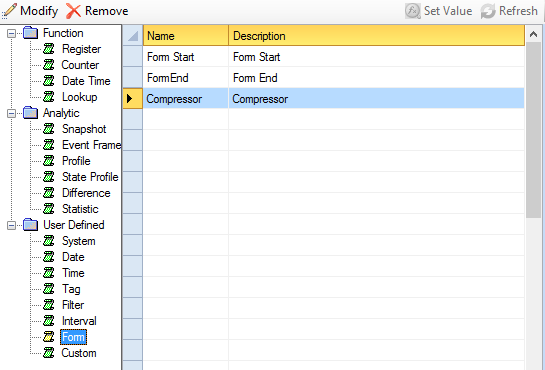 |
On the left select User Defined, Form.
Highlight the next available row on the right.
Click Modify.
Set Name to Compressor and an optional Description
Click OK.
Close the Variable Editor.
Design a Data Entry Template
Data Entry Form can address a wide range of data entry requirements and can contain powerful features such as calculations, formatting, and validation. Their design is performed in the Template Studio or from the add-in in Microsoft Excel.
This example demonstrates the flexibility of data entry forms by a Custom template with advanced settings for the display filter.
Open the Template Studio from the Project Explorer under the Template Design section by selecting Studio
Select XLReporter, Template New (Excel) or File, New (XLReporter Template Studio).
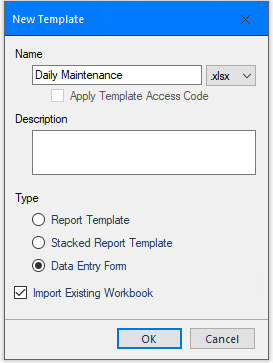 |
For the Name enter Daily Maintenance and an optional Description
Under Type, select Data Entry Form
Check Import Existing Workbook
Click OK and choose the file maintenance-log.xlsx
Layout
The form contains workbook features such labels, headings, formatting.
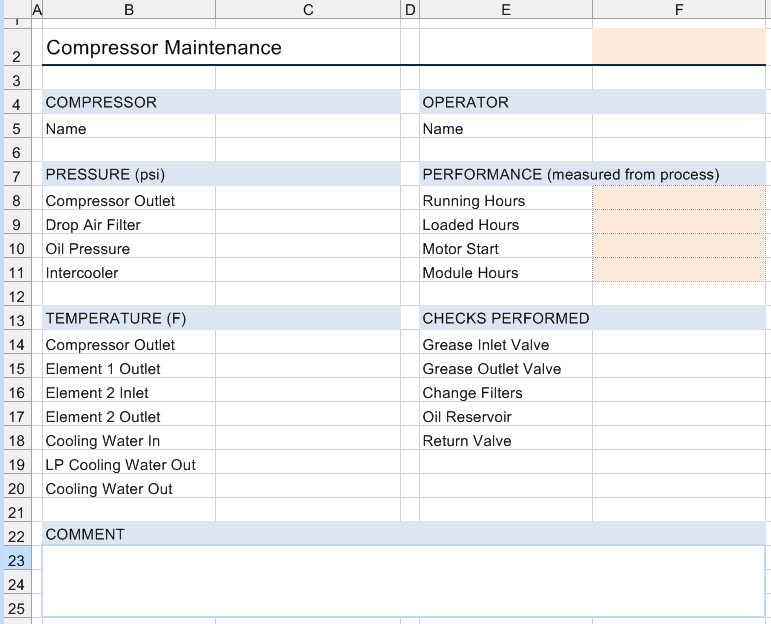 |
The above form example requires the data collected during the maintenance of compressors. If sensors are fitted, the shaded cells are filled automatically otherwise this would also be done manually.
Create a Database Table
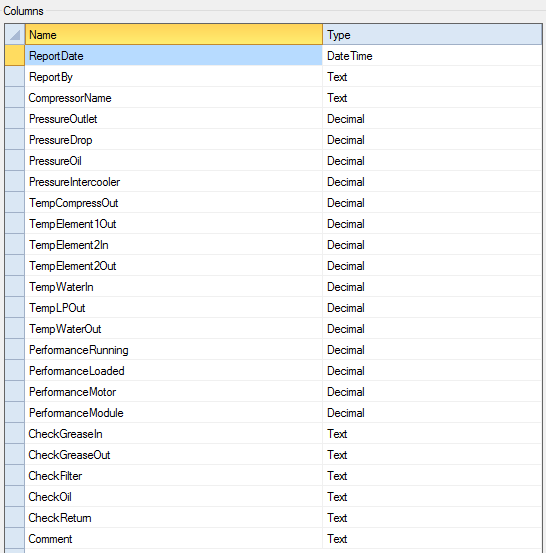
A database table is needed to receive the data entry values when they are entered. When creating a database table, choose column names that reflect the information in the form.
Open the Database Manager by selecting Connect, Tools, Database Manager (Template Studio) or XLReporter, Tools, Database Manager (Excel).
 |
Select the data connector defined in the previous section.
Click Add to add a new table.
Enter a Table Name e.g., Compressor.
Check Record Locking.
Under Columns, specify the column Name and Type according to the above image.
Click Accept and Close.
Data Link
To link the template to the table created in the previous section, select XLReporter, Data, Link (Excel) or Connect, Data, Link (Template Studio).
Setup Tab
The Setup tab is used to specify the connection and appearance of the form.
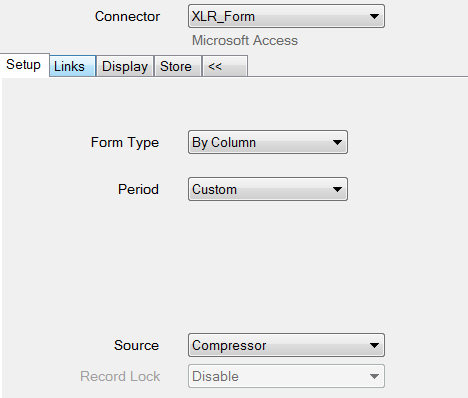 |
Set the Connector to the form connector configured in the previous section.
Select Form Type By Column
Period Custom
The Source shows a dropdown list of all the tables in the connector.
Select the table created in the previous section
Links Tab
The Links tab determines associates the Cell(s) on the form and Column(s) in the database table.
No database links can be configured for the A column. This column is reserved by the application to indicate the status of the row by a color indicator.
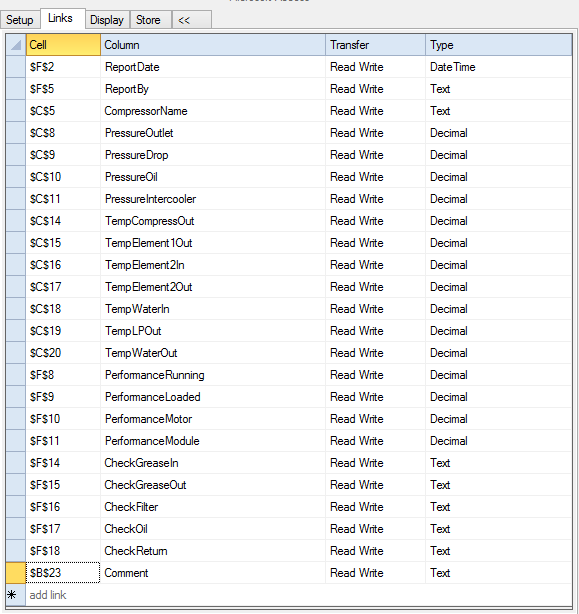 |
Assign the Cells and Columns as displayed in the image above
Display Tab
The Display tab is used to determine what is displayed on the form.
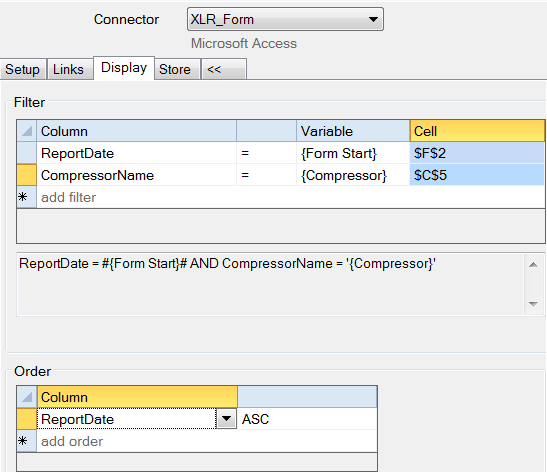 |
Set the Filter and Order as displayed in the image. Note that for CompressorName the drop down in the Variable column gives {Compressor} as a choice.
Whenever variables are used in a form, consideration must be given on the input mechanism that is used to assign its value (this is by the On-Demand Designer discussed later). By default, variables representing a date use a date picker and all the other variable types use a text box.
Note that the variable values are placed in the cells indicated by the Cell parameter.
Store Tab
The Store tab indicates which record is updated in the database. Careful selection of this setting is required to make sure only one record is updated. In this example, the ReportDate and the CompressorName columns are used.
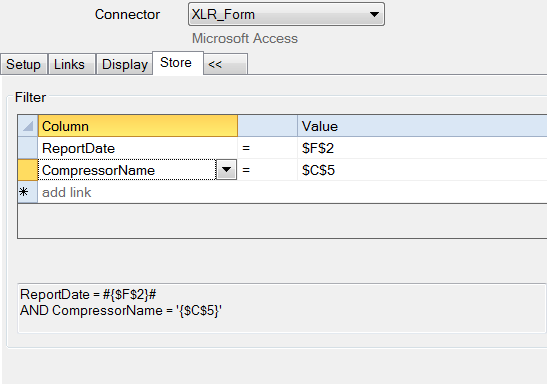 |
Configure to match the image above
Click Save to save the changes. Close the Data Link window.
Deploy the Template
To perform data entry, open the Data Entry Forms application which can be done from the command line, clicking Preview in the Template Studio or from the Project Explorer right side under Report Data Entry Forms.
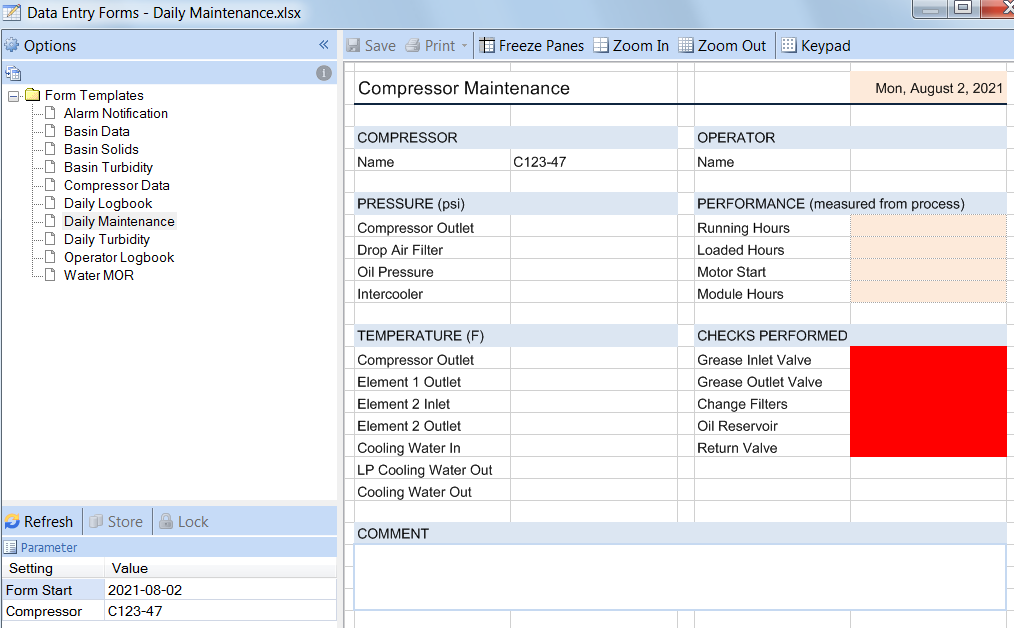 |
Enter a value for the Form Start and Compressor. If a record exists, it will be displayed otherwise a new form is shown prefilled with the values entered.
A form cannot be saved until all the required field are complete (shown in red).
On Demand Designer
The input panel to drive the content of the form consisted of a date picker and text box. Using the On Demand Designer, these input methods can be refined.
From the Design Studio select On-Demand Designer.
 |
Highlight the row containing Form Start.
Change the Prompt to Current Date.
Click Update.
Highlight the row containing Compressor.
Change the Source to Custom List
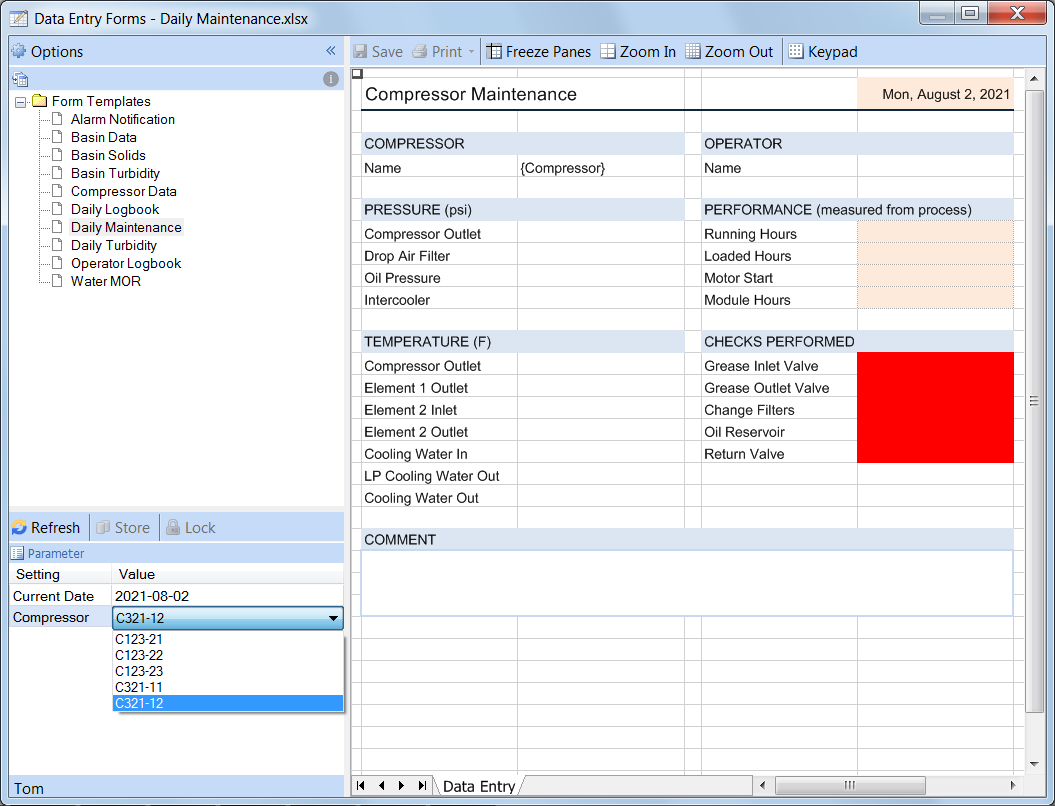
Click […] to the right of List and enter a list of compressor names. The Display parameter is shown to the user and the Value parameter is stored to the database.
Click Update.
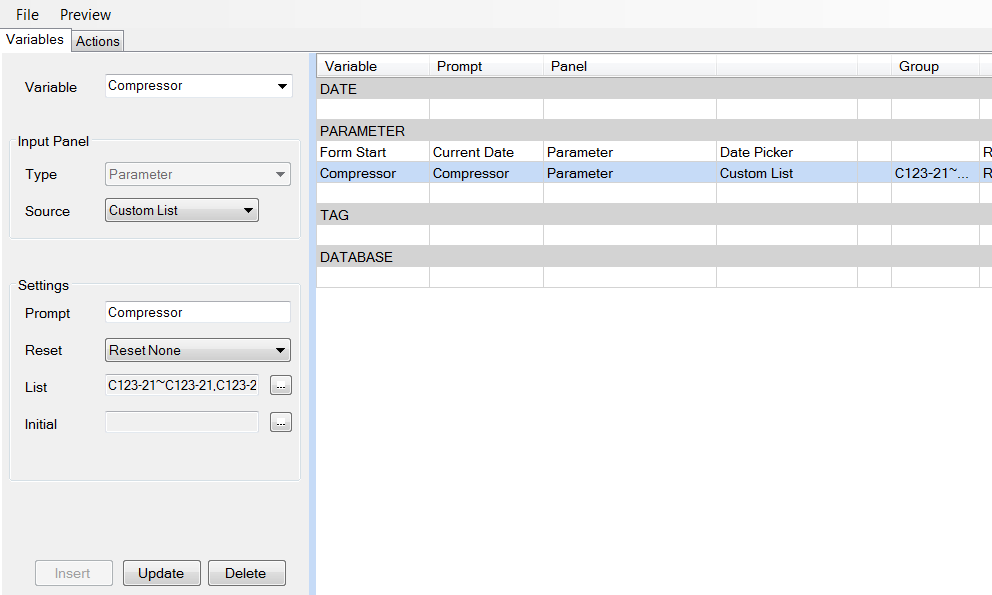 |
Click Preview. This shows you what the left side of the Data Entry Forms application will present.
Click File, Save and exit
When the form is opened for data entry, the changes made above will appear.
 |
Please refer to the Design On-Demand Reports documentation for detailed information on Input Panels.