Set up FactoryTalk View SE Data Agent
The FactoryTalk View Data Agent can be installed for FactoryTalk View SE version 10 to version 14.x on a FactoryTalk View SE stand-alone system, the FactoryTalk View SE server or any FactoryTalkView SE client. To obtain the FactoryTalkView SE Data Agent installation media, please contact SmartSights. You must provide your FactoryTalk View SE product serial number to be eligible.
After installation, the configuration for Data Agent must be updated so that any machine on the network can request data. To do so, open RA.DataAgent.SDK.Service.Host.exe.config using a text editor like Notepad. This file is typically found in C:\Program Files (x86)\Rockwell Software\RSView Enterprise\Data Agent SDK.
In the text file, replace every instance of localhost with the IP address of the machine, save the file and close it. After closing it is recommended to restart the Rockwell Data Agent Windows Service.
FactoryTalk View SE
For XLReporter to collect data through the FactoryTalk View SE Data Agent, the application must be running.
Define Data Log Models
Open the FactoryTalk View SE Studio from the Rockwell Software or FactoryTalk View program group then open the current application.
Under the Data Log folder in the Explorer, select the Data Log Models icon.
Under the Setup tab:

Add a Description and Log File Identifier String.
Set the Storage Format to File Set.
Under the Paths tab:

Set the Primary Path to where the files are stored.
Under the File Management tab,

Specify how often you want new files created. It is suggested to create Periodic files that start Daily (Change at Midnight).
Indicate if old files should be deleted under the Delete Oldest Files section.
Under the Log Triggers tab,

Specify how the logging of tag values will be triggered i.e., periodically, on change or on demand.
The On Demand option will log data when the DataLogSnapshot command is issued. This command can be issued from anywhere that commands and macros are supported. For example, it could be typed in the command line or specified as the action for an event. If Periodic or On Change is selected, on demand logging can still be used whenever it is appropriate.
Under the Tags in Model tab,
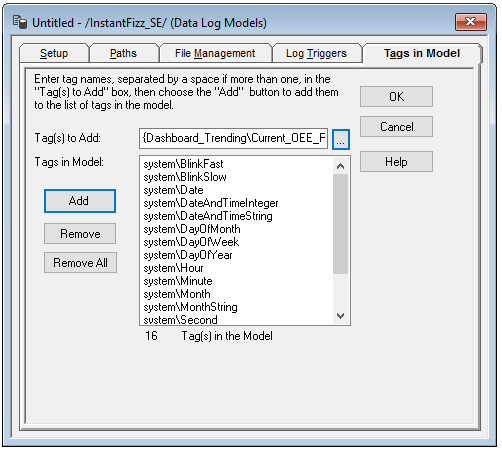
Specify the tags to be logged.
The maximum number of tags that can be logged by one data log model is 10,000.
Close the dialog.
On close the Save dialog is opened.

Add a Component name. This is the name of the Data Log Model.
Start Data Log
To start the data log when FactoryTalk View SE starts, access the HMI Properties dialog.
 |
Right click on the application and select Properties.
Under the Components tab,
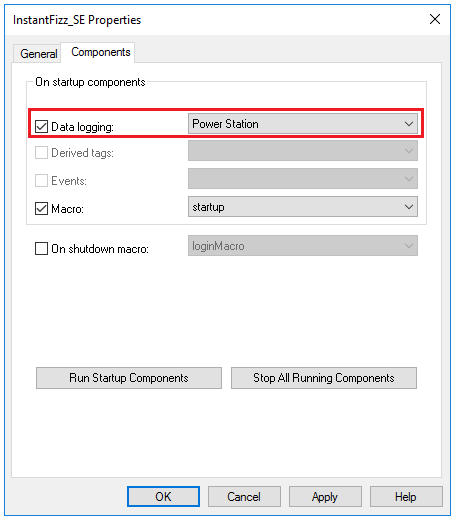 |
Check Data Logging and select the data log model.
If more than one data log model needs to be started, they can be started using the command:
DataLogOn “Component name”
Where “Component name” is the data log model name. If the model’s name has a space in it, enclose the name in quotes. The command can be issued from the command line or from a startup or login macro. For example:
DataLogOn"Power Station"
Note that in FactoryTalk View SE, an HMI server can have up to 20 data log models running at one time.
Windows Firewall
For details on what to configure in the Windows Firewall, see the Windows Firewall section of the FactoryTalk View SE Data Agent Real-time values chapter of this document.