Function Variable
Function Variables are read-write variables that are saved permanently so that their values can be re-used at different times across different reports. The variables are used to hold numbers, text and timestamps.
The Function Variables provided are:
Register
Counter
Date Time
Lookup
Register
A Register variable is a placeholder for a value.
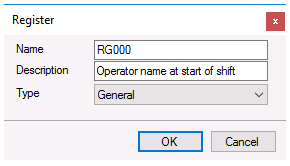 |
To assign a value to a Register:
Action: Set ‘Variable Name’ ‘Value’
Scheduler: Set a Value to Variable
In addition, a Register variable can be set using the Data Management, Data Export To Variables and To Variable List functions. These functions can be used to set Register variables to values in cells on the worksheet.
Example: Use a Register to hold the naming convention of a report and use it while the report is being updated over a period of time.
The variable provides the following Fields:
:Cval (current value, optional)
Counter
A Counter variable maintains a count.
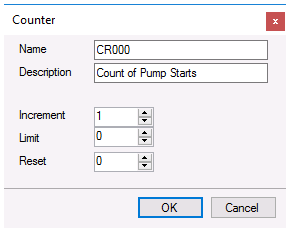 |
When used, it increments its value by the Increment to a maximum value of Limit at which point its value is Reset. If the Limit is zero (default) then there is no limit.
To reset a Counter:
Action: Reset ‘Variable Name’
Scheduler: Reset a Variable
To change a value by the Increment:
Action: Update ‘Variable Name’
Scheduler: Update a Variable
Note that if a counter is used in a template for the connection Placement then an Update is performed automatically when the report is updated.
The variable provides the following Fields:
:Cval (current value, optional)
:Incr (increment)
:Lmit (limit)
:Rset (reset)
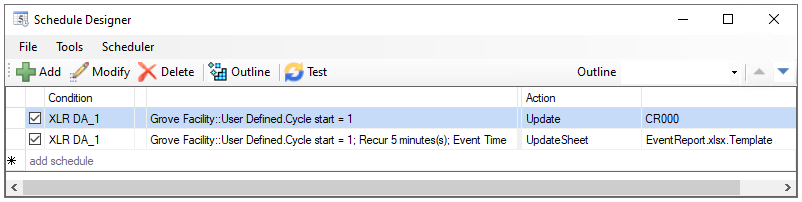
Example: Use a Counter as part of an expression. Using the Counter called Index to increment each time an event occurs and use it in an expression EventReport_{CR000} as the naming convention of an event report with the schedule configured similar to the image below:
 |
Date Time
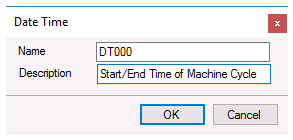
A Date Time variable is a placeholder for the start and end timestamps and durations of events.
 |
To store the start date and time to a Date Time:
Action: Reset ‘Variable Name’
Scheduler: Reset a Variable
To store the end date and time to a Date Time:
Action: Update ‘Variable Name’
Scheduler: Update a Variable
The DT variables can be Set from the Set Value to a Variable schedule action, however only the Date(:Date), Time(:Time), End Date(:Edat), and End Time(:Etim) fields can be set this way. The universal date time fields will play off these values.
The variable provides the following Fields:
:Stdu (start date and time in universal format YYYY-MM-DD HH:mm:ss)
:Stdt (start date and time in local format)
:Date (start date in local format)
:Time (start time)
:Endu (end date and time in universal format YYYY-MM-DD HH:mm:ss)
:Endt (end date and time in local format)
:Edat (end date in local format)
:Etim (end time)
:Span (span in the format DD:hh:mm:ss)
:Spdy (span in days)
Example: A machine cycle report uses Date Time variable MachineCycle to hold the start and end time of the cycle. This variable can be used for the time period of a data group.
Lookup
A Lookup variable uses a lookup table to provide up to four text values from an input value (X). Note, that if X is set to a non-specified value it will be ignored and contain the last good specified value it was set to. X values are case sensitive.
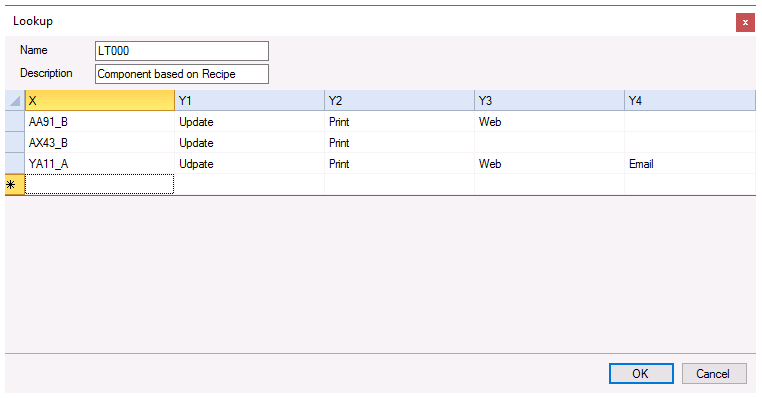 |
To assign values to a Lookup:
Action: Set ‘Variable Name’ ‘X Value’
Scheduler: Set a Value to Variable
The variable provides the following Fields:
:X (X value)
:Y(1 to 4) (Y values)
Example: A template is configured with 10 group connections, each adding their own data to the report. In a batch cycle, a batch phase activates a combination of groups to produce the report for that phase. Use a Lookup function where X is the phase ID and Y are the group combinations.