Report
Report Names
Report Names define the naming convention for the reports generated from the template. The naming rule is also applied to published PDF files and Web Pages.
Names can be specified at both the workbook and worksheet level.
Note that with the XLReporter Template Studio, if you specified the Report Period settings when creating the template, Report Names are defaulted based on these to produce a new report workbook for every period (e.g., a workbook every day).
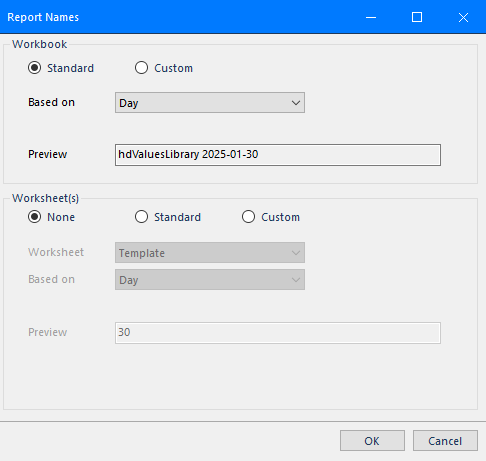 |
Workbook
Standard
The Standard workbook settings provide a simple way to specify the naming convention for report workbooks produced from this template.
The Based on setting provides common time periods for the workbook along with the option to select a specific value from a configured Event Frame.
Preview displays what the name of the workbook would be if generated today (note, the preview display is not available for an Event Frame).
Custom
The Custom option allows you to customize the name of the report workbooks produced from this template as well as the subfolder(s) where the reports are stored on the machine. Browse pushbuttons (…) are provided to help specify these settings.
Both the subfolder(s) and name can contain a combination of:
Static Text
Text can be included in any part of the mask.
Date/Time
Date and time formats.
Variable
A Variable, enclosed in {}, can be included in any part of the mask provided its value does not violate the Windows file naming convention. The value of the Variable is normally assigned before the template is used. For example, use a custom variable {BatchName} in the mask and set the value of {BatchName} to the value of a PLC tag.
The Overwrite Existing Report Workbook option can be used to overwrite the existing report workbook if it exists when the template is updated.
Worksheet(s)
None
None indicates that no report worksheets are created in the report workbook.
Standard
The Standard worksheet settings provide a simple way to specify the naming convention for report worksheets produced from a specific Worksheet in the template workbook.
The Based on setting provides common time periods for the worksheet along with the option to select a specific value from a configured Event Frame.
Preview displays what the name of the worksheet would be if generated today (note, the preview display is not available for an Event Frame).
Custom
The Custom option allows you to customize the name of the report worksheets produced from one or more worksheets in this template. To configure, select the row with the sheet listed and click Modify. An Overwrite option is provided to overwrite the existing worksheet in the report workbook if it exists.
In addition to the list of specific worksheets in the template workbook, default is listed as a way of specifying a default report worksheet that would apply to any worksheet in the book.
The Hide Template sheet(s) in reports is provided to allow for hiding template worksheets in the report workbook so sheets without data are not visible.
Schedule
The Schedule option opens a slimmed-down version of the Schedule Designer where actions are configured specifically for this template to produce, manage and distribute reports on time and/or based on process events.
Note that if the Report Period and Data Interval were specified when creating the template, the action(s) to generate reports from the template appear by default. Click OK to save these to the running scheduler.
Once saved, the actions for this template appear in the Schedule Designer with a filter on the left named after the template.
For more information on what is available for the schedule, see Deploy Scheduled Reports.
On-Demand Designer
The On-Demand Designer is used to configure a template to generate reports on demand. This includes configuring parameters for the user to specify and setting the action(s) necessary to generate the report.
For more information, see Design On-Demand Reports.
Preview
The Preview option is used to preview the template as a report using the On-Demand Reports application.
For more information, see Deploy On-Demand Reports.