Copy Sub Report Range
The Copy Sub Report Range function behaves like the Copy Range function in that the content of the Source range is copied and pasted to the Placement defined. This includes any content, formatting, formulas, charts, column widths, row heights and outlining.
This function also copies any data connections in the Source, either Data or Manage.
Example
A template workbook is configured with two sheets: Template and Report.
The Template has a content in a range of cells in B4:F6 with a history connection in cell $B$6 (assigned to Group 1).
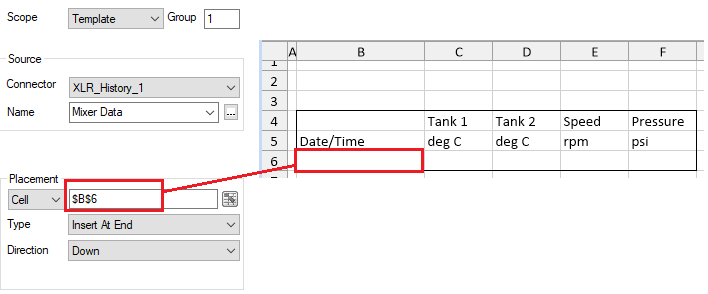 |
The Mixer Data history group in this example is defined to return 24 rows.
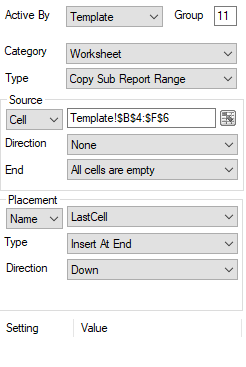
A Copy Sub Report Range management connection is configured to copy the range $B$4:$F$6 from the Template sheet to the named cell LastCell on the Report worksheet (assigned to Group 11). .
 |
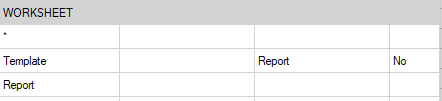
The Report Names are defined with the target worksheet of Template is Report so any data connection applied to the Template sheet is copied to Report.
 |
When the Copy Sub Report Range function is performed, $B$4:$F$6 from Template is copied to LastCell $B$2 in Report (see the Placement Name above).
When the template is processed by an update of Group 11 followed by a Group 1 the following happens:
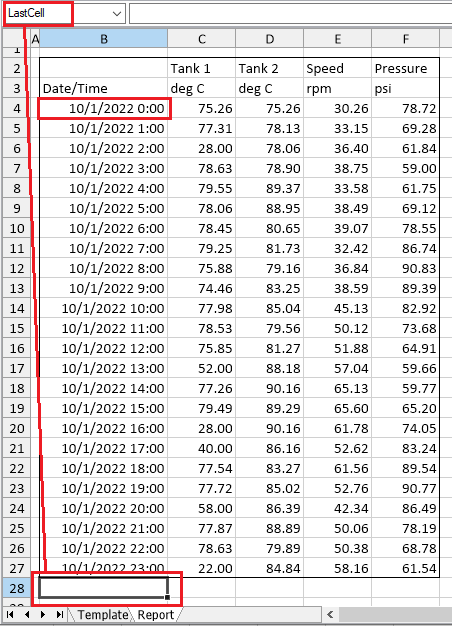
The sub report is copied from the Template to the call Last Cell in the Report (group 11)
The history data is added to the Report (group 1)
Because the history data is configured to Insert, the cell Last Cell is moved down in Report equal to the number of rows inserted.
 |
If this process is repeated to different sub reports (each with its own connections) and they target LastCell, a stacked report of varying sub reports can be achieved.
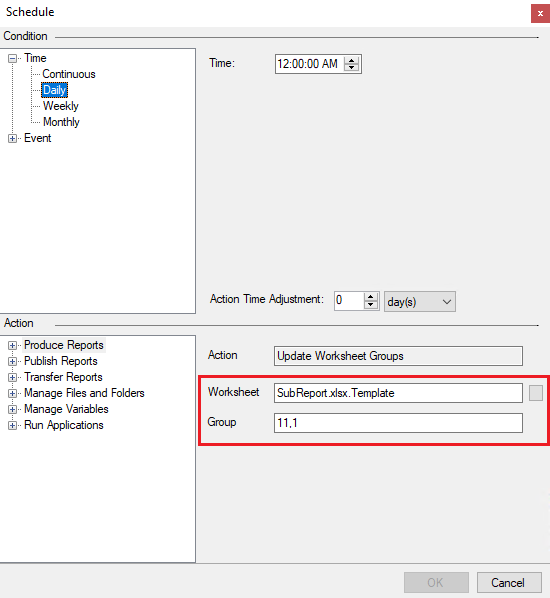
To initiate the processing from the scheduler, the Update Worksheet Groups Action is used with the appropriate group numbers e.g., 11,1.
From the scheduler this would be:
 |