Set up Data Log Models
Open the FactoryTalk View SE Studio from the Rockwell Software or FactoryTalk View program group then open the current application.
Under the Data Log folder in the Explorer, select the Data Log Models icon.
Under the Setup tab,
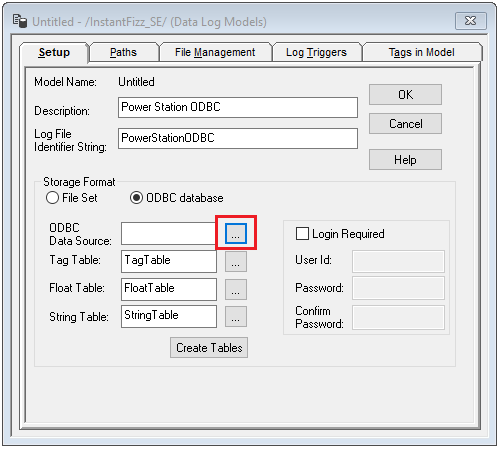
Add a Description and Log File Identifier String.
Set the Storage Format to ODBC database.
For ODBC Data Source click the browse pushbutton […]
Select the System Data Source tab. Use an existing DSN or select New to create a new one. For a new DSN,
 |
Select System Data Source.
Click Next.
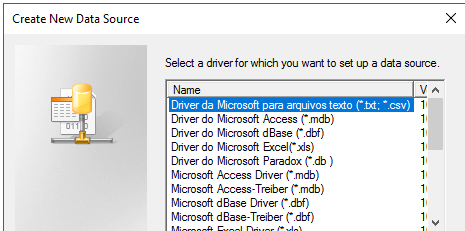
Select the driver to make the connection the data source.
 |
SQL Server/SQL Express Configuration
It is highly recommended to use SQL Server or SQL Server Express as the data source for the Data Log Model. SQL Server Express is a free and downloadable from Microsoft’s website. For SQL Server or SQL Server Express,
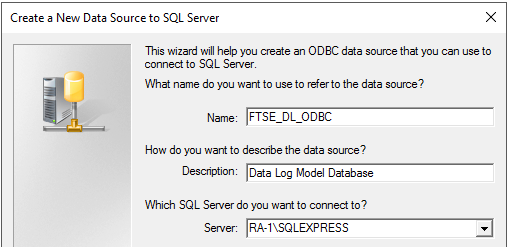 |
Enter a Name, Description and select Server. If the Server is not listed, enter it manually.
Click Next.
 |
Select the authentication type

Click Next
Select the default database.
Click Finish.
The DSN configured should now be set as the ODBC Data Source.
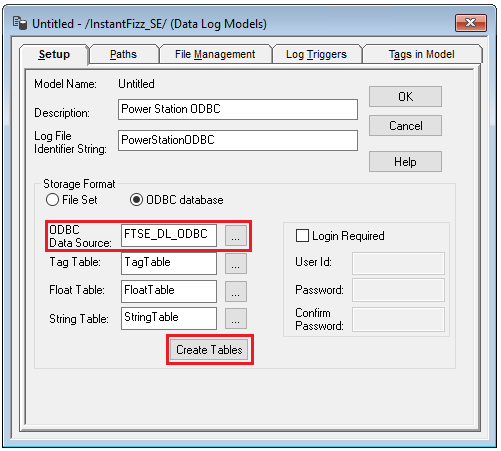 |
Click Create Tables.
Note
Under the Paths tab the ODBC Backup Path can be enabled so that if the database is unavailable, data is not lost.
 |
The total number of characters and spaces allowed for the path and name is 255.
Note
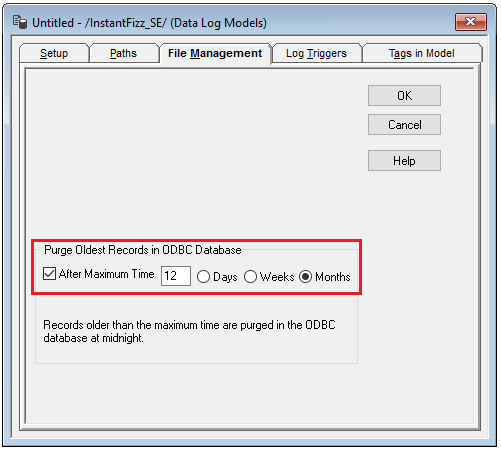
Under the File Management tab, the Purge Oldest Records in ODBC Database option is available to periodically remove old historical data from the database.
 |
Under the Log Triggers tab,
 |
Specify how the logging of tag values will be triggered i.e., periodically, on change or on demand.
The On Demand option will log data when the DataLogSnapshot command is issued. This command can be issued from anywhere that commands and macros are supported. For example, it could be typed in the command line or specified as the action for an event. If Periodic or On Change is selected, on demand logging can still be used whenever it is appropriate.
Under the Tags in Model tab,
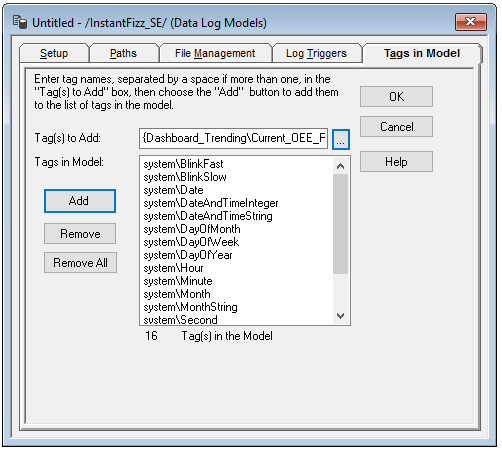 |
Specify the tags to be logged.
The maximum number of tags that can be logged by one data log model is 10,000.
Close the dialog.
On close the Save dialog is opened.
 |
Start Data Log
To start the data log when FactoryTalk View SE starts, access the HMI Properties dialog.
 |
Right click on the application and select Properties.
Under the Components tab,
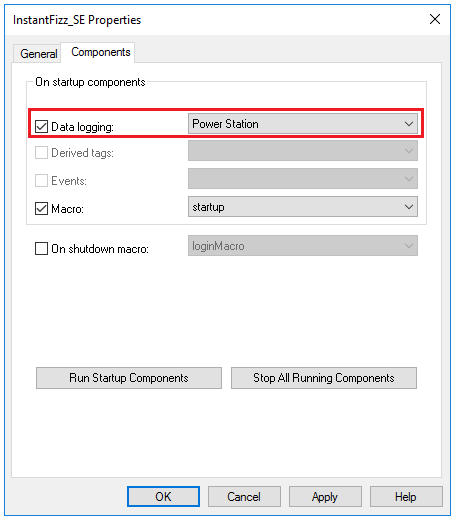 |
Check Data Logging and select the data log model.
If more than one data log model needs to be started, they can be started using the command:
DataLogOn “Component name”
Where “Component name” is the data log model name. If the model’s name has a space in it, enclose the name in quotes. The command can be issued from the command line or from a startup or login macro. For example:
DataLogOn"Power Station"
Note that in FactoryTalk View SE, an HMI server can have up to 20 data log models running at one time.