Reporting from Analytics
Overview
There are two options available to report from analytics, either real time or historically (if analytics are configured to store to a database).
Real Time Analytics
The real-time values of analytics are the last Stored values and are accessed by Variables. The syntax of a variable is {Name:Field} where Name is the name of the analytic and Field depends on the analytic category (see above).
For example, the maximum value of a Statistic analytic called Mixer would be referenced by {Mixer:Maxm}.
Common usage of Analytic variables is in a Report Template or as parameters in data groups.
In a Report Template, add a data connection, select the cell that will receive the value and click the Connect button on the ribbon to open Data Connections.
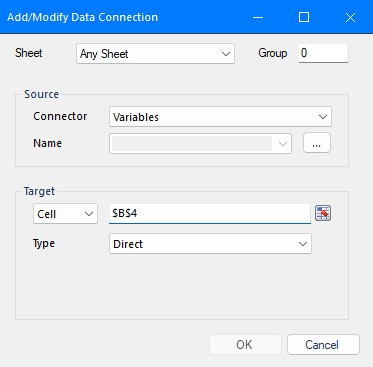 |
In Data Connections,
set the Connector dropdown list to Variables.
select the […] button next to the Name field, this will list the available variables configured within the project.
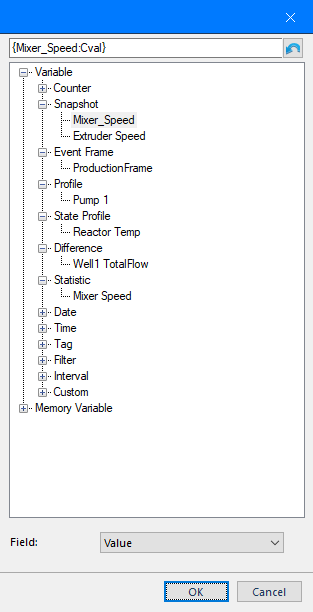 |
When an analytic is selected, the Fields for that analytic are displayed at the bottom.
Historical Analytics
Analytics can be configured to Store to a database and retrieved using an Analytic Group in the report template.
Analytic Group
The Analytic Group is similar to the History Group and so detailed information can be found in the History Group documentation.
To report on data from historical analytics, an analytic group must be configured. One way to do this is directly from the project explorer using Connect, Connector Groups or from within a template using Data Connections.
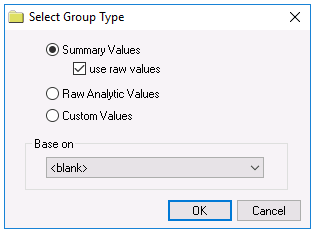 |
The following group types are available:
Summary Values
This group type retrieves values in the database and provides additional summary calculations.
By default, the summary values are time-weighted and values are propagated based on the last known value. To change this so that summary values are calculated strictly on the data returned, check use raw values.
Raw Analytic Values
This group retrieves the values in the database.
Custom Values
This option opens the Database Group builder where a query can be configured to retrieve data from any table in the database.
Group Settings
Setup Tab
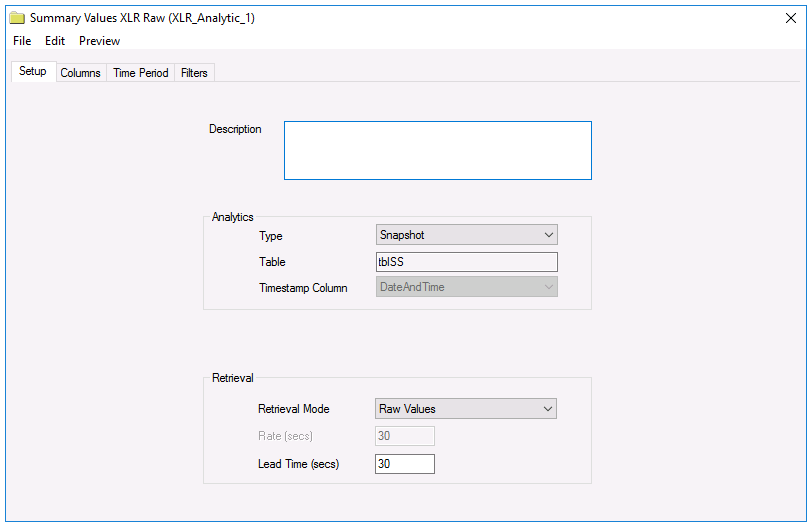 |
Analytics
This section defines which Analytic Type is used for the selected Columns.
Retrieval (Summary Values Group)
The Retrieval settings define how much data is retrieved for the calculations selected for the summary calculation. The following settings are available:
Retrieval Mode
This setting defines how data is retrieved from the historian. For Analytics, only Raw Values is available.
Lead Time
The amount of time (in seconds) to retrieve data before the start time of the group (see Time Period tab).
Columns Tab
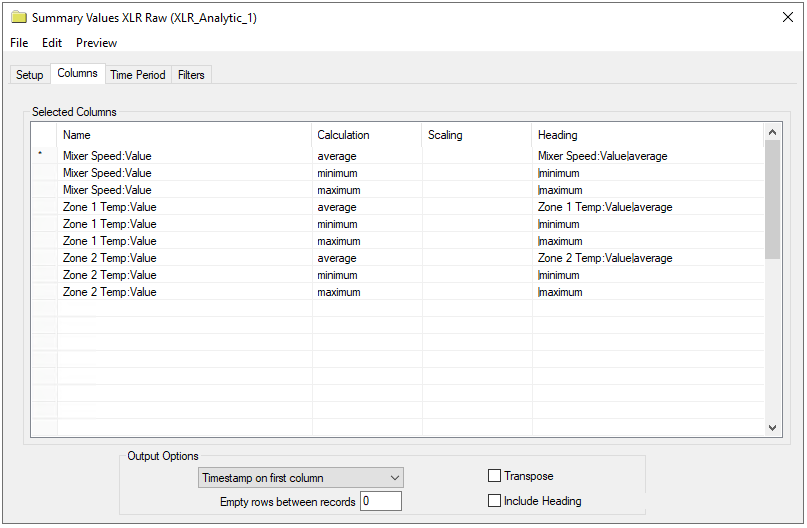 |
The Columns tab defines which analytics are used by the group.
To add an item, select a cell in the Name column, and click the browse button (…) to open the item browser.
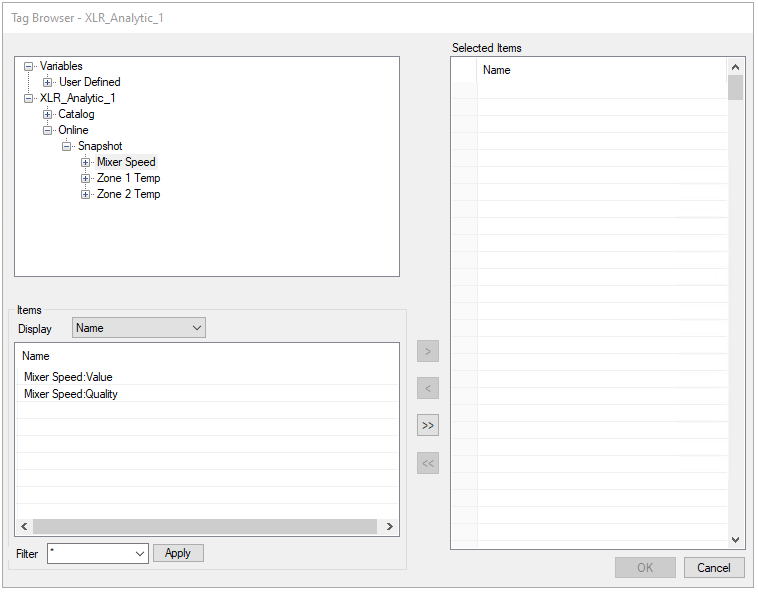 |
In the top left, a Name is selected which can be one of three choices:
Literal
A Literal is the given Name of the item (as configured in the Analytic Designer).
Variable
A Variable (displayed in {}) provides a way to assign the item names externally, e.g., when the group is used on-demand, the item name is selected. Variable names can be selected from the Variables branch of the item browser and can be a User-Defined or a Register variable. User defined variables are not limited to the {Tag X} syntax – these can be assigned to any expression, e.g. {Temperature} or {Pressure} by typing in the name.
Static
A Static (displayed in *{}) is considered fixed text for display only and is not used for data retrieval. In the item browser, select Treat As Text to configure.
Grid rows are moved relative to each other, Inserted or Deleted by right clicking on the left most column or using the up/down and insert/delete keys on the keyboard.
When empty rows are set between two items, the output of the group will contain empty rows/columns. Use empty rows to prevent calculations in the template from being overwritten by the output of the group.
Please refer to the History Data Group documentation for more information on the remaining settings.