File Settings
When the text file content is non-standard the Settings option in File Location and Name can be used for a certain level of customization.
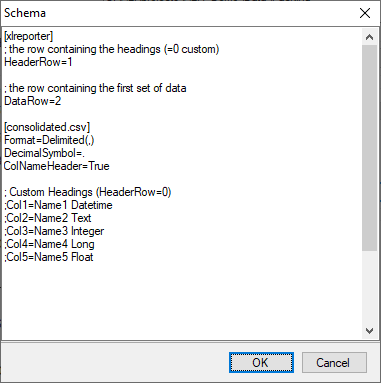 |
There are two sections in this display, one section is [xlreporter] and the other is [consolidated.csv].
A row starting with semi-colon (;) is treated as a comment.
[xlreporter]
Usually, the first row of the file contains the headings and the remaining rows the data. If this is not the case, then set Header Row and Data Row accordingly.
For example, consider the following text file:
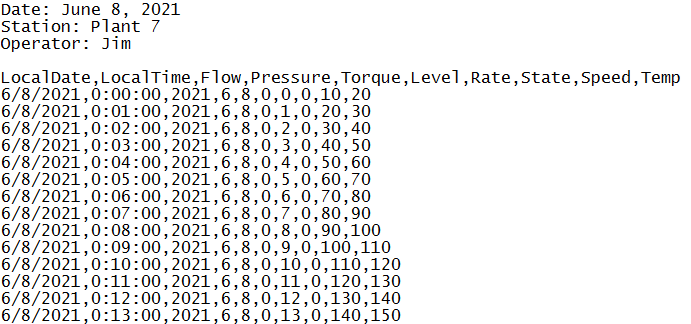 |
The following would need to be specified:
HeaderRow=5
DataRow=6
If the text file does not contain headers, set HeaderRow to 0 and, under the [consolidated.csv] section, set ColNameHeader to False. Since there are no headers, you must add each header manually. See Custom Column Names below for details.
[consolidated.csv]
The settings in this section follow those for the Text File Driver from Microsoft so a detailed description of each can be found on the internet.
Below are some common settings
Custom Column Names
If the text file(s) does not contain headers or the headers that are included are not usable/descriptive, then custom column names can be used.
Add the following for every column in the file:
Colx= Name Type
x is 1 based
Name is the custom name of the column
Type is the column data type e.g., Text
For example, if the file contains a Timestamp, Speed, Pressure, Temperature and Name, the following would be set:
Col1=DateAndTime DateTime
Col2=”Mixer Speed” Double
Col3=”Mixer Pressure” Double
Col4=Temperature Double
Col5="Operator Name" Text
Enclose column names containing a space with double quotes.
Custom Date Format
If the format of the date values in the file is not the same as that of the operating system, then the format must be explicitly stated as follows
DateTimeFormat=Format
Format is a valid Date or Date and Time format.
For example, if the date format in the text file is in universal format 2010-01-01 but the operating system is not, then the following would be set:
DateTimeFormat=yyyy-MM-dd
Note that this format also applies to columns that just contain time. In those cases, the time format should also be added to the setting. For example:
DateTimeFormat=yyyy-MM-dd hh:nn:ss
Notice that minute is denoted as nn.
Max Scan Rows
When determining the column type for each column, the first 25 rows are scanned by default. In some cases, the first 25 rows may not accurately represent what the column type should be. If this is the case, the number of rows to scan must be explicitly stated as follows:
MaxScanRows=X
When set to 0, the whole file is scanned. Note that setting this to 0 could affect performance if there are thousands of rows to be scanned in the file.