Collapse Range
The Collapse Range function removes empty columns from the Apply To range. Before collapsing, any cells containing #REF that cannot be corrected are also cleared.
Settings | |
|---|---|
Extend Rows | This extends the rows of the Apply To range before determining if the column is empty and therefore removed. The syntax is: Rows Above, Rows Below, e.g., 2, 1 to extend the Apply To range 2 rows above and 1 row below what is initially determined. |
Adjust Column Widths | If set to Yes, after collapsing the remaining columns widths are adjusted to fit the data in the column. |
Border Range | This setting allows for an outside border to be drawn around the range after it is collapsed. The border is a thin, continuous (single line) border using the Automatic color. |
Example
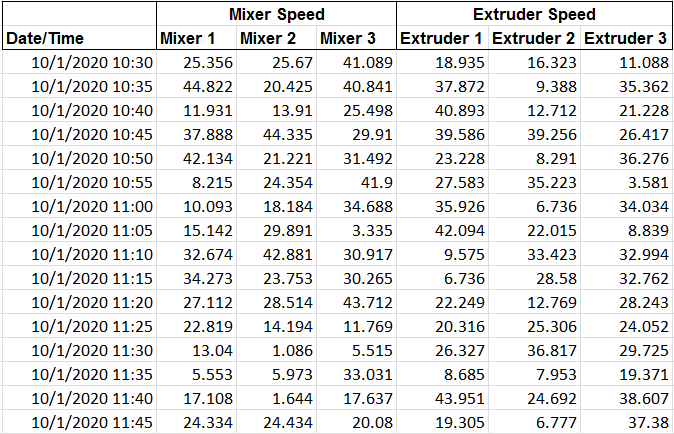
A plant has 3 production lines. Line 1 has 3 mixers and 3 extruders. Line 2 has 4 mixers and 2 extruders. Line 3 has 2 mixers and 4 extruders.
Instead of creating a template for each line, create a single template for the worst-case scenario (4 mixers and 4 extruders).
 |
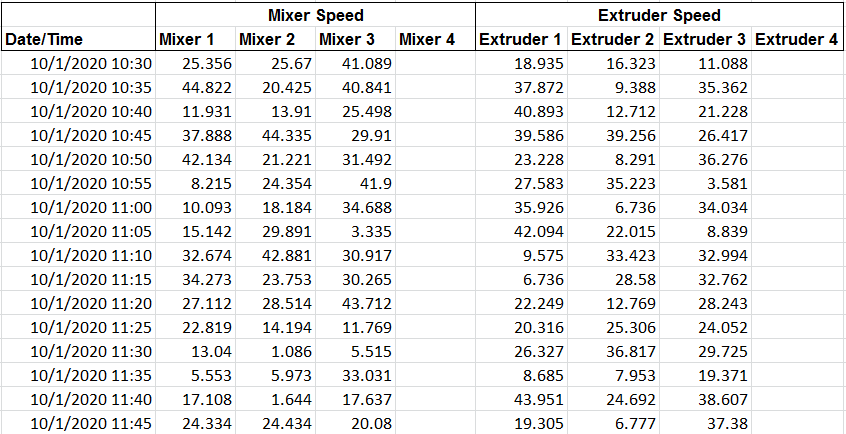
When the report is generated for Line 1 the header is placed in row 1, data is placed in row 3 and empty columns for Mixer 4 and Extruder 4 (since this line does not have these assets):
 |
Now apply the collapse range with these settings:
Apply To | |
|---|---|
Cell | $B$3:$J$3 |
Direction | Down |
End | All cells are empty |
Setting | Value |
|---|---|
Extend Rows | 1,0 |
Adjust Column Widths | No |
Border Range | No |