Prerequisites
Permissions
For any OPC HDA client, including XLReporter, to browse tags and read data, the Guest account must have Browse and Read permissions to the item(s) in the database you wish to make accessible.
In ViewX, on the Database tab, right click the root branch of the tree (the System Name) and select Configure, Edit Security.
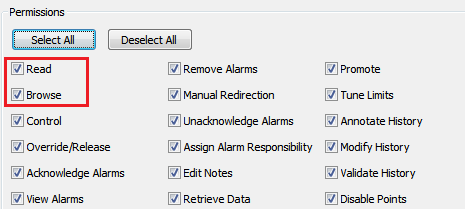
Make sure that either the Guest account or Everyone has at least Read and Browse permissions checked.
Verify Communication
Communication between the OPC server and an OPC client must be verified. XLReporter provides an independent OPC HDA client to verify connectivity and data retrieval from any OPC HDA server. This client can be downloaded from www.SmartSights.com.
To run, double-click SampleClientHDA.exe.
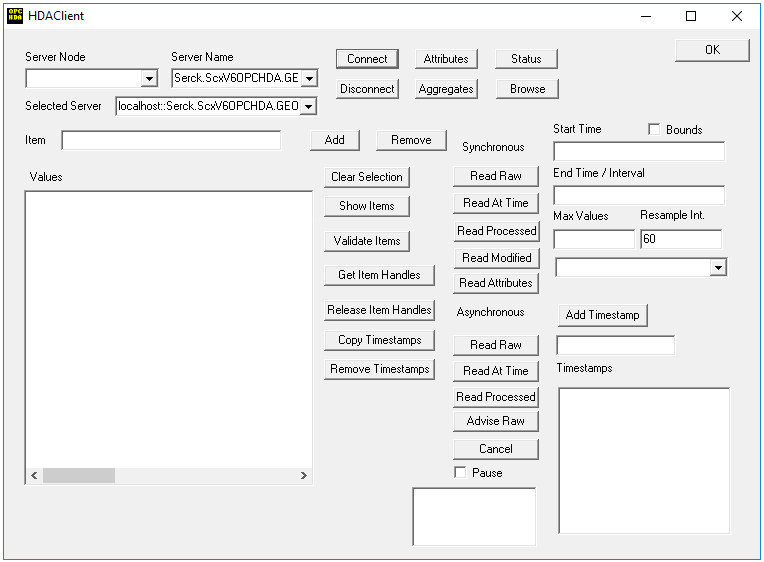
To connect to the Geo SCADA OPC HDA server select the Server Name from the dropdown list and click Connect.
Click Browse to open the Browse Dialog window.
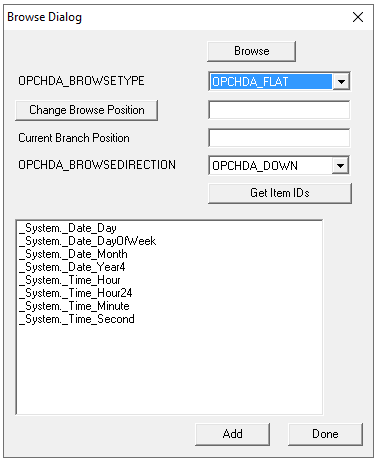
The easiest way to get a list of tags is to set OPCHDA_BROWSETYPE to OPCHDA_FLAT. Choose each tag to test by selecting it and clicking Add. When complete, click Done to return to the HDA Client window.
Click Show Items to display the selected tags in the left pane window. Click Validate Items then Get Item Handles to register these tags with the server.
Enter the Start Time and End Time . Note this is in UTC(Universal Time Clock) and click Read Raw. The raw values for each selected tag will appear on the left along with a timestamp and quality.
To read processed data, click Aggregates, select the appropriate aggregate (e.g., maximum, minimum, etc.). and click Read Processed. One minute calculations between the start and end time should appear for each selected tag.
If the client does not respond as described contact Schneider Electric technical support to troubleshoot and correct these issues.