Design a Configuration
Configurations are designed or modified by selecting the menu option Add or Modify. The Add option is always enabled whereas the Modify option is enabled when a configuration is selected.
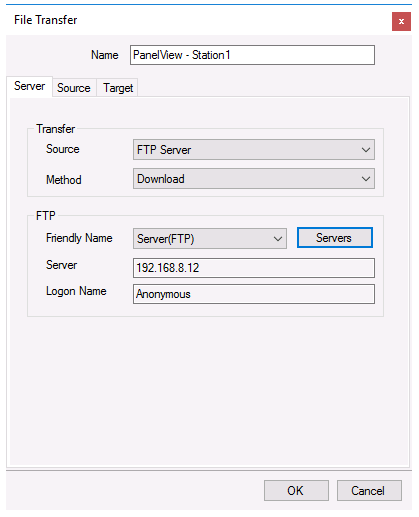 |
The dialog consists of three tabs Server (FTP server), Source (source of the files) and Target (destination folder).
Enter a Name for the configuration to reflect its settings e.g., PanelView Plus or Red Lion controller.
Server
Select the Transfer Source. This can either be FTP Server or Local Network where the source files are stored. Set Transfer Method to Upload to transfer to the Source or Download to transfer from the Source.
The FTP Server is defaulted to the first server defined when the servers were setup (see Define Server). If a different server is required, select it from the drop-down list. A new server can be defined by clicking the Servers button.
Source
The Source determines which files are transferred.
 |
The Folder can be Project or Specific.
Project folder (Root, Excel, Web or PDF) indicates the files are in the a project folder. This option is only selectable if the Method on the Server tab is Upload. Subfolders of a project folder can be manually added in the text field or selected from the drop-down list.
Example: To upload all the Excel reports generated from the template DailyFlow set Project to Excel and SubFolder to DailyFlow.
Specific folder indicates that the files are in a specific folder on the system.
If Method is Upload, this is a folder on the local machine. A browse pushbutton […] is provided to browse the available folders on the system.
If Method is Download, this is a folder on the FTP server. This setting may be left blank if the files are on the root of the FTP Server. If subfolder needs to be specified, each can be separated by “/” (FTP) or “\” (local network), e.g., PanelViewStation/Alarms.
The Filter determines which files from the Folder will be considered. The filter Name can be a combination of hard coded text, wildcards (“*” for multiple characters) or “?” (for a single character). Files that begin with an underscore (“_”) are never considered.
Example: To attach all the Excel reports that start with Flow, set the Filter Name to Flow*.xls*.
Check Date to filter the files on the file modified date. This setting can be:
Most Recent
The most recent file is considered.
Within
All files newer than what is specified is considered.
Outside
All files older than what is specified is considered.
Example: To transfer all reports generated within the last week, set the date filter to Within 1 week(s). To transfer all reports generated more than 3 days ago, set the date filter to Outside 3 day(s).
The most recent file satisfying the Name and Date settings can be excluded by checking Exclude Most Recent.
Target
The Target indicates where the files are transferred.
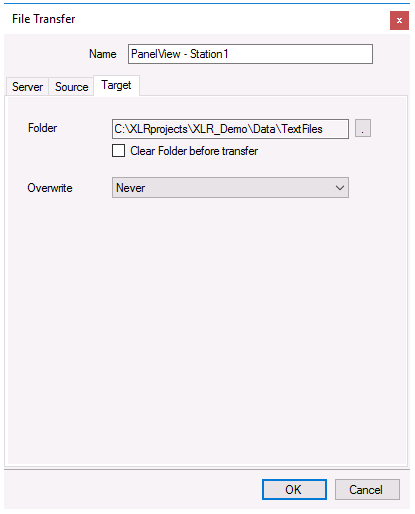 |
If Method is Download, Folder is on the local machine. A browse pushbutton […] is provided to browse the available folders on the system. This setting cannot be left empty.
If Method is Upload, Folder is on the Source on the Server tab. If a subfolder needs to be specified, each folder should be separated by “/” (FTP) or “\” (local network), e.g., PanelViewStation/Alarms.
All the files in the Target Folder that match the Filter Name on the Source tab are deleted before the file transfer occurs by checking Clear Folder before transfer.
The Overwrite setting indicates if files in the Target Folder are overwritten. Choices are:
Never
Overwrite is disabled.
Always
Overwrite is always enabled
Size Change
Overwrite is always enabled if the source file size differs from the target.
Validate
Any configuration can be validated by highlighting it from the main window and selecting Perform. This will run the configuration and display the results.