Connector
OPC UA
To configure the connector to the FactoryTalk Optix OPC UA server, from the Project Explorer select Connect, Connectors.
Click Add
Select Rockwell Automation, FactoryTalk Optix Real-time values
Click OK
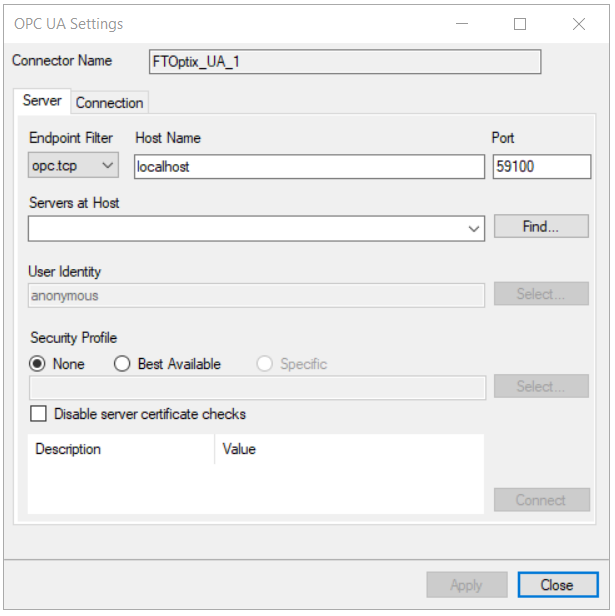 |
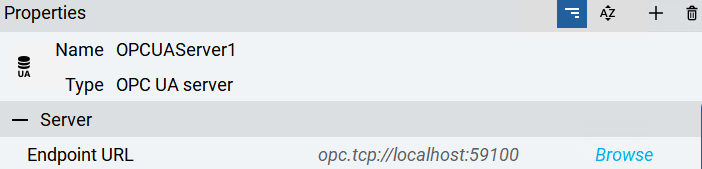
Under the Server tab, for Host Name, select or enter the name or IP address of the machine where the server is running. For Port specify the Port as configured in the FactoryTalk Optix Studio, OPC, UA Server Endpoint URL setting of the OPCUA Server Properties.
 |
For Servers at Host click Find and then choose FTOptixApplication@MACHINE NAME where MACHINE NAME is the name of the host machine where FT Optix is running.
For User Identity click Select to specify
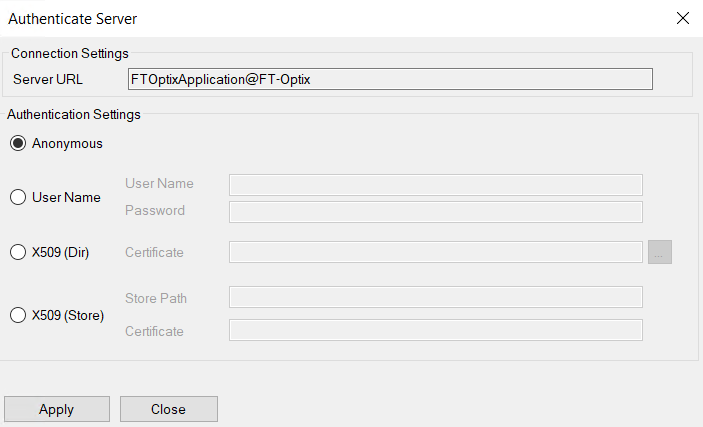 |
If in the FactoryTalk Optix Studio, the OPCUA Server Properties configuration has None specified under the Minimum message security mode and Minimum security policy settings, Anonymous can be selected here.
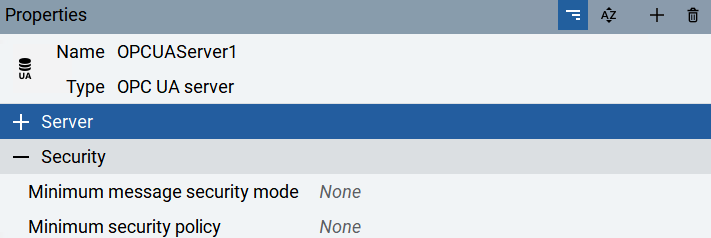 |
Security Profile defines the endpoint to connect to for the FactoryTalk Optix OPC UA Server. Select the profile that matches the Security settings in the FactoryTalk Optix Studio under the OPCUA Server Properties. To use a specific endpoint, select Specific and click the Select button.
Click Get Endpoints to get the list of available endpoints, select the one that best fits with the server settings and click OK.
Click Connect to ensure connectivity. This may require an exchange of certificates between the client and the server. If prompted to exchange, click Yes. This action requires Windows administrator rights.
If the Connect fails, be sure that the client certificate is trusted by the server and then attempt to Connect again. For more information, see the Trusted Clients section below.
The Disable server certificate checks option can be used to bypass all the checks normally done against the certifcate passed back from the OPC UA server. This is typically used if settings like the Domain or Application URI do not match what is expected but you would like to proceed with connection. Use this setting with caution as it disables many security features.
Under the Connection tab are Certificate options and general Settings.
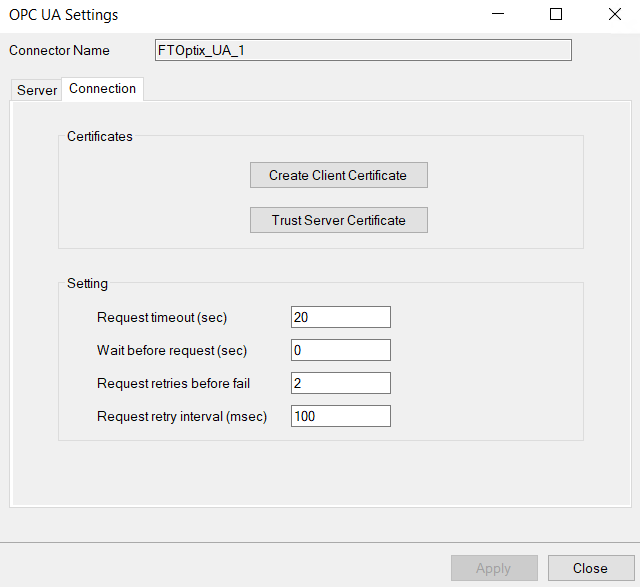 |
The Client Certificate is automatically created on installation. If required, to recreate the certificate select Create Client Certificate. For most OPC UA servers, the default settings will be sufficient, but if the server requires more advanced certificate settings you can specify them with the Advanced button. Click Create to creating the client certificate.
Trusted Clients
Client certificate files can be imported at design time from within the FTOptix Studio.
Open the required project in the FTOptix Studio
Select the
 button at the top
 |
 |
Click Close at the bottom to save this change.
Select a certificate and select
 button to add it to the project