Template
Templates are at the heart of reports. A template is a workbook file containing one or more worksheets that represent the desired report. The content of a template consists of a layout of standard Excel features combined with features provided by XLReporter that are specifically for industry.
When a template is “processed”, the naming convention configured is used to create a report and the report is populated with the data from the Data Connections. After any Data Management, the report is saved to XLS, PDF and HTML file formats or sent as an E-mail.
Templates are “processed” from the Scheduler, periodically or on events, from pushbutton clicks on an HMI, from VB scripts or on-demand from local or remote workstations. In every case, a report is produced from the template.
New
To create a new template, select Template, New (Excel) or File, New (XLReporter Template Studio).
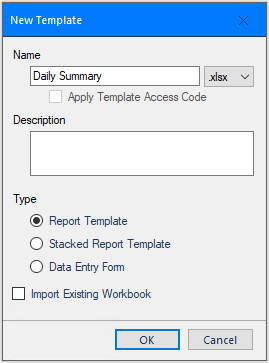 |
Enter a Name using only the characters permitted for a file name and a Description (optional). If the project is configured with a Password, select whether to set password protection to the template by checking Apply Template Access Code. For details on setting the Password in the project, see Implement Project Security.
Set Template Type to Report (the template is used to create reports automatically according to a schedule or on-demand by a User), Stacked Report Template (a report template stacked based on the results of a database query), or Data Entry (template is used for manual data entry management).
To start with an existing Excel workbook, check the Import Existing Workbook option.
Click OK to create the template. If the import option is selected, you are prompted to select a workbook from the file system. Change the layout of the template by using features such as formatting, charts, and formulas.
If a Report Template is created using the XLReporter Template Studio, a dialog is provided to gather more information about the report template to create.
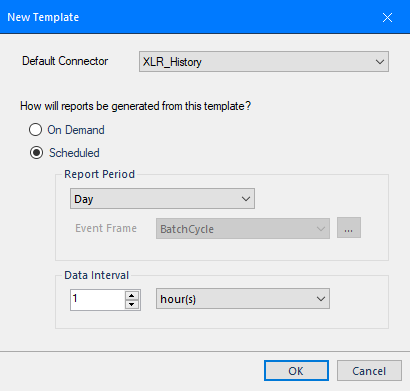 |
The information provided here is used to default settings for the template when configuring the time period for data groups, the report names for reports generated from the template, and the schedule used to generate reports.
To skip these settings, click Cancel.
Open
To open an existing template, select Template, Open (Excel) or File, Open (XLReporter Template Studio).
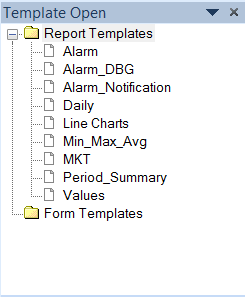 |
Double-click a template to load.
Save/Save As
To save changes to a template, select Template, Save (Excel) or File, Save (XLReporter Template Studio). To save the template to a different name, select Template, Save As (Excel) or File, Save As (XLReporter Template Studio).
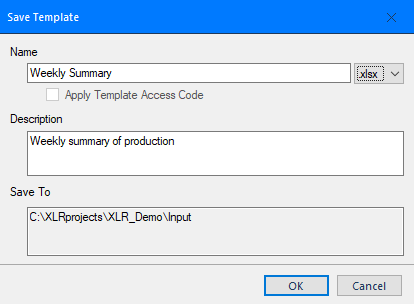 |
As part of saving the template, any data groups from the original template that contain the name of the template are duplicated, named after the new template, and updated as connections in the new template. For example, if TemplateA has a data group named TemplateA_Daily, if TemplateB is created by doing a save as of TemplateA, a data group named TemplateB_Daily is created and updated as the connection in TemplateB.
In the XLReporter Template Studio an Auto Save option is available. When checked, the template workbook is saved every few seconds to ensure no work is lost if the application is closed or the machine has an issue. Please note, this option is not enabled by default and the setting is not retained. If you wish to enable auto save, you will have to enable it explicitly every time you open the Template Studio.
Settings
To access the template settings, select the General button (Excel) or File, Settings (XLReporter Template Studio).
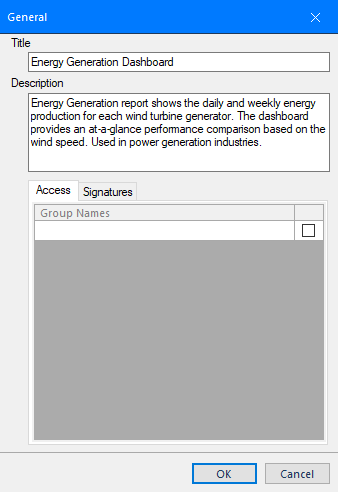 |
The General option is to modify the template Title and Description. If security is enabled, then the user groups permitted to access the template in On-Demand Reports are listed and the Signatures options are available.