Design a Configuration
To add a new configuration, highlight Configurations and click Add.
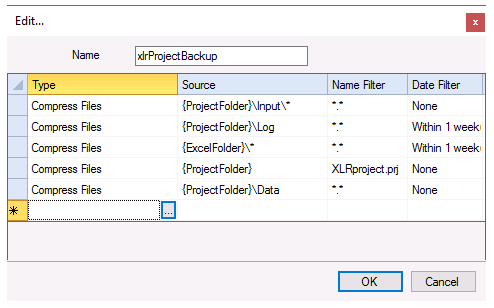 |
Enter a Name for the configration and add file management operations to the grid by selecting an empty row and clicking the browse button (…).
To remove a file operation, highlight the row and press the Delete key on the keyboard or select Delete from a right click.
File Operation
A configuration consists of a list of operations.
 |
Operations | |
|---|---|
Copy | This copies all the files determined by the Source settings to the Target Folder. |
Copy and Rename | This copies the file determined by the Source settings and renames it to the Target File name specified. This only operates on a single file. |
Delete | This deletes all the files determined by the Source settings. |
File Name to Variable | This determines the most recent file based on the Source settings and stores that file name to the XLReporter Register Variable specified. |
Move | This moves all the files determined by the Source settings to the Target Folder, removing them from the original folder. |
Compress Files | This compresses all the files determined by the Source settings to a single file determined by the Target File name specified. |
Compress Folders | This compresses all the folder and files determined by the Source settings to a single file determined by the Target File name specified. |
Source
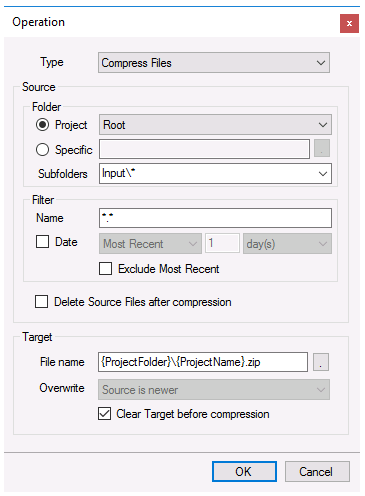
The Source Folder can either be a Project folder (Excel, Web or PDF) or a Specific folder in which can the browse […] button is used to select a folder. When Folder is set to Project, Subfolders can be manually entered or selected from the drop-down list.
Example: To manage files for template ABC, which is configured to create subfolders, enter ABC\2021\Jan to select the reports for this template in January 2021.
In the case of a Project folder, Variables and Name Types can also be used in the Subfolders setting.
Example: To manage files for template ABC, which is configured to create subfolders for the Year and Month, Subfolders can be set to ABC\{YYYY}\{MMM}. When this is executed, {YYYY} and {MMM} are replaced with the current month and year (per the PC clock) for the file management operation configured.
Filter
The Filter determines which files from the Folder are considered. The filter Name can be a combination of hard coded text, wildcards (“*” for multiple characters), or “?” (for a single character). Files that begin with an underscore (“_”) are never considered. Function Variables such as Registers can be used in the filter field for further flexibility.
Example: To filter all the PDF files from the Folder, set the Name to *.pdf.
Check Date to filter the files on the file modified date. This setting can be:
Most Recent
The most recent file is considered.
Within
All files newer than what is specified is considered.
Outside
All files older than what is specified is considered.
Example: To perform operations on files dated within the last week, set the date filter to Within 1 week(s). To perform operations on files dated more than 3 days ago, set the date filter to Outside 3 day(s).
The most recent file satisfying the Name and Date settings can be excluded by checking Exclude Most Recent.
When the Type is set to Compress Files, checking Delete Source Files after compression deletes the Source files after they are added to the compressed file.
Target
The Target is setting depends on the Type selected.
Folder
This setting is available when Type is set to Copy or Move. If the Folder specified does not exist, it is created. Variables like {YYYY} and {MMM} can be specified as part of the Folder. To access the list of variables, right click and select Insert Expression.
File name
This setting is available when Type is set to Copy and Rename, Compress Files or Compress Folder and determines the new name of the target file. This setting can be a fully qualified (C:\Reports\MyNewReport.xlsx), partially qualified (Production\MyNewReport.xlsx) or not qualified (MyNewReport.xlsx). If the setting is not fully qualified Project Workbooks folder is used. If the folder does not exist, it is created.
When Type is set to Compress File or Compress Folder, the file extension is not specified, it is defaulted to .zip.
Register
This setting is available when Type is set to File Name to Register and writes the name of the most recent file to the Register.
Overwrite
This setting is available when Type is set to Copy, Copy and Rename, Move, Compress Files or Compress Folder. With both Compress types, these settings apply to the files within the compressed file. This setting is disabled when Clear Target before compression is checked. The following settings are available:
Never
If the file exists in the Target, it is not overwritten with the Source file.
Always
If the file exists in the Target, it is always overwritten with the Source file.
Source is newer
If the file exists in the Target, it is overwritten with the Source file only if the Source file is newer based on file modified date.
Value
When Type is set to File Name to Variable, this setting determines if the Short name (MyReport.xlsx) or the Long name (C:\Reports\MyReport.xlsx) of the most recent Source file is captured.
Clear Target before compression
This setting is available when Type is set to Compress Files.
When checked, this setting indicates that if the compressed file exists, it is overwritten with a new compressed file every time the file management operation is performed. Otherwise, when this setting is not checked and the compressed file exists, the new Source files are added to it.
Validate
Any configuration can be validated by highlighting it from the main window and selecting Configuration and clicking Perform. This runs the configuration and displays the results.