Set up Historical Value Log
Ignition settings are available through a web browser. Open a web browser and navigate to:
localhost:8088
Log in to Ignition.
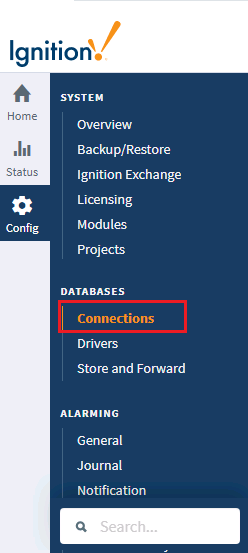
On the left, select Config, then under Databases select Connections.
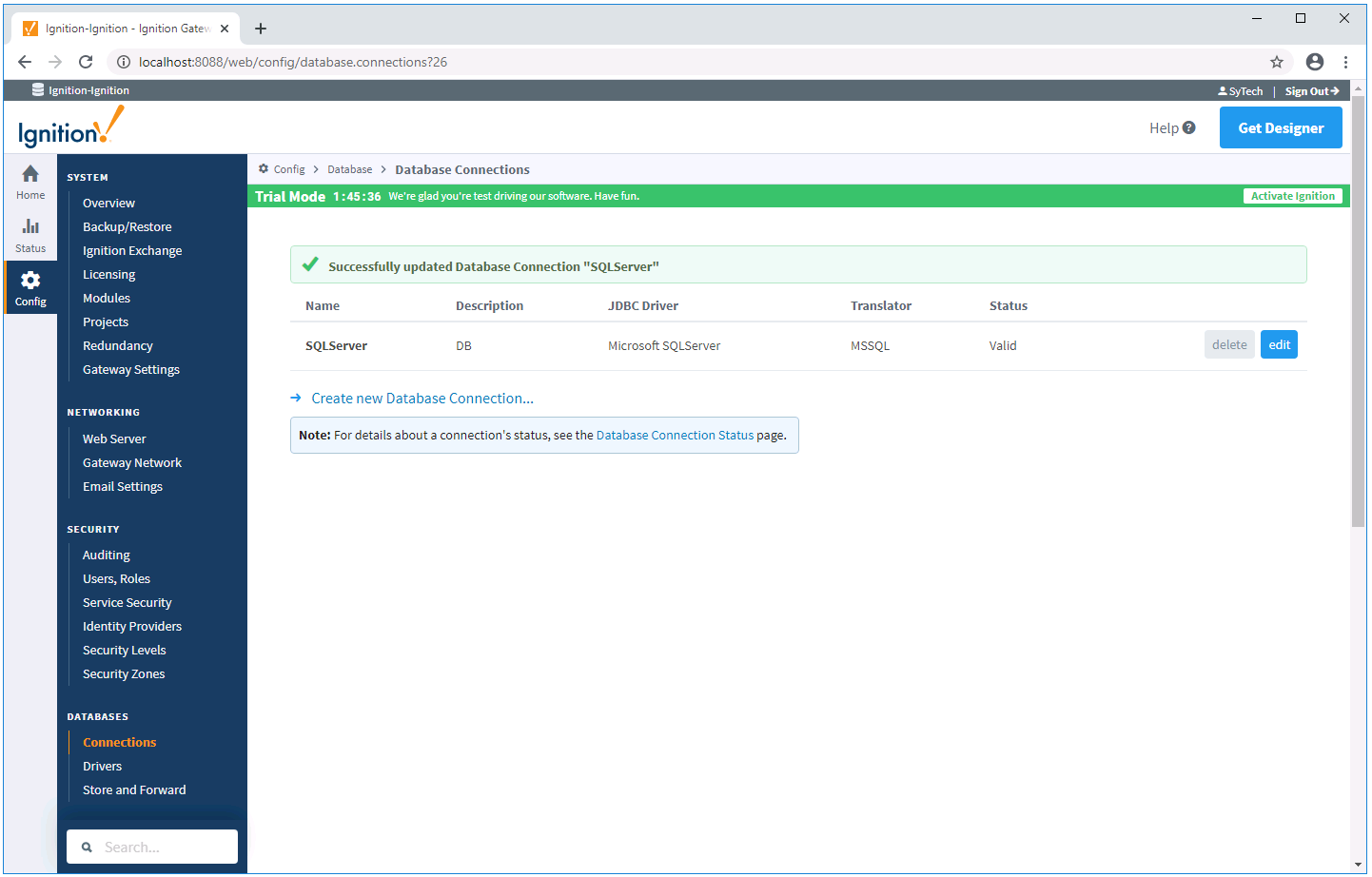
Click Create new Database Connection…
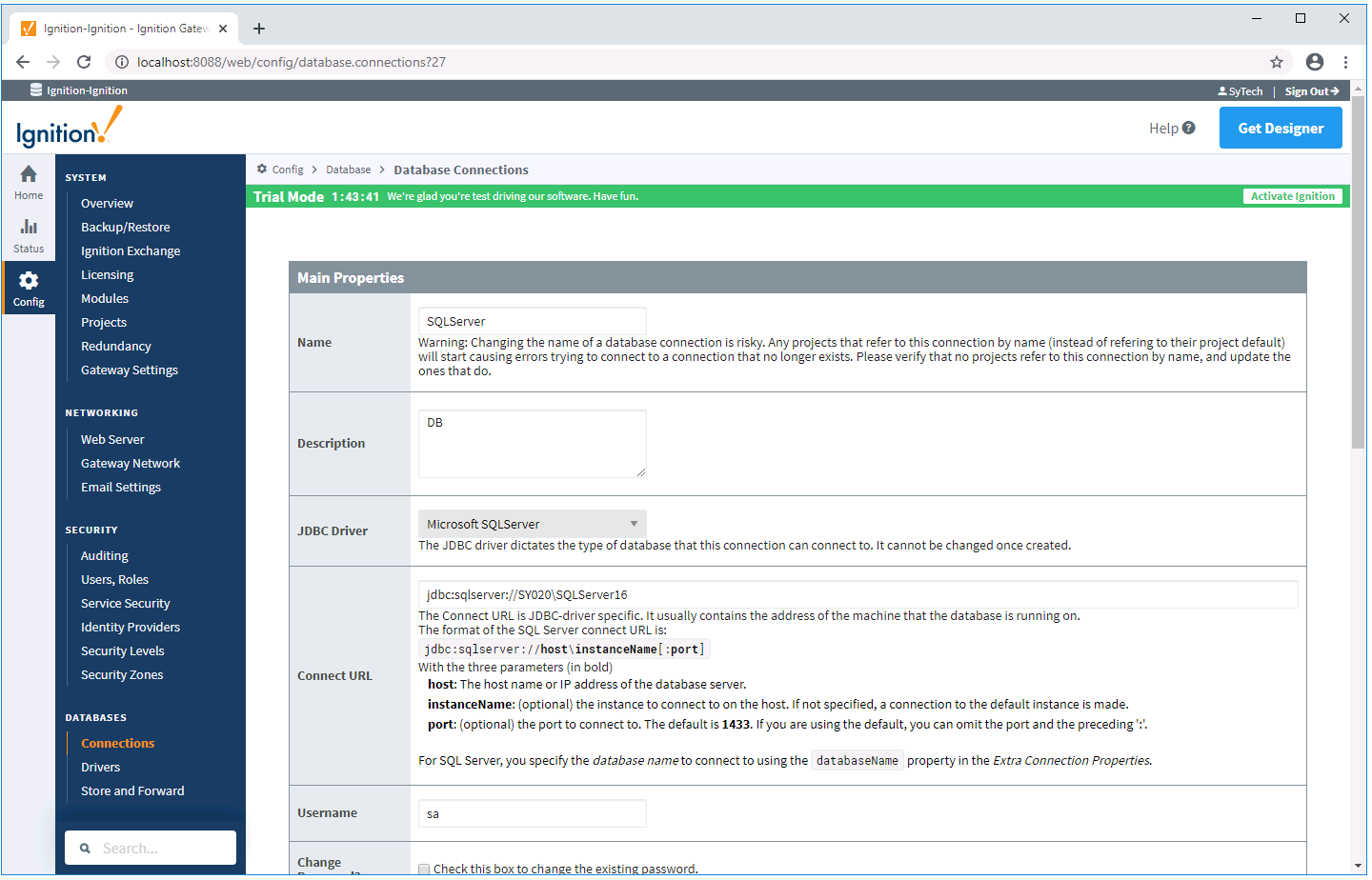
Make the connection to an available database like MySQL or Microsoft SQL Server/SQL Server Express.
Under the Configure tab, on the left, click Tags, History and create a new Historical Tag Provider.
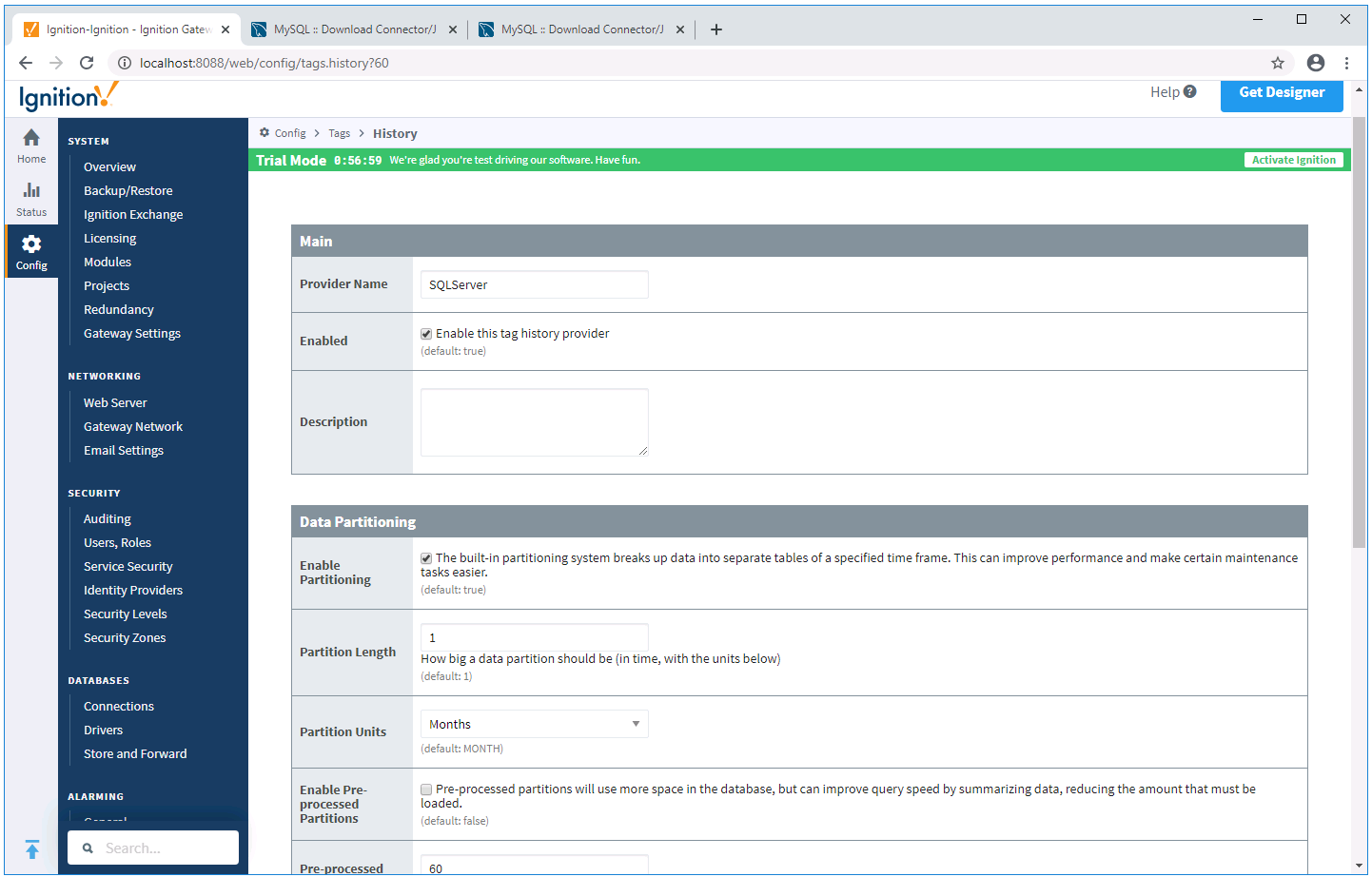
Inductive Automation recommends enabling Partitioning to make data retrieval faster. This is supported by XLReporter at any Unit and Length available.
Enable Tag History
Select the Design Launcher from the program group and launch the project.
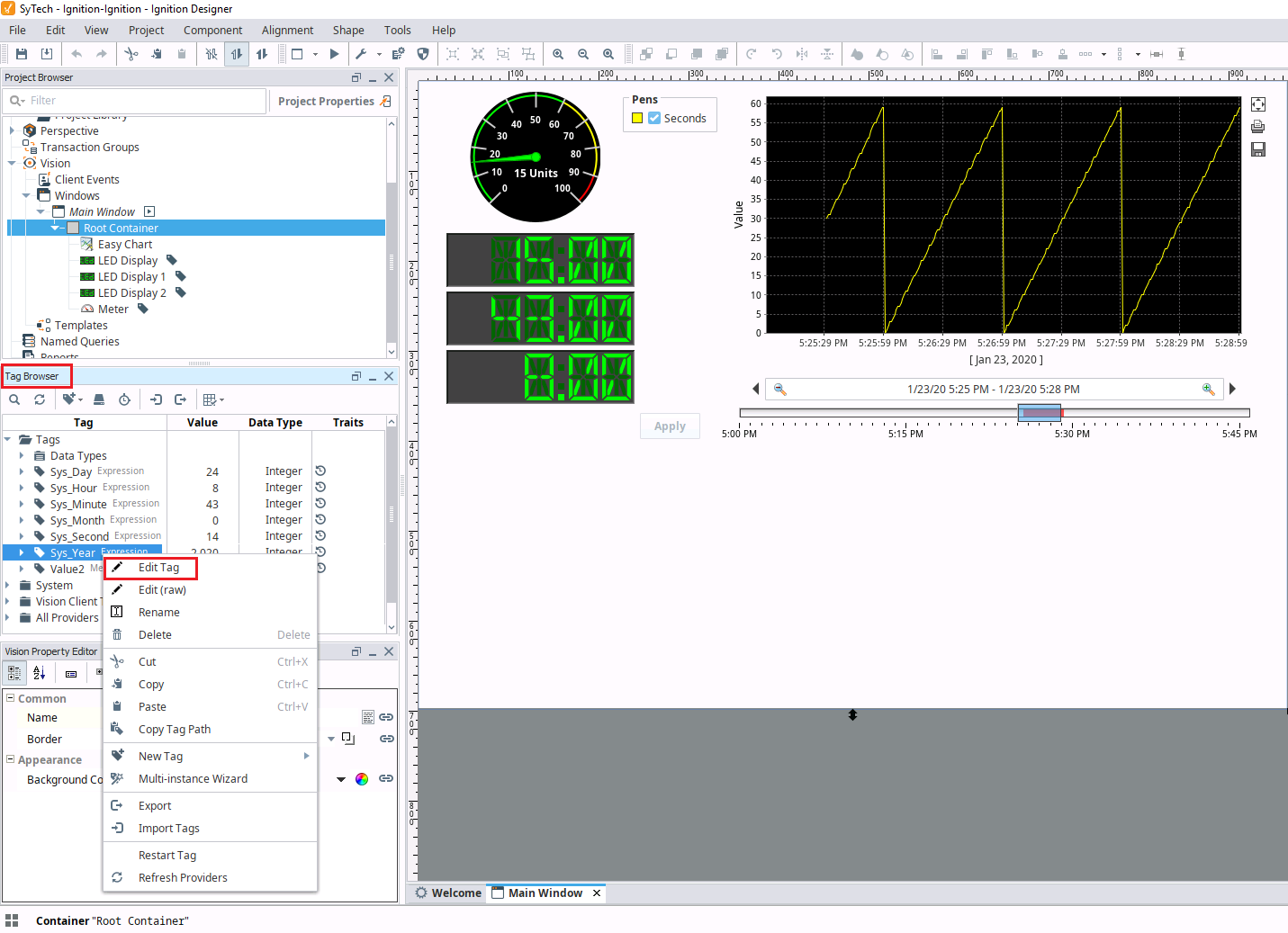
Under the Tag Browser panel select each tag to log historically, right click and select Edit Tag.
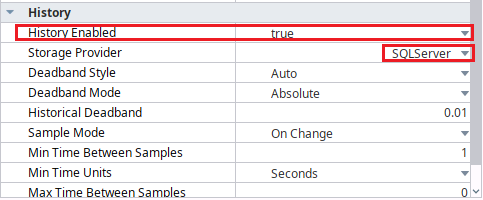
Select the History category on the left
Set History Enabled to true.
Set Storage Provider to the database connection configured. Click Apply when finished.