Start the SQL Server Installation Media and Remote Connection
If the SQL Server is remote to where XLReporter is installed, i.e., on a different workstation then remote connections must be enabled in SQL Server.
Open the SQL Server Management Studio and connect to the SQL Server instance.
Right click the server at the top and select Properties.
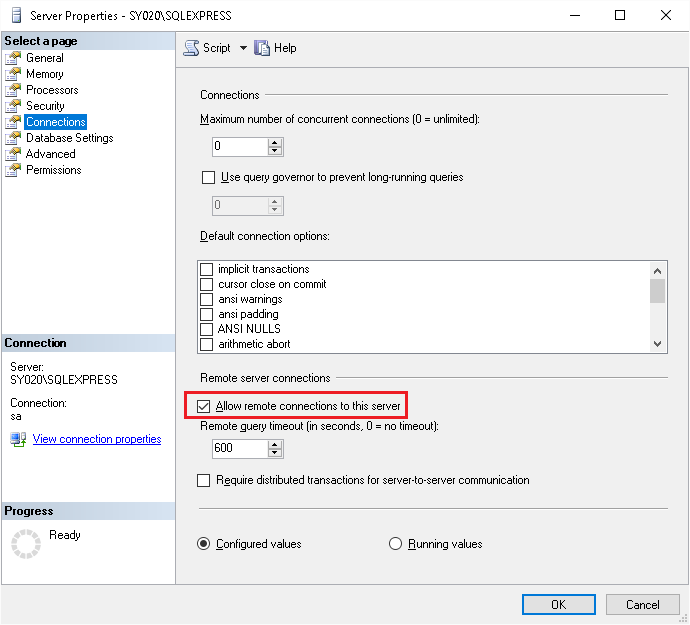
Under Select a Page, select Connections.
In the Remote server connections section, check Allow remote connections to this server.
Authentication
When XLReporter connects to SQL Server, it needs to provide authentication credentials. Two types of authentication are supported by SQL Server:
Windows Authentication
The credentials used will be those of the active Windows user. For a remote connection, this credential will fail unless an identical account is available on the remote system.
SQL Server Authentication
The credentials used will be those of users that have been created in the SQL Server database. This can be used anywhere on the network.
To use SQL Server authentication, open the SQL Server Management Studio and connect.
Right click the server at the top and select Properties.
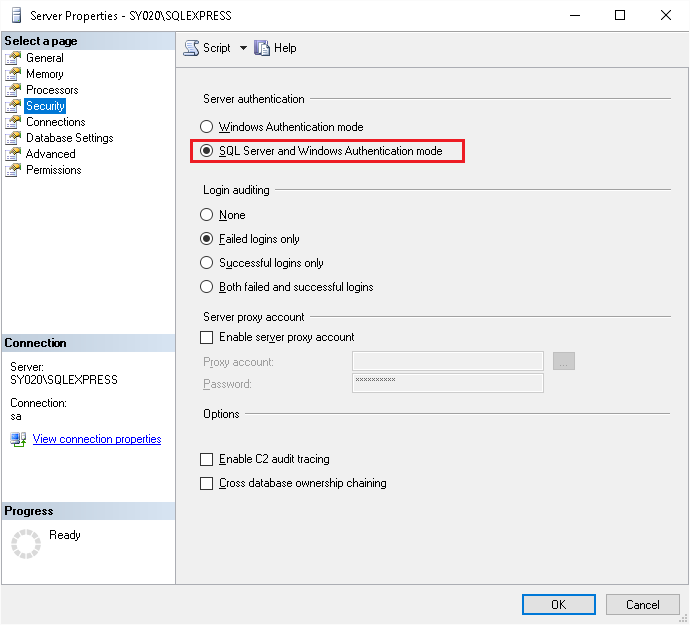
Under Select a Page, select Security.
In the Server Authentication section, select SQL Server and Windows Authentication mode.
Create SQL Server Users
If SQL Server authentication is the preferred way of connecting to the database, then users will be required.
Expand Security and right-clicking Logins, select New Login.
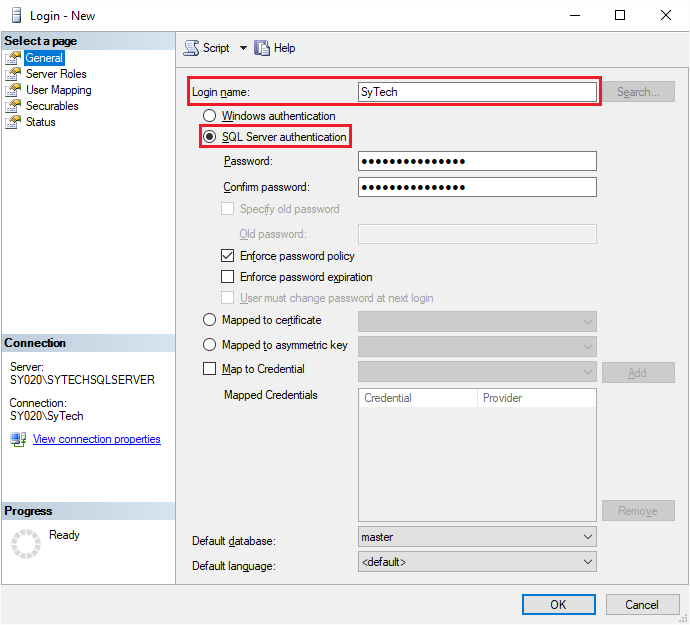 |
Enter a Login name.
Select SQL Server Authentication.
Browsing
To browse SQL Server names across the network, the SQL Server Browser Service needs to be enabled.
Open SQL Server Configuration Manager.
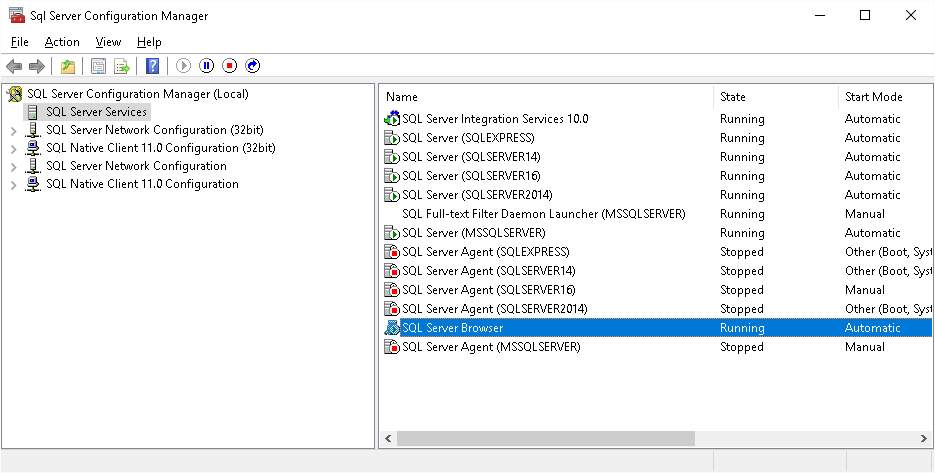 |
Under SQL Server Configuration Manager (Local) select SQL Server Services.
On the right, right-click SQL Server Browser and choose Start to start the service.
If Start and Stop are disabled this means that the service itself is disabled. To enable, open the Windows Control Panel and open Administrative Tools, Services.
Locate the SQL Server Browser service and double click on it to access Properties.
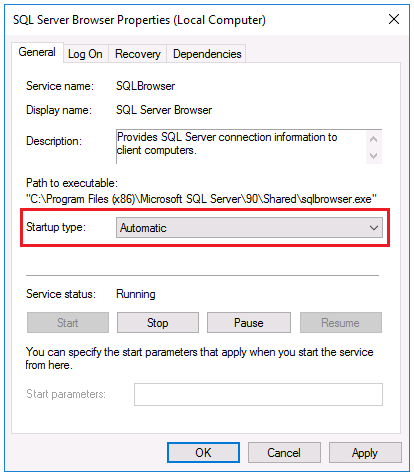
In Properties set Startup type to Automatic.
Click OK.
Return back to the SQL Server Configuration Manager and start the Browser service.
Protocols
To access a SQL Server instance across the network it may be required to enable the TCP/IP protocol to make the connection.
Open SQL Server Configuration Manager.
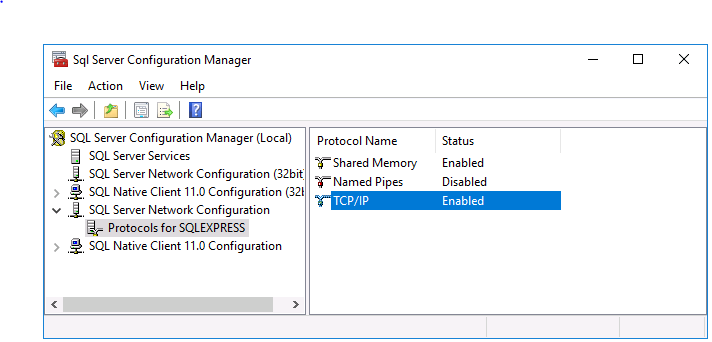 |
Under SQL Server Configuration Manager (Local) expand SQL Server Network Configuration and select Protocols for the instance configured.
On the right, right-click TCP/IP and choose Enable to enable the protocol.
Windows Firewall
If the Windows Firewall is enabled on the machine where SQL Server is installed remote connections may still fail. This is because the Port that SQL Server is configured for is not opened in the Windows Firewall.
To identify the Port to open, open the SQL Server Configuration Manager.
Under SQL Server Configuration Manager (Local) expand SQL Server Network Configuration and select Protocols for the instance configured.
On the right, right-click TCP/IP and choose Properties.
In TCP/IP Properties select the IP Addresses tab.
Scroll to the IPAll section. If the SQL Server is running on a static port, TCP Port is the Port number to open. Otherwise, TCP Dynamic Ports is the Port number to open.
Now that the Port is identified, it needs to be opened in the Windows Firewall.
Open the Windows Firewall. Typically, the easiest way to do this is by typing Firewall into the search bar at the bottom left of Windows.
Click Advanced Settings
Right-click Inbound Rules and select New Rule.
For the rule type select Port and click Next.
Apply the rule to TCP.
For port, select Specific local ports and specify the port number identified previously and click Next.
Leave Allow the connection selected and click Next.
Apply the rule for every network type required and click Next.
Give the rule a Name and click Finish.
If a remote connection still fails, repeat the steps above opening TCP Port 1433 and UDP Port 1434.
If a remote connection continues to fail and you have not done so already, start the SQL Browser service (see the Browsing section above for details).