2D Transformation
The 2D Transformation function works on a table of three columns where one column is the X coordinate, one column is the Y coordinate, and the last column is the value to create a new table of values based on the coordinates.
Settings | |
|---|---|
Row Offset | The cell that contains the X coordinate for transformation. This cell should be in the same row as the top row in the Base range and the column should be contained within the Base range. |
Row Origin | The origin point for the Row Offset values. Typically, this is set to 0 but in cases where the offsets are non-zero this can compensate. For example, if the Row Offset values are the days of the month (1-31) this can be set to 1. |
Column Offset | The cell that contains the Y coordinate for transformation. This cell should be in the same row as the top row in the Base range and the column should be contained within the Base range. |
Column Origin | The origin point for the Column Offset values. Typically, this is set to 0 but in cases where the offsets are non-zero this can compensate. For example, if the Column Offset values are the days of the month (1-31) this can be set to 1. |
Data Range | This setting defines the range of data copied from the Base range. This should be one or more columns from the top row of the Base range. |
Paste | This setting defines what is pasted from the Data Range to the Placement for every row. |
Clear Data | If set to Yes or Yes (Extended), all the data from Base range is cleared. Yes (Extended) also clears any headers above the Base range. |
Example
Display temperature 2 in in a minute/hour display.
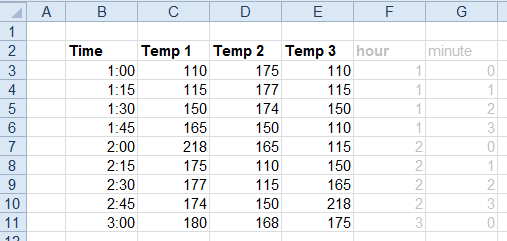
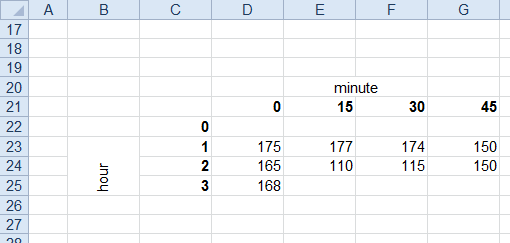
Note the two additional columns hour and minute using functions which are used to determine the placement of the temperature value (in practice these would be hidden).
Base | |
|---|---|
Cell | $C$3:$E$3 |
Direction | Down |
End | All cells are empty |
Placement | |
|---|---|
Cell | $D$22 |
Setting | Value |
|---|---|
Row Offset | $F$3 |
Row Origin | 0 |
Column Offset | $G$3 |
Column Origin | 0 |
Data Range | $D$3 |
Paste | All |
Clear Data | No |