Overview
The File Manager application automates file operations such as copying files to a network file server, moving old files to an archive folder, and compressing files into a single compressed folder for sending or storage.
Pre-made configurations are provided with every new project.
The xlrDeleteStatusLogs configuration deletes any status log file older than 2 months.
The xlrProjectBackup configuration produces a compressed file of the active project. This configuration is used when the Backup Project option is selected from the File menu in the Project Explorer.
Both of these configurations can be edited as required.
The designer is opened from the Project Explorer on the right-side Tools tab in the Distribute section by selecting File Manager.
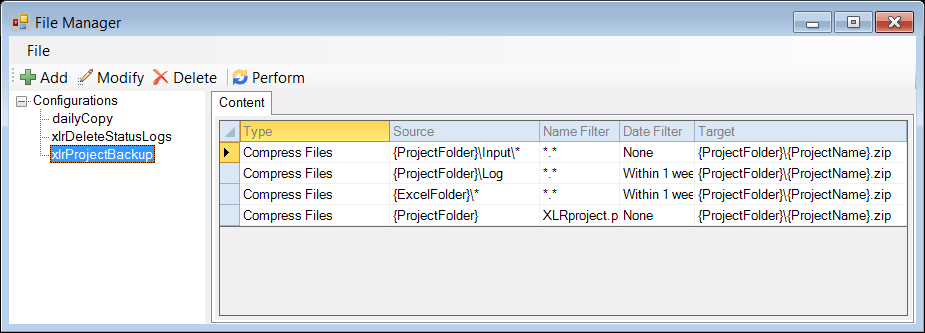 |
The display consists of menu options; a left panel of configurations and a right panel showing the content of the selected configuration.
To edit an existing configuration, highlight it on the list and click Modify. Note that if the configuration name is edited, then the settings of the configuration will be saved to this new name.
To delete an existing configuration, highlight it on the list and click Delete.
The steps required to implement File Manager are:
Design a Configuration
Deploy a Configuration