Move a License
To move a license, it must first be rehosted on the currently licensed machine. Once that is complete, follow the Register a Full License section above on the new machine.
Online
If the machine where the product is installed is online (e.g., has an internet connection), rehosting can be completed directly on the machine.
Open Registration. Select Options, Move Registration. This opens the license portal.
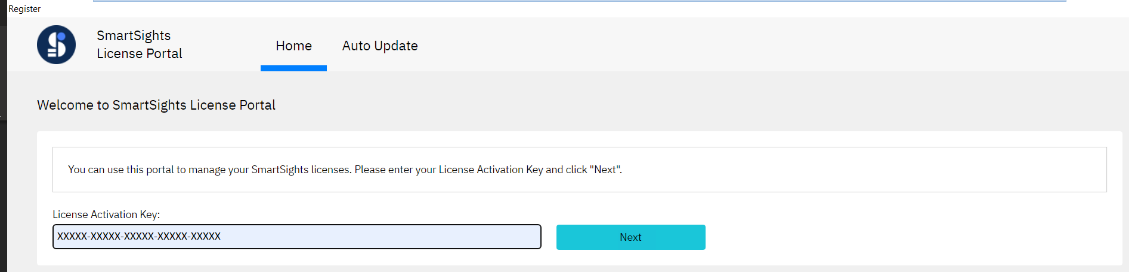 |
Enter the License Activation Key you have been provided and click Next.
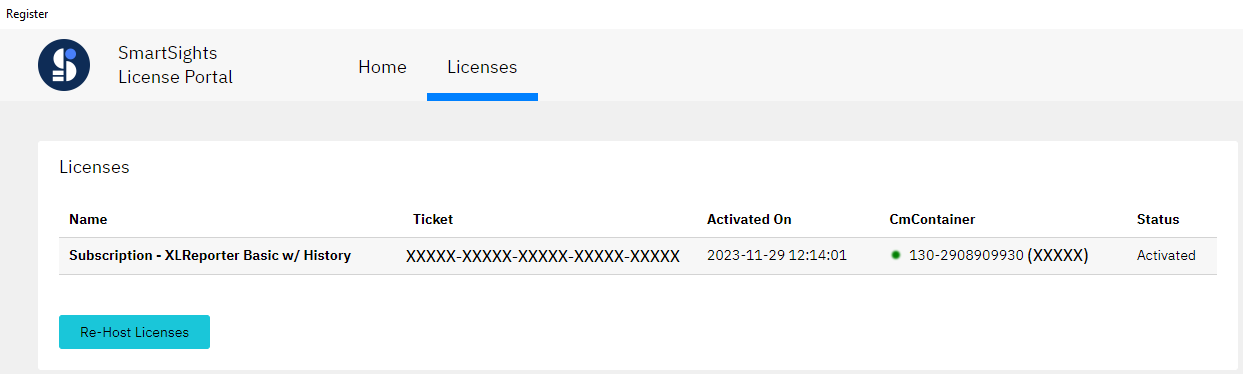 |
A page displaying the XLReporter license will appear. Click Re-Host Licenses.
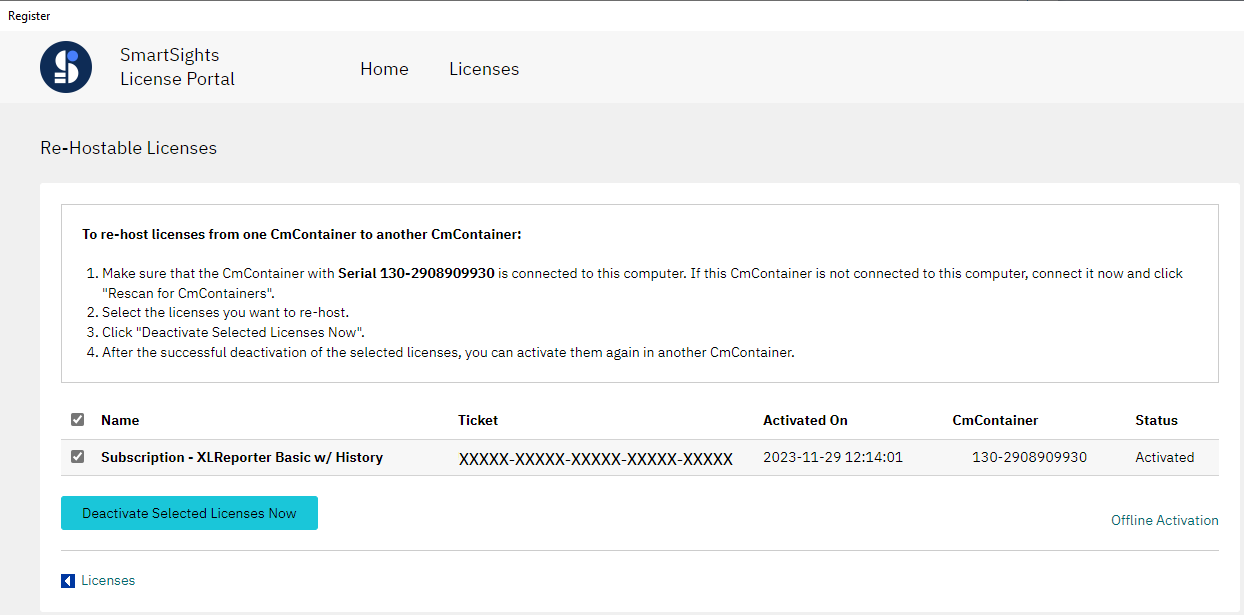 |
Make sure the XLReporter license is checked and click Deactivate Selected Licenses Now. Once deactivation is complete, close the window.
The Project Explorer should now indicate the product is no longer registered. If the display does not update to a registered status within a minute or two, return to Registration and select Options, Refresh.
Please note that if there are any issues accessing the license portal from the machine, select Options, Move Registration (offline) and follow the Offline instructions below.
Offline
If the machine where the product is installed is not online (e.g., no internet connection) or cannot access the online license portal, use the following procedure to rehost:
Note, before rehosting, if a receipt was never uploaded during the registration of the machine, that must be performed first. To know if that has been done, from a machine with an internet connection open a web browser and go to:
http://lc.codemeter.com/69942/webdepot/index.php
Enter the License Activation Key provided and click Next. If the Status of the license is Not complete then a receipt was never uploaded. Follow the instructions for Step 3 in the Offline Registration section before continuing.
To rehost offline, use the following procedure:
Copy Rehost Request File to Target Folder
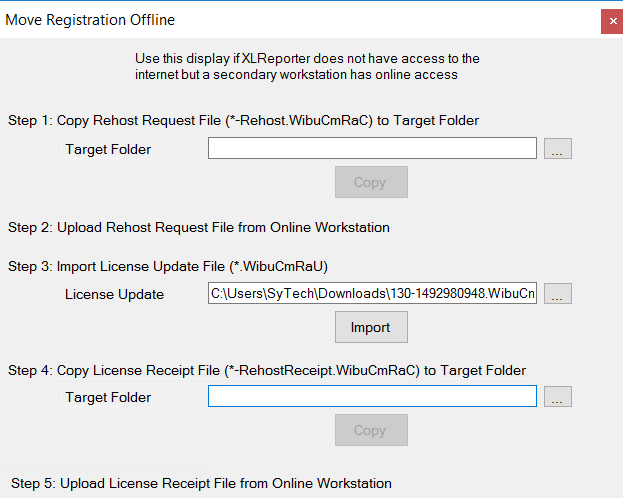
From the Project Explorer, open Registration. Select Options, Move Registration (offline).
Plug in a removable device. Under Step 1, for Target Folder, click the browse pushbutton (…) and select the drive for the device.
Click Copy to copy the Rehost Request File to the device. A dialog shows you the name of the Rehost Request File.
Upload Rehost Request File from Online Workstation
Remove the device and plug it into a machine with an internet connection. Open the web browser and go to: http://lc.codemeter.com/69942/webdepot/index.php
Enter the License Activation Key you have been provided and click Next.
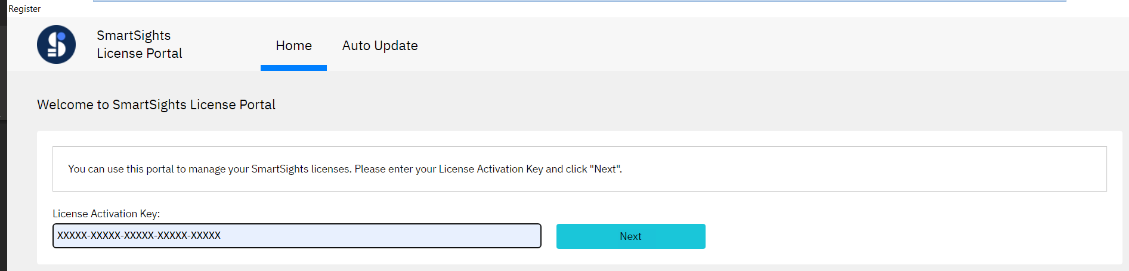
A page displaying the XLReporter license will appear. Click Re-Host Licenses.
If on a machine with CodeMeter installed, click Offline Activation.
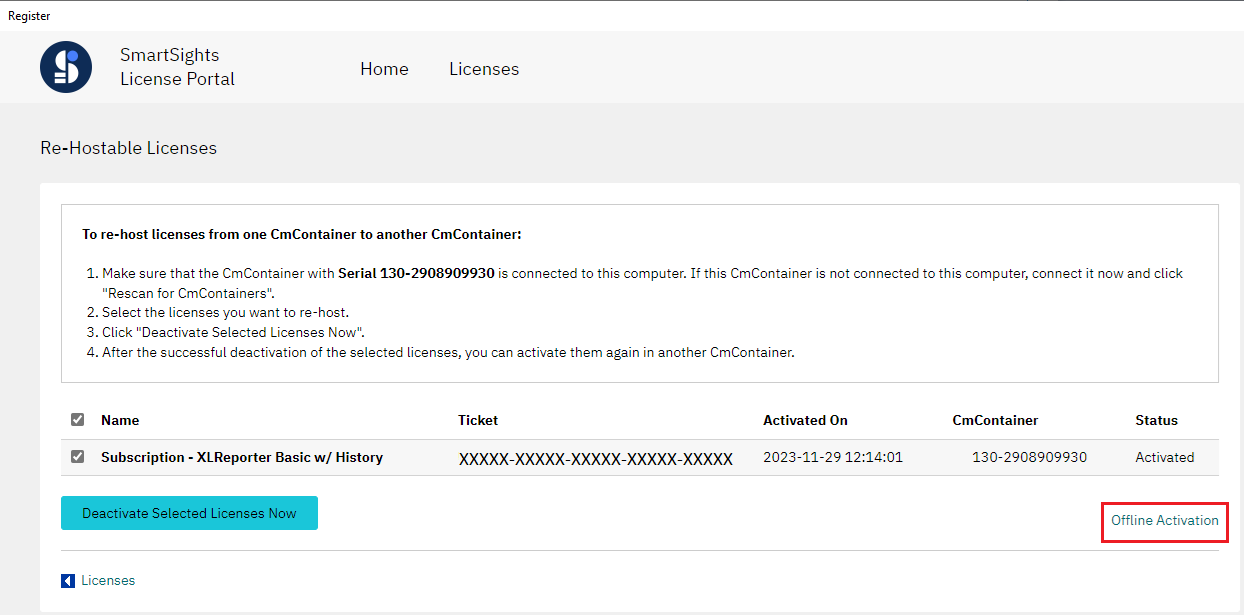
With the XLReporter license checked, click Choose File and select the Rehost Request File from the removable device.
Click Upload Request and Continue Now.
Once completed, under Download Update click Download License Update File Now. Copy this file to a removable device.
Import License Update File Downloaded from Online Machine
Plug the removable device back into the machine to register. Reopen Registration and select Options, Move Registration (or Options, Move Registration (offline)).
Under Step 3, for License Update, click the browse pushbutton (…) and select the License Update File downloaded in the previous step.
Click Import.
Copy License Receipt File to Target Folder
In order to complete license rehosting, a receipt must be created and uploaded to the license portal. If this is skipped, the license cannot be moved to another machine.
Plug in a removable device (if not already plugged in). Under Step 4, for Target Folder, click the browse pushbutton (…) and select the drive for the that device.
Click Copy to copy the License Receipt File to the device. A dialog shows you the name of the License Receipt File.
Upload License Receipt File from Online Workstation
Remove the device and plug it into a machine with an internet connection. Open the web browser and go to: http://lc.codemeter.com/69942/webdepot/index.php
Enter the License Activation Key you have been provided and click Next.
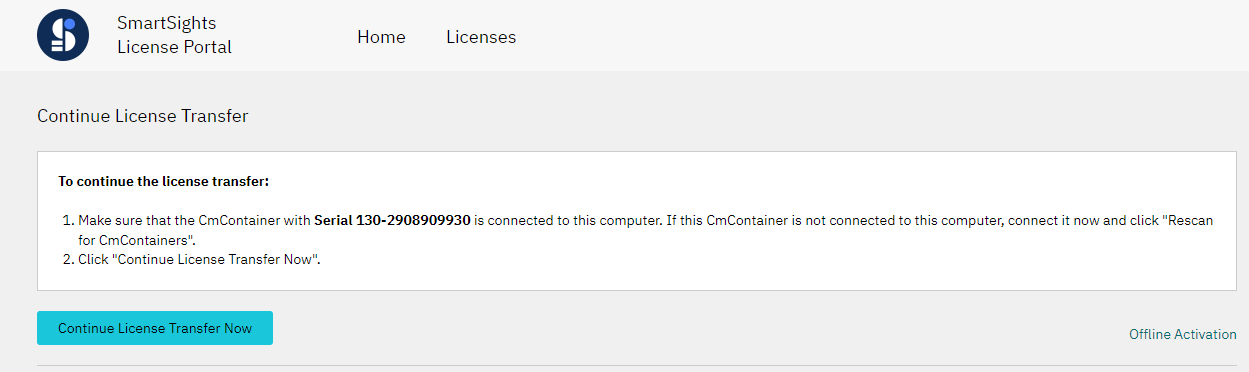
A page displaying the XLReporter license will appear. Click Continue License Transfer.
If on a machine with CodeMeter installed, click Offline Activation.
To upload your license receipt file, click Choose File and select the License Receipt File from the removable device.
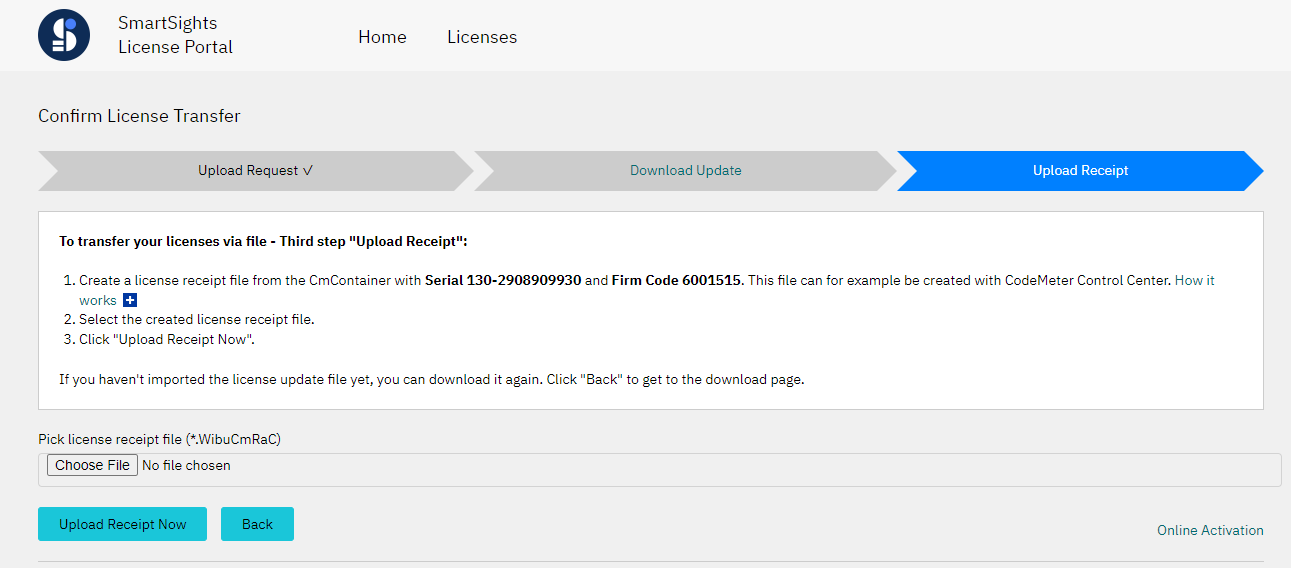
Click Upload Receipt Now.
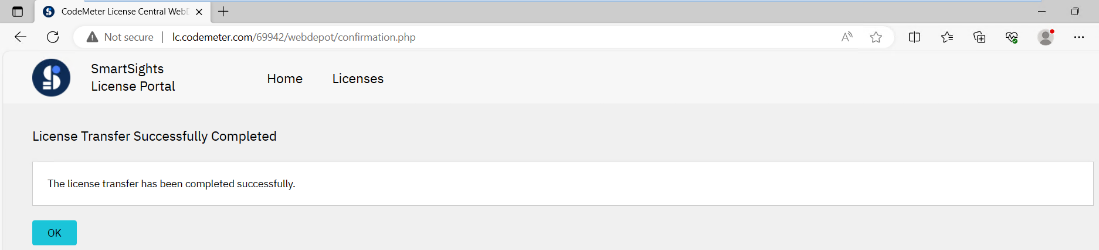
Back on the licensed machine, close the Register Offline dialog. The Project Explorer should now indicate the product is no longer registered. If the display does not update to a non-registered status within a minute or two, return to Registration and select Options, Refresh.