Formula Range
The Formula Range function adjusts formulas determined by the Base settings. When the formulas are added to the worksheet, they only need to reference the topmost or leftmost cells of the Base since this function will adjust the formula. Only relative cell references (e.g., with no $ like A1 rather than $A$1) are adjusted within the formula.
Settings | |
|---|---|
Formulas | The range of cells containing the formulas to adjust. |
Place Formula | If set to No the formulas are removed, leaving behind the values only. |
Absolute Reference | This setting determines how the format of the cell references after they are adjusted. If set to No cell references are left relative (e.g., A1). If set to Yes, cell references are written back as absolute references (e.g., $A$1). This setting only has an effect if Place Formula is set to Yes. When choosing the value for this setting consider what happens to the range of formulas after the function is complete. For example, if after this function a Fill Range function is used to fill the formulas down or across, this setting should be No so the formulas adjust according to the row or column they are filled to. |
Example
A1 contains the formula =SUM(A2)+$D$1 and B2 contains the formula =SUM(B2)+$D$1.
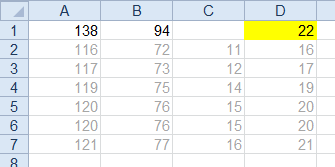 |
To apply the formula to rows 2 to 7, use the settings:
Base | |
|---|---|
Cell | $A$2:$B$2 |
Direction | Down |
End | All cells are empty |
Setting | Value |
|---|---|
Formulas | $A$1:$B$1 |
Place Formula | No |
Absolute Reference | No |