Set up Alarm Logging
Historian collects alarm and event data from an OPC Alarm & Event compliant server, and stores it alongside Historian process data.
Installation
To install, run InstallLauncher.exe as an Run as Administrator.
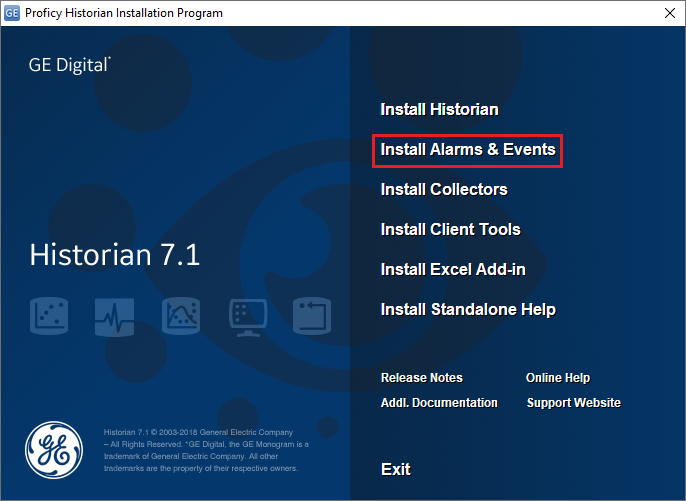 |
Select the Install Alarm and Events option in the historian installation wizard to install the Historian Alarm Archiver service.
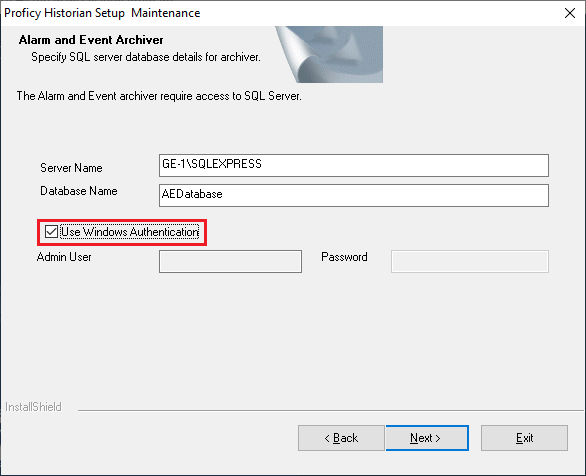 |
During the Maintenance step of the installation,
Set Server Name to the SQL Server instance where the alarms will be logged.
Set Database Name to the name of the database in the SQL Server instanace for alarms. If this database does not exist, it will be created along with the tables needed.
Check the box for Use Windows Authentication to connect to SQL Server. The Windows user you are logged in as should have sysadmin permissions to the SQL server in order to create the database and the reqired tables.
Alarm Configuration
In order for Historian to log the alarms to the newly created database, a Collector must be pointed to the Alarm and Events OPC Server PROGID.
Open the Historian Administrator from the Proficy Historian program group.
Select Collectors at the top of the Historian Administrator.
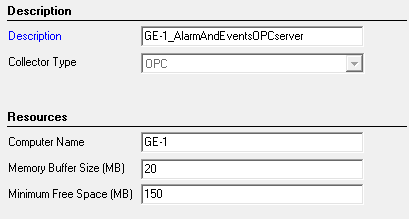
Configure the settings on the General, Configuration, Advanced, and Redundancy tabs to commence alarm logging