Configuration
User Interface
The user interface of the viewers consists of a left view and a content view. The left view is where the reports are selected, and the content view shows the content of a selected report.
Menu Controls
Note that not every control is supported by every viewer.
Collapse/Expand


These buttons expand and collapse the Left View.
Save
This option is only avaialble in the Workbook Viewer.
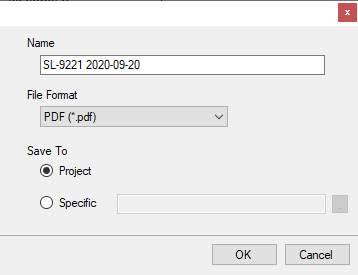
This opens the Save dialog where the report currently viewed is saved.
The report is saved either to a specified folder or to a sub folder of the Reports folder named Published. If user security is enabled then the file is saved to a subfolder under the Published, named after the user.
Print
This option is available for the Workbook and Web Viewer.
For the Workbook Viewer, there are options to print All Sheets ( the entire workbook), Active Sheet (the currently visible worksheet in the viewer) or Selection (the range selected on the currently visisble worksheet).
The selection is sent to either a local or on network printer.
Email
This option is only avaialble in the Workbook Viewer.
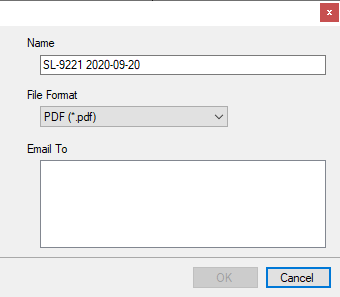
This opens the Email dialog where the report currently viewed can be sent as an email attachment in either workbook or PDF format.
The Email To setting list all the email configurations of the project (see Email and SMS)
Freeze Panes
This option is only avaialble in the Workbook Viewer.
This is a convenient way of keeping part of the report content fixed on the display while scrolling across or down. To freeze panes, select a cell and click Freeze Panes.
Zoom In, Zoom Out
This option is only avaialble in the Workbook Viewer.
These options zoom into and out of the report.
Keypad
This option is only avaialble in the Workbook Viewer.
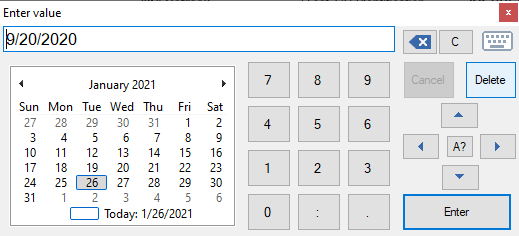
This option opens a keypad to allow for manual data entry. This is mainly used for annotating reports using a Windows tablet.
Left View
The left view consists of two parts, a top panel showing a list of folders and a bottom panel that displays report files in each folder.
Menu
Refresh
Click to refresh the report displayed
Store
Click to store any annotations made to the report (see Report Viewer Deployment) such as comments.
Top Panel
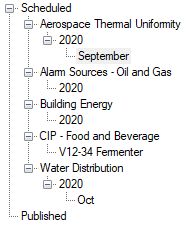
The top panel consists of the Scheduled and Published which can be expanded to show sub folders (if any).
 |
Scheduled
Displays the folders and sub-folders that have been created automatically by the scheduler. When the viewer is used on a Distributed Client, these will be the folders on the Distributed Server.
Published
Displays the folders been created by Distributed clients using the the Save option in the viewer. With this option, users can share reports of interest amongst other Distributed members.
Bottom Panel
When a folder is selected, all the reports (files) in that folder are listed in the bottom panel. By selecting a file, its content is displayed.
Left View Controls
Options is used to specify viewer behavior; it consists of two tabs: Display and Content.
Display Tab
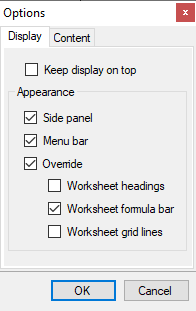
Note that the options are not available for all viewers.
If the viewer is launched from an HMI display (see Report Viewer Deployment), it is preferred that it stay on top so that it is not lost behind the HMI display. In this case, select the Keep display on top.
Under appearance, the Side Panel and Menu Bar can be selected to be hidden. These settings will be retained when the viewer is closed.
When a report is created, it inherits settings from the template. The viewer can Override certain properties such as headings, formula bar and grid lines.
Content Tab
This tab is only available for the Workbook Viewer.
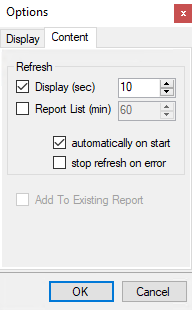
If Refresh Display is checked, the viewer will refresh at the interval specified. An additional interval can be specified for the refresh of the Report List (Left View bottom panel).
For refreshing to start as soon as the viewer is opened. Check automatically at start. This option is useful if the viewer is launched by an external entity such as an HMI display.
For dashboard reports, the stop refresh on error option can be unchecked. Causing the report to continually refresh regardless of any errors that may be returned.