Configure Data Logging
Configuration for the ProSoft Data Logger Plus is performed from the ProSoft PLX50 Configuration Utility. The information below briefly outlines the device configuration. For more detailed setup information, refer to the PLX51-DLPlus-232 User Manual. Both the configuration utility and device user manual are available on the official ProSoft website.
From the Configuration Utility:
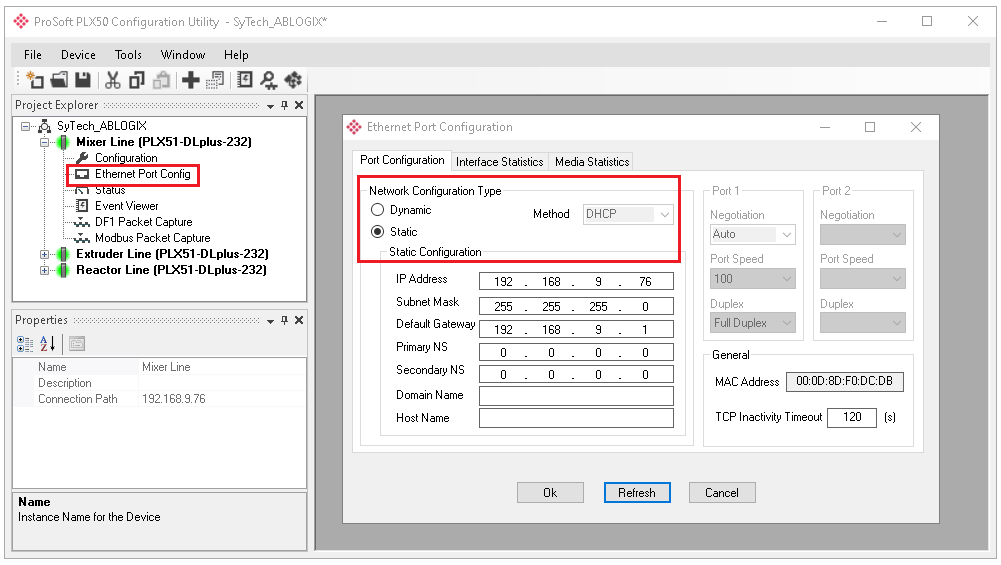 |
Click the “+” button to add a new device.
Select PLX51-DLplus-232.
Open the Ethernet Port Config menu.
Set the Network Configuration Type based on the network environment where the device is installed.
In the Configuration menu:
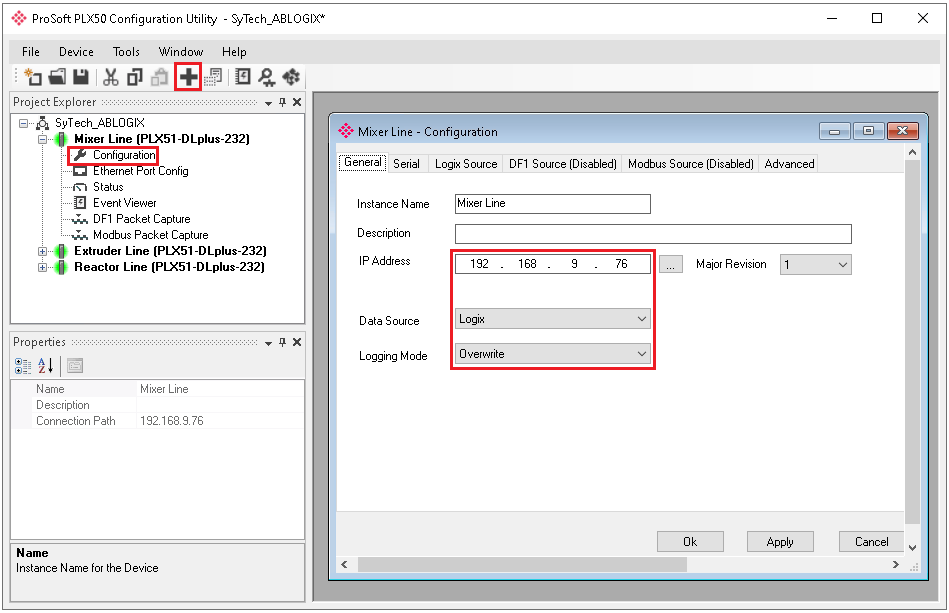 |
Assign an Instance Name to indicate the nature of the data logged by the device. In this example, the configuration represents a production line which involves mixing machinery.
Assign a Data Source based on the type of PLC connected to the Data Logger.
It is recommended to set Logging Mode to Overwrite for continuous logging using XLReporter.
Click Apply. Download the configuration to the device.
Based on the Data Source, open the corresponding Source tab in the Configuration menu. The below example shows configuration for an Allen-Bradley Logix PLC.
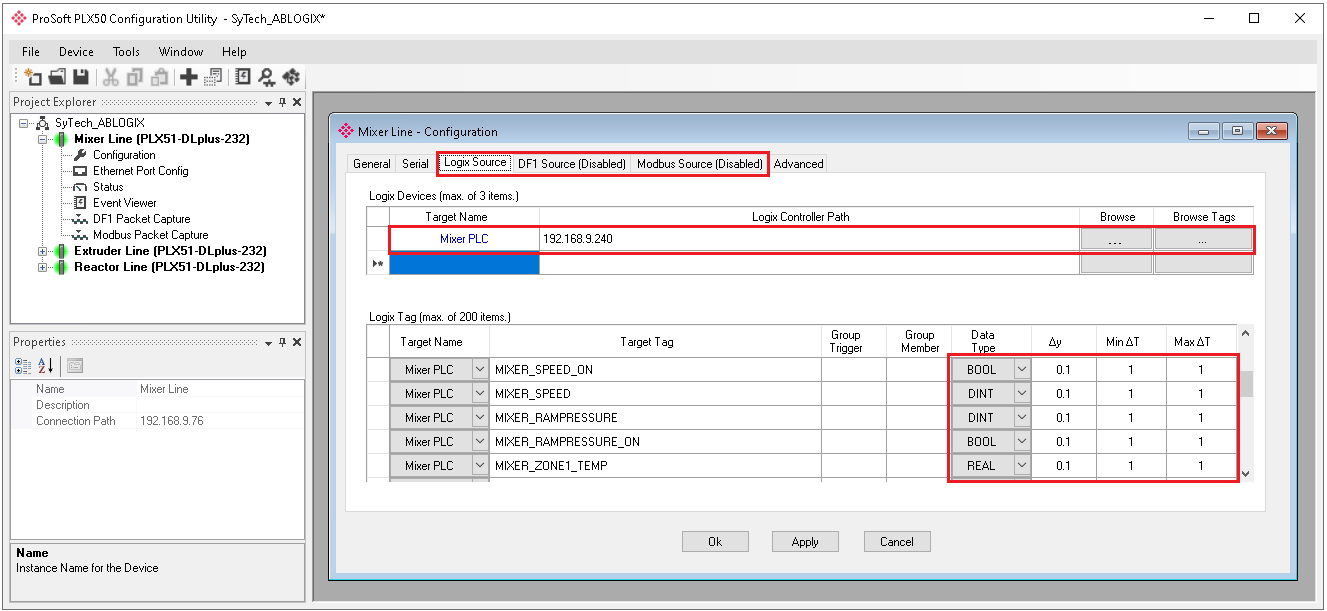 |
Assign a Target Name which indicates the purpose of the connected PLC. In the above example, 192.168.9.240 is the IP address of the PLC.
Open Browse to select the device using network discovery.
Open Browse Tags to select the tags logged by the Data Logger.
For each tag, assign the value deadband (▲y), minimum, and maximum timed rates at which the tag data is logged. It is recommended to configure logging resolution only as high as is required for reporting. Doing so optimizes the responsiveness of the reporting application.
Click Apply and download the configuration to the device.