How do Stacked Reports Work?
The two main elements of a stacked report are the workbook template and a list of items which are used to drive the sub reports to the final report. Since there are several parts to stacked reports, a Stacked Template Wizard is provided to simplify the process.
As an illustration, below is the workbook for the Batch report described in the previous section.
Workbook Template
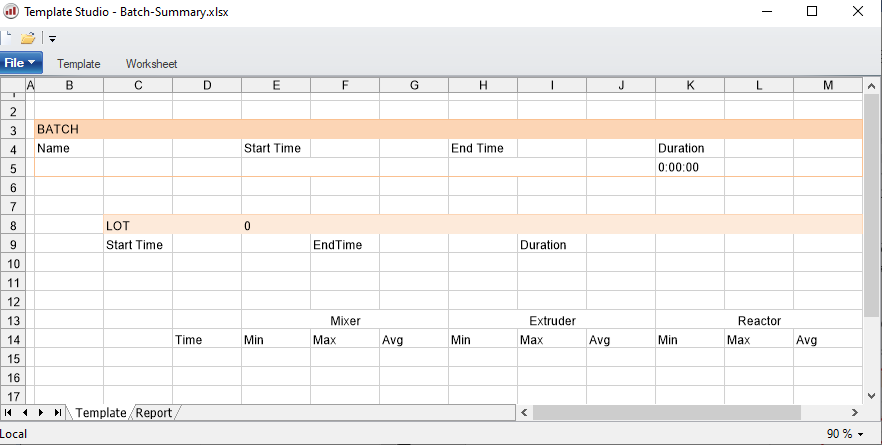 |
The workbook consists of two worksheets:
Template contains the sub reports individually connected to data sources using Data Connections.
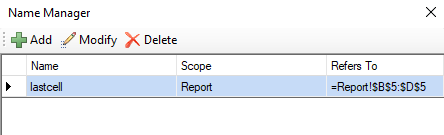
Report contains the named cell LastCell which is used to locate where the sub report is placed when it is used.
Note that named cells are defined/modified on the Design tab of the Template Studio using the Name Manager.
 |
The following steps are used to stack a sub report:
Sub report is copied to LastCell on the Report sheet.
The connections assigned to the sub report are updated.
LastCell is automatically moved down on the Report sheet (using Data Management) so the next sub report appears below the previous.
If the data sources in the sub report cause the sub report to grow, this also repositions LastCell.
Note the need to control the operations i.e., first copy the sub report with Data Management and then update the Data Connections. The execution order is controlled using connection Group IDs. These IDs are defined as part of the Data Connection.
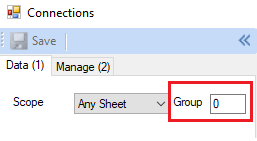 |
To enforce the order of operations, each action is given an ID, for example 10 for the copy and 1 for the update. When the report is updated using the action UpdateGroupSheet, these values are listed in the order of execution:
UpdateGroupSheet ‘Batch-Summary.Template’ ’10,1’
Data Groups
Now that the general concept of copying sub reports to the Report sheet and updating its connections is covered, what causes this to happen i.e., what is the rule governing the stacking?
Stacked reports are driven from a Stack Master list of items derived from a data table e.g., the results of a database query, and are processed record by record. For example, the following table shows a list of Event Frames (see CONNECT, Event Frames in the Document Library) corresponding to batches and lots:
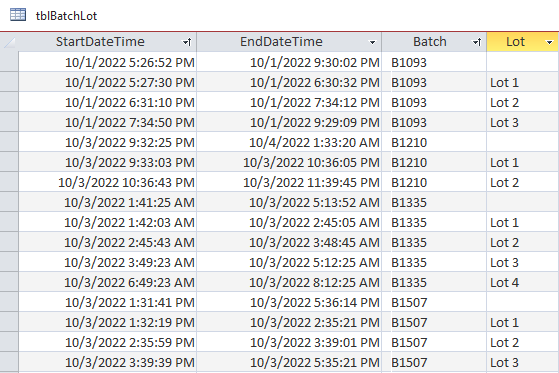 |
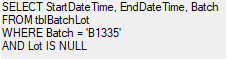
To obtain information about a batch, a database group called grpBatch would be configured to produce the following query, filtering for the specific batch e.g., B1335:
 |
To obtain information about the lots for that batch, a database group called grpLot would be configured to produce the following query, filtering for the specific batch:
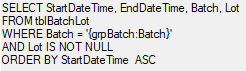 |
When database groups are used in the context of stacked reports, they expose their Columns values through implicit variables using the syntax group:column name. This has been used in the grpLot filter where, instead of hard coding a value for the Batch, it is assigned the filtered value from grpBatch:Batch enclosed in {}.
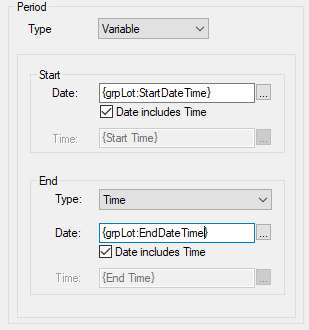
Implicit variables can be used in history groups. For example, to obtain metrics about a particular lot, the history group Time Period filter would look like:
 |
Implicit variables can also be displayed in sub reports as Variable connections.
Stacking Rule
As described in the Overview, stacked reports have two main elements, the Sub Reports which are stacked according to a Stack Rule. The stack rule is a hierarchy of data groups which cascade into each other, stacking the sub reports. At the top of the hierarchy is a database group called the Stack Master which dictates the processing of all the other groups.
The records may be processed at once (Always rule) or they may provide values to other groups and wait for them to complete (Iterate rule). A third stacking rule is based on a condition (Condition rule) involving an implicit variable, an operator, and a value.
Since there are several considerations that need to be made in creating a stacked report, a Stacked Template Wizard is provided to easily attain results.