Cross Tab on State Change
The Cross Tab on State Change function is used to analyze rows of data and cross tabulate (combine) multiple rows into a single row based on a change in State in a designated column. Consider the following data:
Date/Time | State |
|---|---|
1/1/2020 00:00 | ON |
1/1/2020 01:00 | OFF |
1/1/2020 02:00 | ON |
1/1/2020 03:00 | OFF |
1/1/2020 04:00 | ON |
1/1/2020 05:00 | OFF |
Using this function, the following can be generated:
Start Date/Time | End Date/Time |
|---|---|
1/1/2020 00:00 | 1/1/2020 01:00 |
1/1/2020 02:00 | 1/1/2020 03:00 |
1/1/2020 04:00 | 1/1/2020 05:00 |
The data may also have values from multiple sources which must also be considered. This is referred to as the Key column. Consider the following data:
Date/Time | Pump | State |
|---|---|---|
1/1/2020 00:00 | P1 | ON |
1/1/2020 00:30 | P2 | ON |
1/1/2020 01:00 | P1 | OFF |
1/1/2020 01:30 | P2 | OFF |
1/1/2020 02:00 | P1 | ON |
1/1/2020 02:30 | P2 | ON |
1/1/2020 03:00 | P1 | OFF |
1/1/2020 03:30 | P2 | OFF |
1/1/2020 04:00 | P1 | ON |
1/1/2020 04:30 | P2 | ON |
1/1/2020 05:00 | P1 | OFF |
1/1/2020 05:30 | P2 | OFF |
If the Key column is set to Pump, the following can be generated:
Start Date/Time | Pump | End Date/Time |
|---|---|---|
1/1/2020 00:00 | P1 | 1/1/2020 01:00 |
1/1/2020 00:30 | P2 | 1/1/2020 01:30 |
1/1/2020 02:00 | P1 | 1/1/2020 03:00 |
1/1/2020 02:30 | P2 | 1/1/2020 03:30 |
1/1/2020 04:00 | P1 | 1/1/2020 05:00 |
1/1/2020 04:30 | P2 | 1/1/2020 05:30 |
Settings | |
|---|---|
Key | This setting defines the column within the range that helps identify what should be considered a state change. In the example above, the Pump column is used as the Key column so that every state change of every unique pump is considered separately. Note that the Key column is not a required setting. It is not needed if all the State values pertain to the same key. If the Key is not needed the value of this setting should be left blank. If it is needed it should be set to the cell in the top row for the appropriate column within the Apply To range. |
State | This setting defines the column within the range with the unique state values. This should be set to the cell in the top row for the appropriate column within the Apply To range. |
State Change | This defines how changes in state are detected.
|
Value 1 | The value that defines when a new state has been detected. This can be a fixed value or a cell reference. |
Value 2 | The value that defines when the exit state has been detected. This can be a fixed value or a cell reference. |
Range 1 | This defines the range of cells to copy when a new state has been detected. This should be defined as a range of cells in the top row of the Apply To range. This range is pasted to the worksheet based on the Placement cell defined. |
Range 2 | This defines the range of cells to copy when the exit state has been detected. This should be defined as a range of cells in the top row of the Apply To range. |
Range 2 Placement | This setting determines how Range 2 is written to the worksheet.
Range 2 is inserted immediately to the right of the end of the Range 1 data pushing anything to the right outwards. |
Mechanics
State Change is Any or Distinct
When the State Change is Any or Distinct, if the State value equals Value 1, the range specified in Range 1 is copied to the Placement cell and the Key value (if specified) is retained. If the State value equals Value 2, the range specified in Range 2 is copied to the Placement area. If the Key column is specified, Range 2 is pasted to the row corresponding to the Key, otherwise it is pasted to the row of the last Value 1 state change.
If State Change is Any and Value 1 and Value 2 are left blank, each unique set of State and Key (if specified) values are determined. Range 1 is copied from the first row containing the set and Range 2 is copied from the last row containing the set.
State Change is Any Value Change
When the State Change is Any Value Change when any state change is detected, the range specified in Range 2 is copied and pasted to the row of the previous state change. Then the range specified in Range 1 is copied and pasted to the new row in the Placement area.
When data is copied to the Placement area, if the Placement Cell has no formatting applied to it, the format in the Apply To range is copied along with the values, otherwise only the values are pasted.
Example
Calculate runtimes from an event log of machine starts/stops.
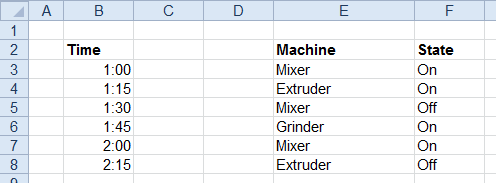
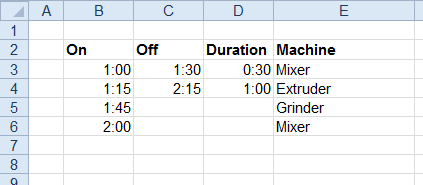
Use the settings (the duration is a formula):
Apply To | |
|---|---|
Cell | $B$3:$F$3 |
Direction | Down |
End | All cells are empty |
Setting | Value |
|---|---|
Key | $E$3 |
State | $F$3 |
State Change | Any |
Value 1 | On |
Value 2 | Off |
Range 1 | B3:E3 |
Range 2 | B3 |
Range 2 Placement | Append |