On-Demand Designer
The On-Demand Designer is accessed from an open template in the Template Studio.
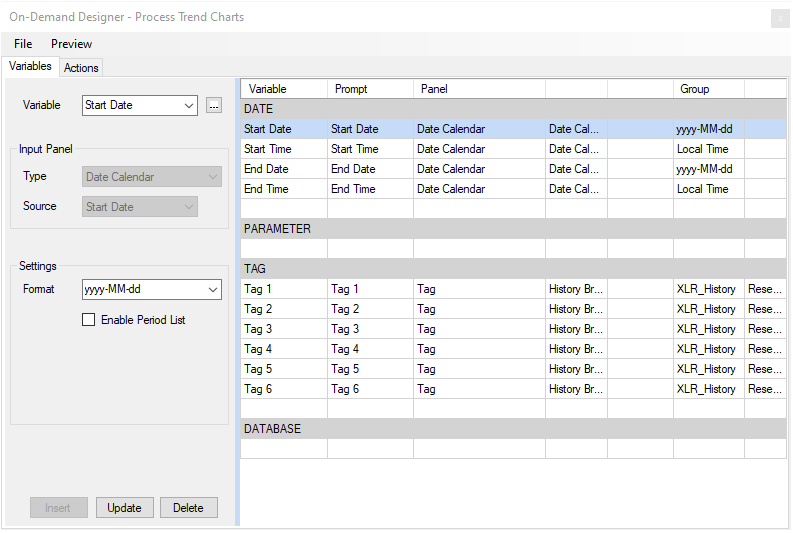
The display consists of two tabs, Variables and Actions and a grid that is partitioned into DATE, PARAMETER, TAG and DATABASE with each representing a Panel (see Variables Tab section below).
When assignments to the grid have been completed, click Preview to view the Panels from the perspective of the end user. The display shown is in fact the left panel of On-Demand reports.
To save changes click Save.
Variables Tab
The Variables tab is used to specify the method by which a variable is assigned a value. The selection of the input method is usually dictated by the context of how the variable is used. For example, if the variable represents a date, a Date picker would be appropriate.
Completed settings are added to the grid by clicking Insert.
Select a Variable from the drop-down list containing a list of variables. If the variable is not listed, a browse pushbutton […] is provided to select any variable configured in the project. Alternatively, variables can be manually entered.
Under Input Panel the Type is typically read only and changes depending on what row is selected in the grid to the right.
DATE
The DATE panel is used to specify elements of date and time to variables. Specifically, using the DATE panel provides the Start Date, Start Time, End Date and End Time elements from the control.
Input Panel
Type
Date Calendar
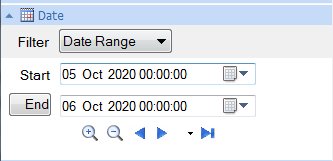
This Type can be used to specify any of the elements available from the control depending on what Source elements are configured.
Date Interval
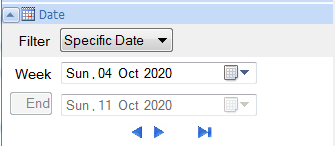
This Type can be used to specify the Start Date (and possibly Start Time) for a specific interval like a day, week, or month.
Source
The element of the DATE panel to set to the specified Variable. The following are available:
Start Date
The value for the variable comes from the Start Date of the panel.
Start Time
The value for the variable comes from the Start Time of the panel.
End Date
The value for the variable comes from the End Date of the panel.
End Time
The value for the variable comes from the End Time of the panel.
Settings
Format
This setting is only available when the Source is Start Date or End Date.
This defines the format of the date when the value is written to the variable. If the format required is not listed, it can be manually entered. The following formats are selectable:
Local Date
The short date format as defined in the Windows Control Panel. Use this Format when the Variable must be set with a date in the local format.
Local Time
The 24-hour format as defined in the Windows Control Panel. Use this Format when the Variable must be set with a time in the local format.
The Start Time and End Time are always set in this Format.
Local Date Time
The local date and time formats (with a space in between) as defined in the Windows Control Panel. Use this Format when the Variable must be set with a date and time with both in local format.
If this Format is configured and Source is Start Date, the Variable is set with the Start Date and Start Time from the panel. If Source is End Date, the Variable is set with the End Date and End Time from the panel.
yyyy-MM-dd
The universal date format used by virtually all database engines. This is the default Format for Start Date and End Date and should be used unless the local format is explicitly required.
yyyy-MM-dd hh:mm:ss
The universal date and time format used by virtually all database engines. If the Variable requires both a date and time use this Format unless the local format is explicitly required.
If this Format is configured and Source is Start Date, the Variable is set with the Start Date and Start Time from the panel. If Source is End Date, the Variable is set with the End Date and End Time from the panel.
Period
This setting is available when the Input Panel Type is set to Date Interval.
This setting defines the interval period added to the Start Date and Start Time specified to determine the End Date and End Time. This also defines the interval that the start and end change by when panning to the left or to the right.
Hourly
The End Date and End Time are calculated as the Start Date and Start Time plus 1 hour.
Daily
The End Date is calculated as the Start Date plus 1 day. The Start Time and End Time are both fixed at midnight and are not displayed in the panel.
Daily. Start time
The Start Time is specified in the list to the right. The End Date and End Time are calculated as the Start Date and Start Time plus 1 day.
Weekly
The End Date is calculated as the Start Date plus 1 week. The Start Time and End Time are both fixed at midnight and are not displayed in the panel.
Weekly. Start day
The day of the Start Date is specified as a day of the week in the list to the right. The End Date is calculated as the Start Date plus 1 week. The Start Time and End Time are both fixed at midnight and are not displayed in the panel.
If the user selects a date that is not the same day of the week as specified to the right, the date is set to the date of that day of the week. For example, if the Start day is set to Wednesday and the user selects January 3rd, 2020, the Start Date is January 1st 2016 as that was the date of the previous Wednesday before January 3rd.
Monthly
The End Date is calculated as the Start Date plus 1 month. The Start Time and End Time are both fixed at midnight and are not displayed in the panel.
Monthly. Start day
The day of the Start Date is specified as a day of the month in the list to the right. The End Date is calculated as the Start Date plus 1 month. The Start Time and End Time are both fixed at midnight and are not displayed in the panel.
If the user selects a date other than the Start day specified to the right, the Start Date is set to the month and year of the date chosen but to the day specified as the Start day. For example, if Start day is set to 1 and the user selects January 15th, 2020, the Start Date is set to January 1st , 2020.
Enable Period List
When checked, the DATE panel displays a list of standard time periods to select from which require no additional entry as well as an option where the user can enter specific dates and times.
This list appears at the top of the panel labeled as Filter.
Limit Time Period
This setting is available when the Input Panel Type is Date Calendar and Source is End Date.
This setting is used to limit the overall time period the user can specify in the panel. Common settings are provided to choose from. A custom setting may be entered in the format [DD] HH:mm:ss, e.g., [15] 12:00:00 for 15 days and 12 hours. The limit is always imposed from the start date and time.
This setting must be at least 1 day.
Required Settings
In order to use this panel a Variable must be configured for the Start Date. All others are optional.
If the Type is Date Calendar and the End Date and End Time are not configured to Variables, the End settings are disabled in the panel.
If only the Start Date and End Date are configured to Variables, in the panel the Start and End are both shown as dates with no time displayed.
PARAMETER
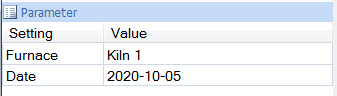
The PARAMETER panel is an “all purpose” panel that can be used to prompt the user for settings using many different input sources.
 |
Input Panel
Source
Text Box
A text box is presented to the user to enter in the Value. The user can enter anything they wish.
Date Picker
A date calendar picker is presented to the user to select a date.
Time Picker
A time picker is presented to the user to configure a time in hours, minutes, and seconds.
Database List
The results of a database data group are presented as a list of values for the user to select for the Value.
Text From File
A list of values is read from a text file and presented to the user to select for the Value.
File From Folder
A list of files from a specified folder is presented to the user to select for the Value.
Custom List
A custom list is specified and presented to the user to select for the Value.
Yes/No List
A list containing Yes and No are presented to the user to select for the Value.
True/False List
A list containing True and False are presented to the user to select for the Value.
Tag Catalog
A tag browser is presented to the user with all the tags listed from the Catalog specified to select for the Value.
If the report requires multiple tags to be specified it is better to use the TAG panel.
Real Time Browser
A tag browser is presented to the user with all the tags available from the Real Time Connector specified to select for the Value.
If the report requires multiple tags to be specified it is better to use the TAG panel.
History Browser
A tag browser is presented to the user with all the tags available from the History Connector specified to select for the Value.
If the report requires multiple tags to be specified it is better to use the TAG panel.
Settings for All Sources
Prompt
The text displayed to the user under the Setting column of the panel prompting them for a value.
Reset
This setting determines what rows get reset if the value of the current row changes.
Reset None
No other rows are reset when the value of the current row changes.
Reset All
The Value of all other rows beneath the current row are reset when the value of the current row changes.
Reset Next
The Value of the row immediately beneath the current row is reset when the value of the current row changes.
Settings for Text Box
Initial
The initial value to show for the Value when the template is loaded in the On Demand Reports application or web portal.
Settings for Date Picker
Format YYYY-MM-DD
If checked, the format of the date written to the variable is YYYY-MM-DD. Otherwise, the format is the local short date format as set in the Operating System.
In most cases this setting should be checked.
Settings for Database List
Group
The Database Data Group in the project that provides the list for the user to choose from. A browse button (…) is provided to select an existing group. The group should be a Standard database group.
In the group, if two columns are selected the first column is used as the display and the second is used as the value. So, the list the user sees comes from the first column, but the value set to the Variable is from the second column.
Initial
The initial value to show for the Value when the template is loaded in the On Demand Reports application or web portal.
A browse button (…) is provided to select the value from the same list presented to the user.
Settings for Text From File
File
A text file (*.txt) containing a list of values for the user to choose from. A browse button (…) is provided to select an existing text file or create a new text file. The file must be in the Input directory of the project and have the file extension .txt.
In addition, the values inside the text file must be separated by the semicolon character (;).
Initial
The initial value to show for the Value when the template is loaded in the On Demand Reports application or web portal.
A browse button (…) is provided to select the value from the same list presented to the user.
Settings for File From Folder
Folder
The folder containing the files to present to the user to select from. A browse button is provided for the setting.
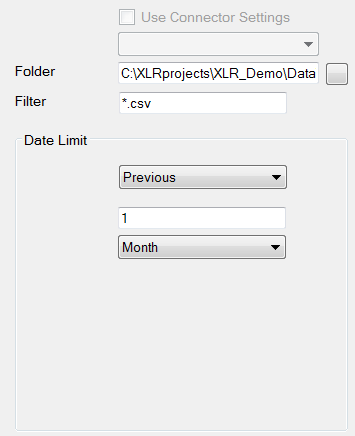
If the project has any Text File connector(s) configured, the Use Connector Settings option is enabled. When checked, the list below is enabled displaying all the available connectors. The Folder and Filter settings are read from the connector.
Otherwise specify the Folder where the files are located and a Filter to restrict the list presented.
The Date Limit is provided as another filter for the list of files. This filter works off the Date Modified of every file in the Folder that matches the Filter specified. If the Date Modified is within the limit specified, it is listed, otherwise it is not. If the Variable option is selected, the variables must be configured in the PARAMETER panel.
Settings for Custom List
List
The list to present to the user to select from. A browse button (…) is provided to build the list.
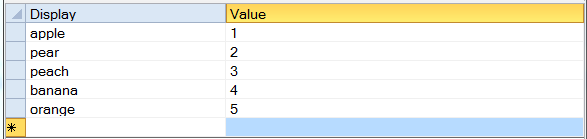
Each entry in the list can consist of a Display and a Value. Display is what the user sees and selects, Value is what is set to the Variable.
Initial
The initial value to show for the Value when the template is loaded in the On Demand Reports application or web portal.
A browse button (…) is provided to select the value from the same list presented to the user.
Settings for Tag Catalog
Catalog
The catalog configured in the project with the list of tags to display to the user.
Initial
The initial value to show for the Value when the template is loaded in the On Demand Reports application or web portal.
Settings for Real Time Browser and History Browser
Connector
The Real Time or History connector that provides the tags for the user to select from. A browse pushbutton (…) is provided to select from the list of available connectors.
Initial
The initial value to show for the Value when the template is loaded in the On Demand Reports application or web portal.
List Sources
When Source is set to one of the “List” options like Database List or Custom List the Display and Value parameters may be set. The Variable itself is set to the Value.
However, if the Display value must also be shown in the report, it can be done so by setting a Variable connection to {Variable:Display}. For example, if the Variable is Filter 1, to show the Value, use {Filter 1} to show the Display value use {Filter 1:Display}.
Cascading Parameters
When configuring a Database List, the underlying Database Data Group can contain variables set in the rows above in the panel so that the list is restricted based on other settings in the panel.
For example, consider an Alarms report where the user wants to see all the alarms for a specific tag between two specified dates. Now, this could be accomplished by presenting the user a PARAMETER panel where they specify the Start Date, End Date and Tag as separate items. However, this means that there is a chance they pick a tag that has no alarms between the start and end.
To avoid this problem for the Tag, construct a Database Data Group that queries a DISTINCT list of tags and for the Filter, use the Start Date and End Date variables. Now when the user clicks to select a Tag they will only see the tags that had alarms between the Start and End they specified.
As a final touch, for the Start Date and End Date set the Reset to Reset All so that if the Start Date or End Date is changed, the Tag resets forcing the user to select one that has alarms over that time.
TAG
The TAG panel is available for the user to specify one or more tags for the report. The advantage of this panel over the PARAMETER panel is that if multiple tags are selected from the browser they are assigned to multiple rows in the TAG panel.
Also, every tag can be configured to have a Name, Nickname and Description. Sometimes the Name can be so cryptic that the user may not recognize what it is. However, the Nickname and/or Description may be clearer and thus make it easier for the user to recognize it. With the TAG panel the Display can be toggled between Name, Nickname and Description.
Typically, this panel is configured so every row has the same settings except for Variable and Prompt.
Source
Tag Catalog
A tag browser is presented to the user with all the tags listed from the Catalog specified to select for the Value.
Real Time Browser
A tag browser is presented to the user with all the tags available from the Real Time Connector specified to select for the Value.
History Browser
A tag browser is presented to the user with all the tags available from the History Connector specified to select for the Value.
Settings
Prompt
The text displayed to the user under the Setting column of the panel prompting them for a value.
Reset
This setting determines what rows get reset if the value of the current row changes.
Reset None
No other rows are reset when the value of the current row changes.
Reset All
The Value of all other rows beneath the current row are reset when the value of the current row changes.
Reset Next
The Value of the row immediately beneath the current row is reset when the value of the current row changes.
Catalog
This setting is only available when Source is set to Tag Catalog.
The catalog configured in the project with the list of tags to display to the user.
Connector
This setting is only available when Source is set to Real Time Browser or History Browser.
The Real Time or History connector that provides the tags for the user to select from. A browse pushbutton (…) is provided to select from the list of available connectors.
Initial
The initial value to show for the Value when the template is loaded in the On Demand Reports application or web portal.
Display
The initial tag element to display when the report template is loaded in the On Demand Reports application or web portal. This can be set to show Name, Nickname or Description.
Note that this setting applies to every row in the panel not just the row selected.
DATABASE
The DATABASE panel is used to present records from a Database Data Group for the user to select from to generate a report. Each column selected in the group can be configured to a Variable so multiple variables can be set from one record.
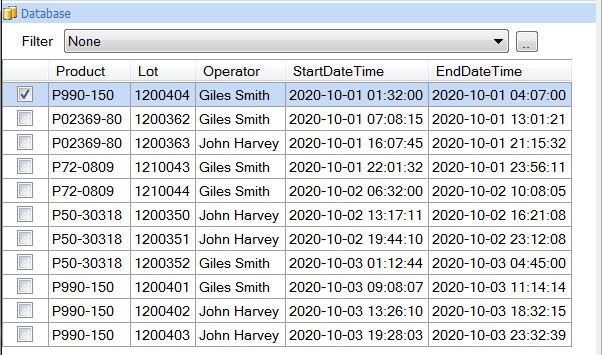 |
A typical use for this panel is in a discrete batching environment where each time a batch is triggered the start and end of the batch along with a batch identifier is logged as a record in a database table so that time period can be used to extract data for the batch from a continuous historian.
Normally when this panel is configured it is the only panel used for the template.
Input Panel
Group
The Database Data Group to feed the data to the panel. This must be a Standard database group.
Settings
Column
This setting presents a list of all the available columns from the selected group. Select one to correspond with the Variable specified.
Hide
If checked the column is hidden in the panel. The value is still set to the Variable, the user just does not see it.
Use as Filter
This setting is only available if the Column selected is a timestamp. However, if the timestamp has an alias configured for it (e.g., MyTimestamp AS myTS) or if the group itself was manually entered under the SQL tab, this setting is not available. This setting should not be used if the timestamp is derived from a Summary function in the group (e.g., MAX(DateAndTime)).
If checked, at the top of the panel a Filter option is added which allows the user to filter the list of records in the panel based on date and time criteria.
Note that only one column can be designated as the Filter.
Single Selection
By default, multiple records can be selected in the panel. For every record selected, the variables are set and the report is triggered. This allows for multiple reports to be triggered at one time.
However, there are some instances where the user should only select a single row to generate the report. In those cases, this setting should be checked.
Note that this setting applies to the entire panel, not just the current row.
Format: YYYY-MM-DD
This option is only available when the selected Column is a timestamp.
By default, any column with a timestamp is formatted to match the local operating system. By checking this option, the date format of any timestamp is set to the universal YYYY-MM-DD format.
In most cases this option should be selected.
Column Headers
The headers at the top of the panel by default reflect the name of the column selected in the underlying Database Data Group. In some circumstances this can be limiting.
To overcome this, in the Database Data Group instead of selecting the column directly, configure an Expression to: Column AS Alias
Add the Expression as to the Selected Columns list. Now instead of the column name, the alias is shown.
A good example of this is XLReporter’s Event Frames. While the StartDateTime and EndDateTime are obvious, Value1, Value2, Value3 and Value4 are generic values that can be logged on the start of an event. To compensate for this, the group can be configured like this:
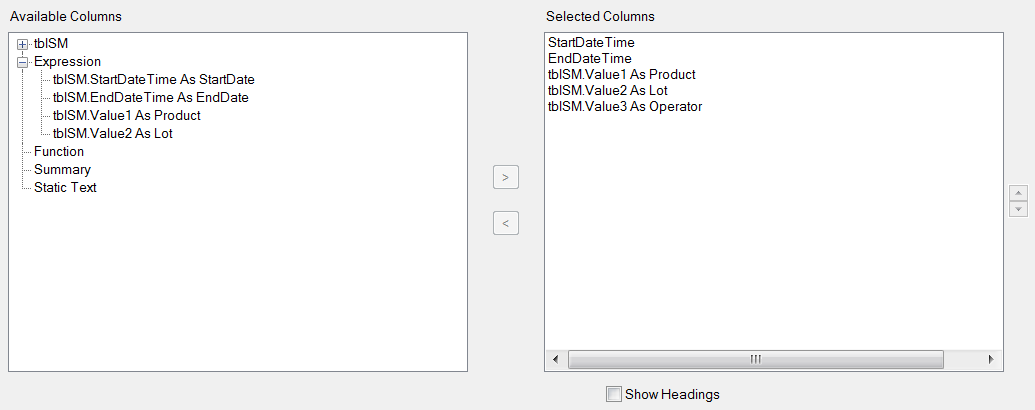 |
Now, instead of Value1, Value2 and Value3 at the top of the panel, Product, Lot, and Operator are shown instead.
Actions Tab
The Actions tab shows the actions that are performed when the template is Refreshed. In most cases, this setting does not need changing. The following Actions are available:
UpdateBook
This action updates all of the worksheets in a workbook. Note that only data connections that have a defined Scope will be considered in the update.
UpdateGroupBook
This action updates all of the worksheets in a workbook but is restricted by the connection group number or list of group numbers specified.
Note that irrespective of the connection group number(s) in the action, connections belonging to group zero are included for this action.
Only connections that have a defined Scope are updated with this action.
UpdateSheet
This action updates a single worksheet.
UpdateGroupSheet
This action updates a single worksheet but is restricted by the connection group number or list of group numbers specified.
Note that irrespective of the connection, group number(s) in the action, connections belonging to group zero are included for this action.