Group Builder
When a new group is created, the user is prompted to select the group type. Note that the group types available depend on the connector.
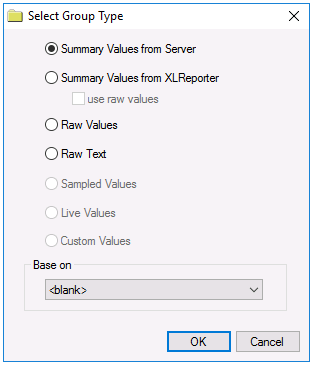 |
Summary Values from Server
Summary values are calculated by the Server e.g., flow average for each hour of the day.
Summary Values from XLReporter
Summary values are calculated by XLReporter. Select use raw values to base calculations on raw values otherwise they will be based on sampled values from the Server e.g., flow average for each hour of the day when the pump is running (see XLReporter Calculations).
Raw Value
Numeric values from the Server.
Raw Text
Text values from the Server.
Sampled Values
Sampled values from Server e.g., flow value at start of each hour of the day.
Live Values
Live values from the Server.
Custom Values
Custom values queried from any table/view in the historian database. This launches the Database Data Group.
This option is only available when the historian is a relational database like Microsoft SQL Server or MySQL.
To create a new group from an existing, set Base on to the name of the existing group. This can be useful if you have multiple groups that use the same items or if you are converting groups from one historian connector/type to another.
Setup Tab
The Setup tab is used to specify a Description and Retrieval settings for group type Summary Values from XLReporter.
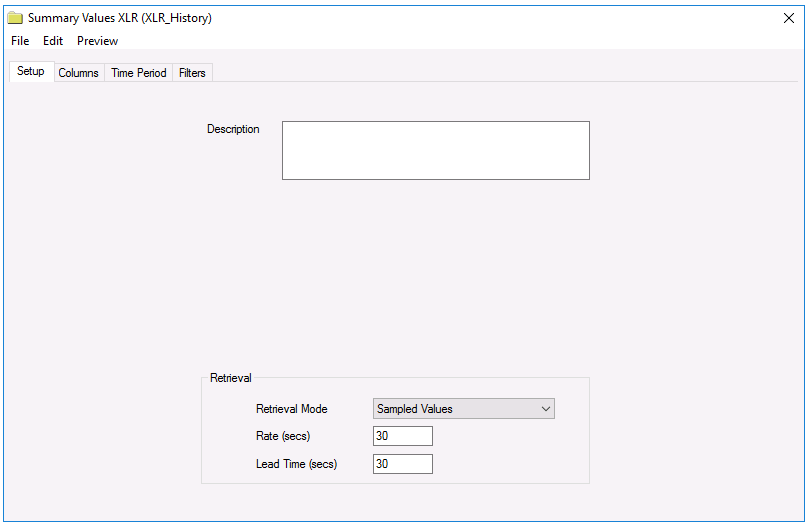 |
Summary values are calculated by XLReporter from data from the Server. The Retrieval Mode specifies whether the data from the Server will be the Raw Values or Sampled Values. In general, using Sampled Values performs the calculation faster whereas Raw Values performs the calculation more accurately.
If the mode is set to Sampled Values, the Rate determines the frequency of the samples.
Note that the caption of the builder shows the name of the group and the connector it is using. For example, the text Raw values – ProcessData (MyHistorian) indicates that the group name is ProcessData and that it interfaces to the connector MyHistorian to return Raw values.
The Lead Time is subtracted from the Start Time of the Time Period tab before the values are retrieved from the server. This is used for time weighed calculations.
For specific Connector settings see the document under DATA CONNECTIVITY for the specific vendor that is providing the historical data.
Columns Tab
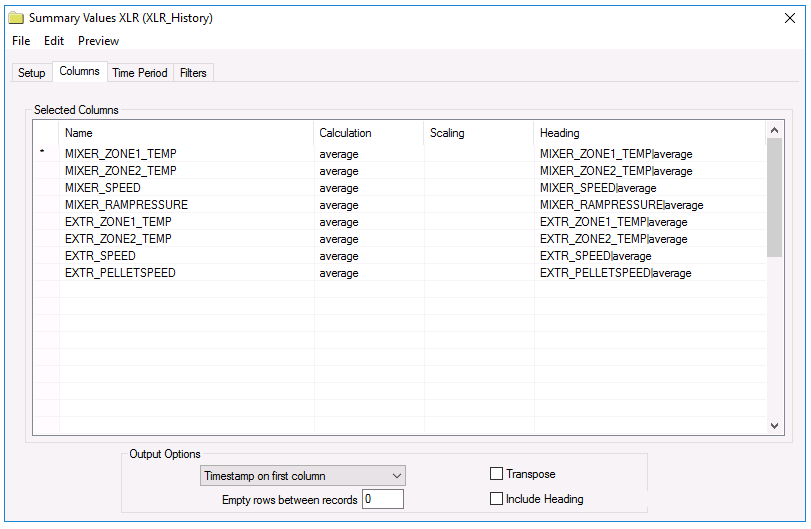
The Columns tab is used to specify the item Name(s), Calculation, Scaling and Heading of the group. Up to 40 names are supported by a group.
 |
Browsing and Selecting Item Names
To add an item, select a cell in the Name column, and click the browse button (…) to open the item browser. A Name can be one of three choices:
Literal name. Actual name of the item (as configured in the server). A literal name can be selected from the Online browser or from a Catalog.
Variable name. A variable item is a placeholder that is assigned a literal item name at the runtime of a report. Variable names can be selected from the Variables branch of the item browser and can be a User-Defined or a Register variable. User defined variables are not limited to the {Tag X} syntax – these can be assigned to any expression, e.g. {Temperature} or {Pressure} by typing in the name.
Static Variable name. Fixed text.
Variables (displayed in {}) provide a way to assign the item names externally, e.g., when the group is used on-demand, the item name is selected.
Static Variables (displayed in *{}) are considered fixed text for display only and is not used for data retrieval. In the item browser, select Treat As Text to configure.
Grid rows are moved relative to each other, Inserted or Deleted by right clicking on the left most column or using the up/down and insert/delete keys on the keyboard.
When empty rows are set between two items, the output of the group will contain empty rows/columns. Use empty rows to prevent calculations in the template from being overwritten by the output of the group.
For group types that perform calculations, the calculation is performed over each Interval of the Period specified in the Time Period tab. The list of calculations is either specific to the Server or those provided by XLReporter (see XLReporter Calculations).
The Scaling is applied after the calculation has been performed. (see Scaling Scaling).
The Heading is included in the output if Include Heading is set. The Heading can be a specific item or a variable. In the case of variables, additional parsing data can be specified to limit the text length (see Heading).
By default, the output has each selected column as a column. By selecting Transpose, each selected column is displayed as a row.
Time Period Tab
The Time Period tab is used to specify a Period and Interval which collectively determine the number of rows of values produced by the group.
For example, suppose the calculation is average, the Period is 1 day, and the Interval is 1 hour, then the output will be 24 hourly averages.
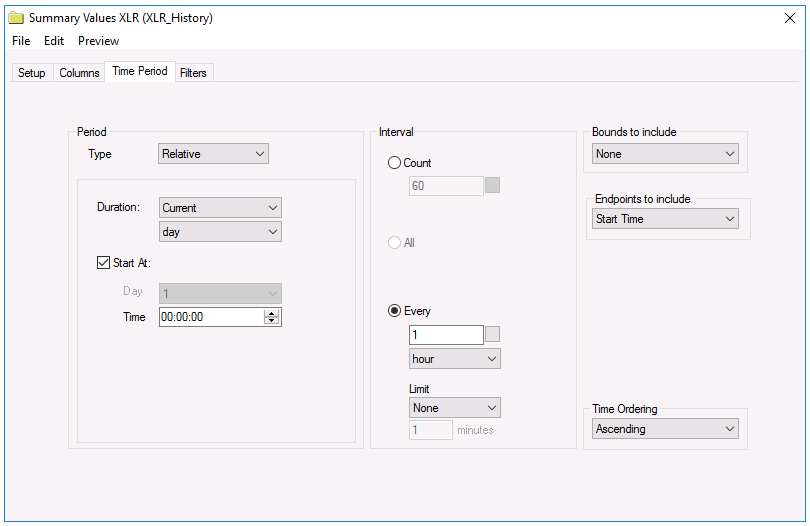 |
The types of Periods available are Relative, Offset, Variable, Database and Endpoint.
Relative Period
Relative calculates the Period used using a Duration and Start. The Duration is specified in terms of the Current or Previous duration unit. An optional Start At defaults to the current time if not specified.
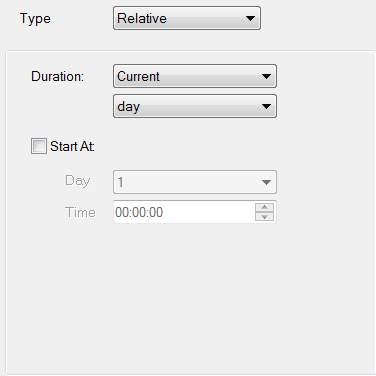 |
Example: Suppose the settings Duration Month, Start At not checked. The start/end of the Period on 12 April will be:
Start | End | |
|---|---|---|
Current | 12 April | 12 May |
Previous | 12 March | 12 April |
Example: Suppose the settings Duration Day, Start At 08:00. The start/end of the Period on 12 April 10:00am will be:
Start | End | |
|---|---|---|
Current | 12 April, 8:00 AM | 13 April, 8:00 AM |
Previous | 11 April, 8:00 AM | 12 April, 8:00 AM |
Offset Period
Offset calculates the Period using a Duration, Start and Offset. The Offset Period is a generalization of the Relative Period to provide a higher level of customization.
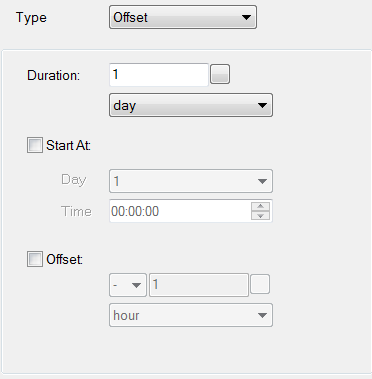 |
Example: Suppose the settings Duration 1 Day, Start At 8:00am. The start/end of the Period on 12 April 10:00am for various offsets will be:
Start | End | |
|---|---|---|
No offset | 12 April, 8:00 AM | 13 April, 8:00 AM |
Offset minus 1 day | 11 April, 8:00 AM | 12 April, 8:00 AM |
Offset minus 1 month | 12 March, 8:00 AM | 13 March, 8:00 AM |
Note that the first two examples produce the same result as Relative Period.