Copy Range
The Copy Range function copies the Source range and pastes it to the Placement using the Type operation such as Direct, Offset, Append, and Insert.
If the Placement Type is Insert At Start (full) or Insert At End (full) the entire rows or columns (depending on Direction) are copied from the Source and pasted.
The Placement can be either:
Cell | Select this option if the placement is to a fixed cell e.g., $B$17 |
Name | Select this option if the placement is to a named cell. To name a cell, right click on the desired cell and select Define Name. Any row/column insertion that happens above or to the left of a named cell will cause name cell location to change accordingly. Special consideration is given to a cell named LastCell since a row/column insertion on this name cell causes the location to change by the number of rows/columns inserted. |
Settings | |
|---|---|
Paste The Paste option determines what is copied to the Placement from the Source. | All Everything from the range including the cell contents (values and formulas), formatting, charts and validation is copied and pasted to the Placement cell. |
All Except Borders Everything from the range except for borders is copied and pasted to the Placement cell. Any existing borders in the Placement range will remain. Note, charts within the Source range are not copied and pasted with this setting. The All setting must be used to copy charts. | |
Formulas The content from the range is copied and pasted to the Placement cell. Any formulas in the range are pasted. Any existing formatting in the Placement range will remain. | |
Formulas and Formats The content and formatting from the range is copied and pasted to the Placement cell. Any formulas in the range are pasted. | |
Validation The data validation from the range is copied and pasted to the Placement cell. Any existing formatting in the Placement range will remain. | |
Validation and Formats The data validation and formatting from the range is copied and pasted to the Placement cell. | |
Values The content from the range is copied and pasted to the Placement cell. Any formulas in the range are replaced with the result of the formula. Any existing formatting in the Placement range will remain. | |
Values and Formats The content and formatting from the range is copied and pasted to the Placement cell. Any formulas in the range are replaced with the result of the formula. | |
Formats The formatting from the range is copied and pasted to the Placement cell. | |
Operation | If the copy is performed to a Placement that already contains values, the Operation determines how the copy will occur. Set the Operation to None to copy the Source over the Placement whereas the selection of an arithmetic Operation combines the values from the Source and Placement ranges. |
Transpose | Setting Transpose to Yes transposes the Source before it copied to the Placement. In this case the Source and Placement cannot overlap, or this function generates an error. Note, when Placement is set to Yes, no charts are pasted if the Paste option is set to All. |
Skip Blanks | Setting Skip Blanks to Yes prevents empty cells in the Source overwriting cells in the Placement. For example: Copying cells D5:F5 with E5 empty to the range A1 to C1 does not overwrite the value in cell B1 (since E5 is empty). |
Clear Data | The Clear Data setting can be set to clear the Source range after it is pasted. The following options are available:
The content of every cell in the Source range is cleared. This is equivalent of highlighting a range of cells and pressing the Delete key. |
Adjust Column Widths | If set to Yes, the column widths of the Placement range are adjusted to match the Source range. |
Example
To copy a number of rows of data starting at $A$2:$D$2, paste them to the next empty cell at or beneath $F$4.
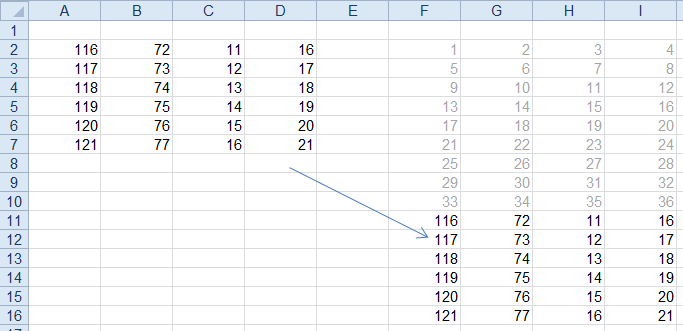 |
Use the settings:
Source | |
|---|---|
Cell | $A$2:$D$2 |
Direction | Down |
End | All cells are empty |
Placement | |
|---|---|
Cell | $F$2 |
Type | Append |
Direction | Down |
Setting | Value |
|---|---|
Paste | All |
Operation | None |
Transpose | No |
Skip Blanks | No |
Clear Data | No |
Adjust Column Widths | No |