Fill Range
The Fill Range function fills cells across rows or down columns as defined by the Base range with values as defined in the Formulas setting.
This is the equivalent of using the fill option (or fill tool) in the worksheet to drag formulas or values down or across cells.
Settings | |
|---|---|
Formulas | The range of cells containing the formulas (and/or values) to fill. If the Formulas contain absolute cell references, such as $B$4, they remain fixed during the fill operation otherwise they are adjusted as the cells are filled. |
Place Formula | If set to No after the cells are filled the formulas are removed from the cells so only the values remain. Otherwise, formulas are left in the cells. |
Apply Formatting |
|
Fill | This setting defines whether only cells containing Formulas are filled or if All cells are filled regardless of content. This can be really helpful if you have formulas interspersed with your data and want to use a single Fill Range to fill the formulas down but ignore the values themselves. |
Placement | This setting determines the placement of the formulas when they are filed. Direct means that the formulas are directly written to the cells beneath or to the right (depending on Direction) from the original Formulas. If there is any content in these cells, it is overwritten. Insert At End means that before the formulas are written to the cells, the range is inserted, and cells are shifted either down or across (depending on Direction) then the formulas are filled. This means that any other formulas or charts that depend on the values from these formulas are automatically resized for the number of rows or columns inserted. |
Example
The formula at cell E2 is =SUM(A2:C2)*$A$1 (note that $A$1 will not change during the fill).
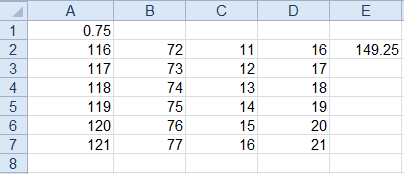 |
To fill the formula to row 7, use the settings:
Base | |
|---|---|
Cell | $A$2:$D$2 |
Direction | Down |
End | All cells are empty |
Settings | |
|---|---|
Formulas | $E$2 |
Place Formula | No |
Apply Formatting | All |
Fill | All |
Placement | Direct |