Project Explorer Panels
 |
Left Panel
The left panel of the Project Explorer shows a list of all the templates defined in the project. By selecting the  icon under the project name, the display toggles between the default view and the Category view if categories have been configured in the project.
A template can be modified by double clicking the item or right clicking and selecting an option.
Template Instance
A Template Instance is a set of parameters and specified values that can be stored and then reloaded when generating a report on demand. Instances are displayed as branches under the template name.
Example: Suppose a report is required for three identical machines. One solution would be to create a template for one machine, duplicate and modify for the other two. This approach can lead to inconsistencies because any change in the template will have to be mirrored to the other two.
A better approach would be to create a master template for a machine and then to create three instances from the master template, sharing the same layout but containing their specific machine settings.
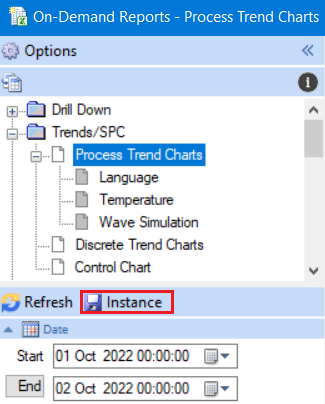
Template Instances are created from On-Demand Reports. In On-Demand Reports select the Instance button next to Refresh.
 |
Right Panel
The right panel of the Project Explorer has two tabs: Tools and About. Tools provides access to all the XLReporter applications while About displays system information.
The Tools tab also has the current registration status as well as access to registration and the option to start/stop the Scheduler.