Verify Data Communication
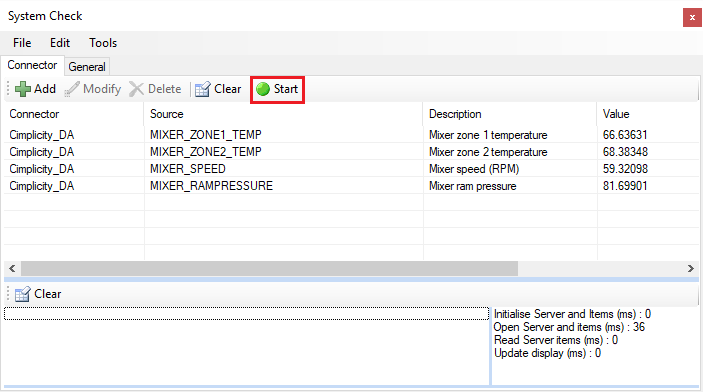
To verify communication, open the Project Explorer and select the Tools tab. Launch the System Check application.
Click Add
Select the Cimplicity connector from the dropdown list.
Click the pushbutton ([…]) next to Items to open the Tag Browser window.

Select one or more tags, click OK
Click Start to verify the communication.
Primary Server
These settings define the Name and Node of the OPC DA server. Typically, the Name is defaulted correctly. If the Cimplicity server is on the local machine, leave local checked, otherwise uncheck and specify either the name or IP address of the machine where Cimplicity is running.
Use the Test Connection button to verify a connection to the server.
Secondary Server
These settings define the (optional) secondary Cimplicity to connect to if a connection to the Primary Server fails.
Settings
For information on the specific settings, see the DATA CONNECTIVITY, OPC document.