File Version Control
When configuration file changes are performed, File Version Control maintains an archive of the configuration files of the project and also provides an audit trail of the user that performed the change.
It is suggested that this option is enabled after the development of the templates is complete.
Enable Version Control
From the Project Explorer under the Security section select Settings.
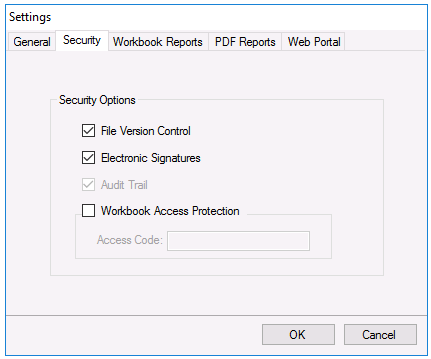 |
Check File Version Control to enable the feature.
This feature requires the Audit Trail connector to be defined (see Audit Trail). If the connector is not part of the project, then this is indicated on the display.
Applying Version Control
File version control is applied on the save of various report template components which affect the content of the report.
For example, if a template contains a history group connection and the history group content is edited, then the user will be required to specify the reason of the change. This will be performed by the following dialog which appears automatically:
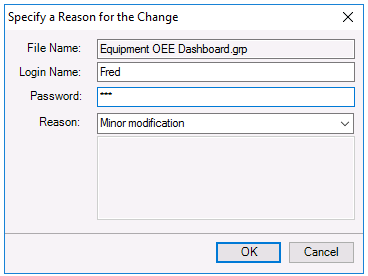 |
The reason can be selected from a reset list or can be entered by the user. This action will be archived in the audit trail and viewed by the Audit Trail viewer
File Archive Viewer
The File Archive viewer is accessed from Project Explorer, select the File menu, and choose File Archive.
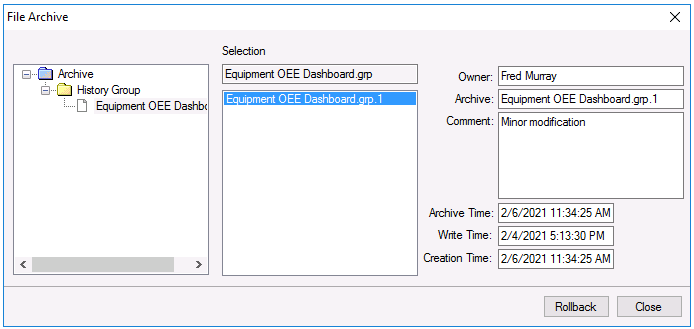 |
Under Archive are the files that have been changed with File Version active. Selecting a file will display the archive of the file with the naming convention file name followed by a number. Selecting an archive file will show details of who, why and on what date the file was edited.
File Rollback
If there is a need to make a file active from the Archive, then select the file and click Rollback. A warning will appear which, when accepted with a reason, will make the selected file the active file and log this action to the audit trail.