Web Portal Front End Setup
To install the web portal front end on the DMZ to make it accessible to users on the business network, the XLReporter Distributed Edition must be first installed on the production network and must be accessible from the DMZ. This may require ports to be opened on the Windows Firewall.
Installation
To install the web portal front end, on the machine to install it on, open a web browser and navigate to
http(s)://IPAddress[:Port]/XLRweb/SetupFrontEnd.htm
Where IPAddress is the IP address of the XLReporter server and [:Port] is the port number if not default. (e.g. :81 for Port Number 81)
This downloads SetupXLRWebFrontEnd.exe to the system. Run this to begin installation.
Note that if there are issues navigating to the URL this file can be manually copied from the XLReporter server. It is located in the XLReporter install folder (C:\XLReporter by default) in the team subfolder.
During installation, if Internet Information Services (IIS) is not enabled on the machine, installation prompts to enable it. If this fails, please follow the Internet Information Services section above to enable based on the Windows Operating System.
After the files are installed, the Web Portal Front End Setup dialog appears to prompt for information regarding the system.
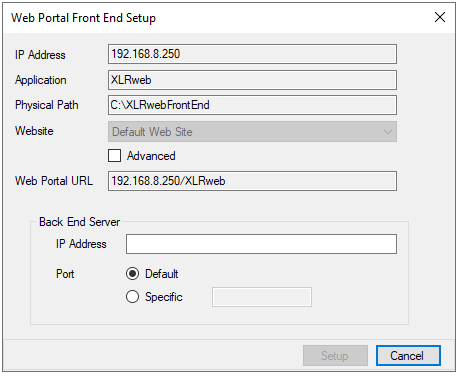 |
IP Address is the IP address of the local machine that users will enter to access the web portal front end. This is only configurable if there are multiple IP addresses detected on the system.
Website defines the site in IIS where the XLRweb application is installed. By default, this is Default Web Site but if you would like to change this to another site defined in IIS, check Advanced and select the Website from the list.
The Web Portal URL is the URL any user will use to connect to the web portal based on the settings above. This can be copied to the clipboard to use after installation is complete.
In the Back End Server section, the IP Address is the IP address of the XLReporter server on the production network. The Port is the port number that the web portal is running on, either Default (port 80) or a Specific port number.
Click Setup to continue with the web portal front end setup. A prompt appears asking to copy images from the back end server. If Yes is selected, any custom image set up for the web portal on the XLReporter server is copied to the front end and used for web clients navigating to the web portal front end.
Note, if any of these settings need to be changed after installation, this can be re-run by opening Windows File Explorer navigating to the bin subfolder of installation (C:\XLRwebFrontEnd\bin by default) and running xlrIISFronEnd.exe (Administrator access is required).