By Row Iteration
The By Row Iteration function goes over each row of the Range specified, setting the cell values in each row to variables and triggering the Action specified.
The top row of the Range contains the names of the variables to set for each row.
When iterating, if any column in the row contains a formula error, that row is skipped entirely.
Settings | |
|---|---|
Action | This setting can either be a specific action (selectable from the drop-down list) or a range of cells each of which contain a fully qualified action to trigger for each row of the Range. For example: UpdateSheet ‘MyTemplate.xlsx.Template’ PrintSheet ‘MyTemplate.xlsx.Template’ ‘default’ |
Worksheet | If the Action is set to UpdateSheet or UpdateGroupSheet, the Worksheet field must be set to the name of a worksheet in the template. |
Group | If the Action is set to UpdateGroupBook or UpdateGroupSheet, one or more Group numbers must be specified. For multiple groups, separate each with a comma. |
Example
Consider a report requirement where every day a variable number of batches is produced in a plant and at the end of the day, a report is required for each batch produced. A table in a database contains a record for each batch as well as the time it started and ended.
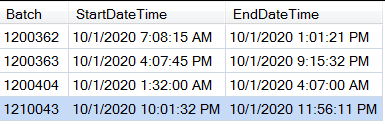 |
In the template, on the Batch List worksheet the labels are set up for the Batch, StartDateTime, and EndDateTime.
 |
The database group that returns the batch information over the day is connected to $B$4 in the Batch List worksheet.
 |
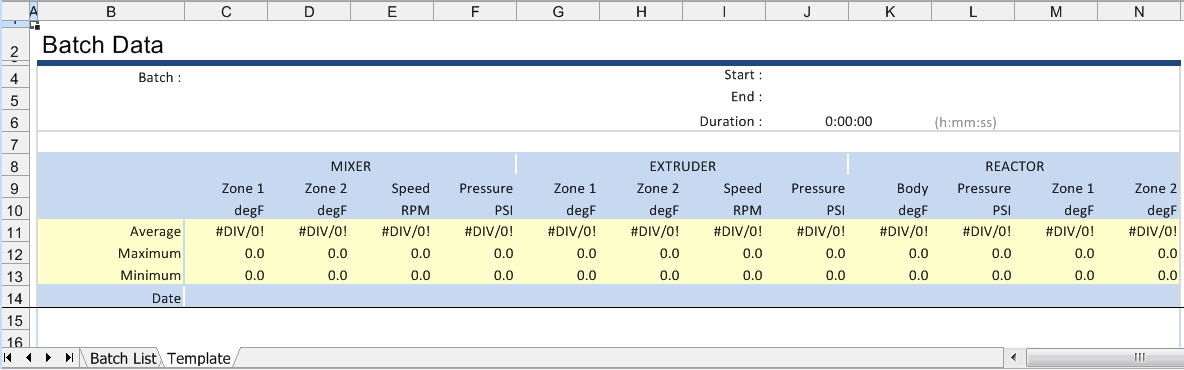
The Template worksheet is set up for the batch report.
 |
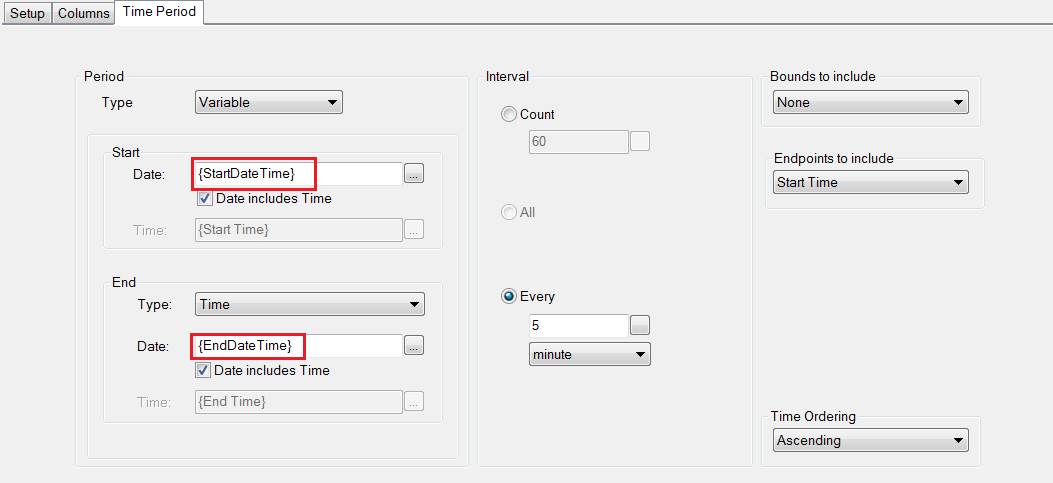
A history data group is configured for this worksheet to retrieve the data. The Time Period for the group is set up to use the StartDateTime and EndDateTime returned from the database.
 |
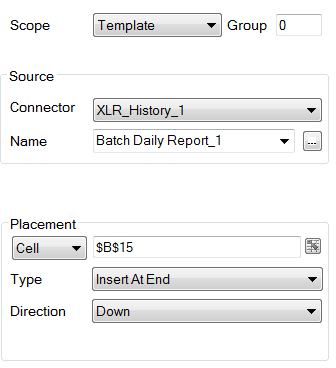
This group is connected to $B$15 on the Template worksheet.
 |
To ensure a workbook is created for every day and contains a report (worksheet) for every batch produced that day, the Report Names are set as:
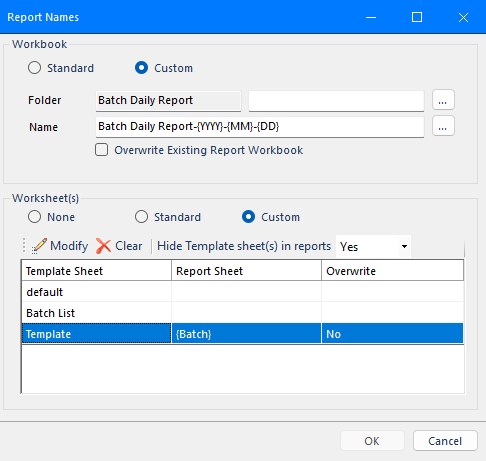
For the Template worksheet, the Report Sheet is set to use the Batch name returned from the database.
Set Hide Template sheet(s) in reports to Yes
To trigger a batch report for every record, the By Row Iteration function is configured as:
 |
Notice that Active By is set to Batch List, meaning that this function executes when the Batch List worksheet is updated.
Also notice that the Range starts at $B$3:$D$3. This is the row containing the headers which are used as the variables in the template.
Finally, notice that the Action is UpdateSheet to the Template worksheet which means that the Template worksheet is updated for every row of data returned on the Batch List worksheet starting at row 4.
To generate the report(s) every day, the following Schedule action should be configured:
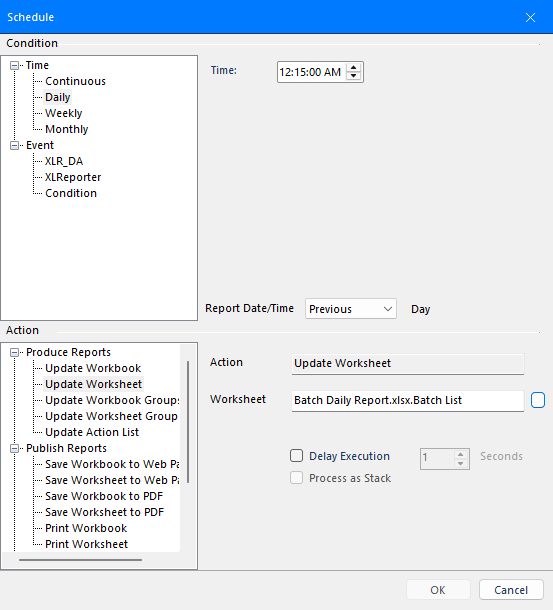
Note that only the Batch List worksheet is updated from the Scheduler. This in turn will trigger an update of the Template worksheet for every batch returned from the database.
The net result is a report like this:
 |
Notice that the workbook is named after the day and there is a worksheet for each batch.