Result from Template
Data management combined with the hundreds of formulas/functions can produce very complex information for reports. However, sometimes it takes multiple, intermediate steps to get these results which can make the report itself appear way more complicated that it needs to be.
For these situations, the Result from Template function can be used to copy parameters from the report to another template, trigger all the formulas and data management set on that template and then return the results to the report is a specific location to provide a simple, clean report.
Please note that if no data management is required but rather only workbook formulas/functions, consider using the Result from Workbook function described below.
In the template where the work is done, named ranges are used to identify where up to 6 parameters are copied from the report as well as where the results are located that are copied back to the report. Parameters are designated with the names Parameter1 to Parameter6, and the results are designated with the name Results.
 |
Note that each parameter as well as Results should refer to a single cell or a range and that the Scope of each name must be set to WORKBOOK.
For more information on named ranges and cells see the Named Cells/Ranges section of the Template Studio document under the DESIGN category in the Document Library.
Note that Results can be a single cell, a single row, a single column, or a complete range.
If Results is a single cell, the width is determined by finding the first empty row to the right of the Results cell. Then, the height is determined by finding the first row where all columns are empty.
If Results is a single row spanning multiple columns, the height of the range is determined by finding the first row where all cells are empty.
If Results is a single column spanning multiple rows, the width of the range is determined by finding the first column where all cells are empty.
If Results is a range with multiple rows and columns, no further expansion on the width or height is done. The range is used as is.
In the template where the work is done, any data management function (with the exception of Result from Template) can be configured as a connection. Every management connection configured must have Active By set to a specific worksheet (do not use Any Sheet). Once all the management connections are configured, click Export to export these to the Data Management worksheet within the template. This sheet must be saved in the template as the Result from Template function executes the management functions on this sheet. If, at a later date, management connections are added, removed, or modified, click Export again to rebuild the worksheet.
Example
As a simple example, use a template to produce the total, average, minimum and maximum from a range of data copied from a report and returning those summary calculation results.
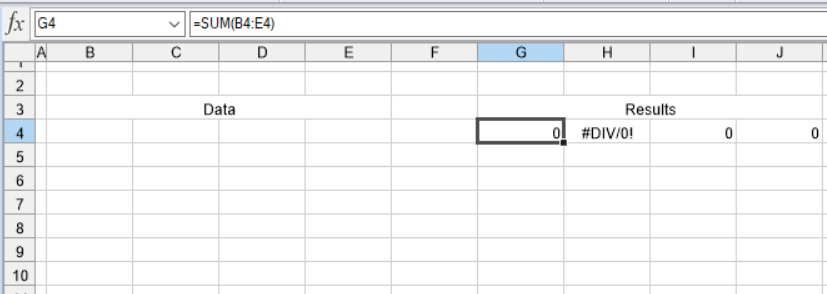 |
In the template SummaryCalc, cell B4 is named Parameter1 and cells G4:J4 are named Results. To expand the formulas in G4:J4, a Formula Range management function is configured as a connection.
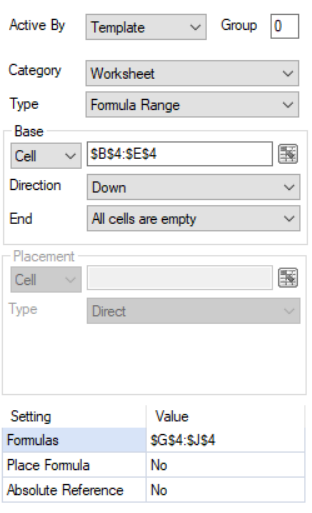 |
Once added and saved, the management connection is exported to the Data Management worksheet and the SummaryCalc template is complete.
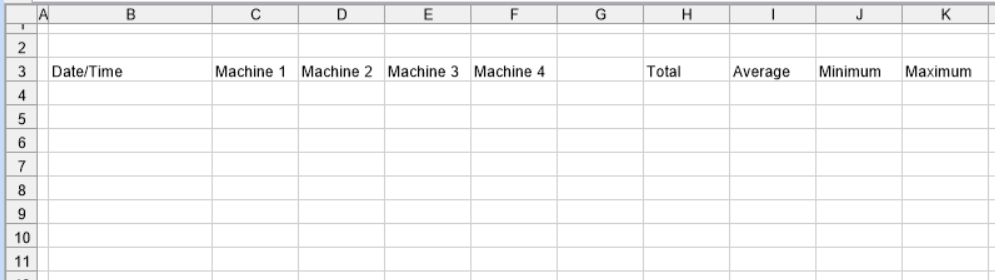
In the report template, a data connection is configured to retrieve the raw data from the historian and an area has been dedicated to the results from the SummaryCalc template.
 |
To get the summary data, the Result from Template management function is configured.
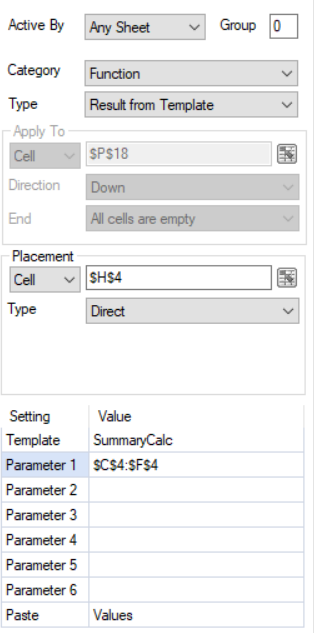 |
Note that Parameter 1 is set to $C$4:$F$4. When run, this range is expanded downwards until all the cells between C and F are empty.
Setting | Value |
|---|---|
Template | The name of the template which contains the rules that determine the Results. This can be fixed text or a cell reference. If the file extension of the template is not specified, it is assumed to be the default set in the project. |
Parameter 1 – Parameter 6 | Up to 6 parameters can be passed to the template. The values in these parameters are written into the named cells Parameter1 – Parameter6 in the workbook specified. These can be hard coded or cell references. If set to a cell reference, the cell reference is expanded based on the data in the report. If the parameter is a single cell the width is determined by finding the first empty row to the right of the cell. Then, the height is determined by finding the first row where all columns are empty. If the parameter is a single row spanning multiple columns, the height of the range is determined by finding the first row where all cells are empty. If the parameter is a single column spanning multiple rows, the width of the range is determined by finding the first column where all cells are empty. If the parameter is a range with multiple rows and columns, no further expansion on the width or height is done. The range is used as is. |
Paste | This setting determines what from the Results is copied back to the report. To use the formatting from the template, select Values and Formats, otherwise select Values to use the formatting set in the report template. |