Configuration
To open from the XLReporter Template Studio, select Connect, Data, Connect. To open in Excel, from the ribbon, select XLReporter, Data, Connect.
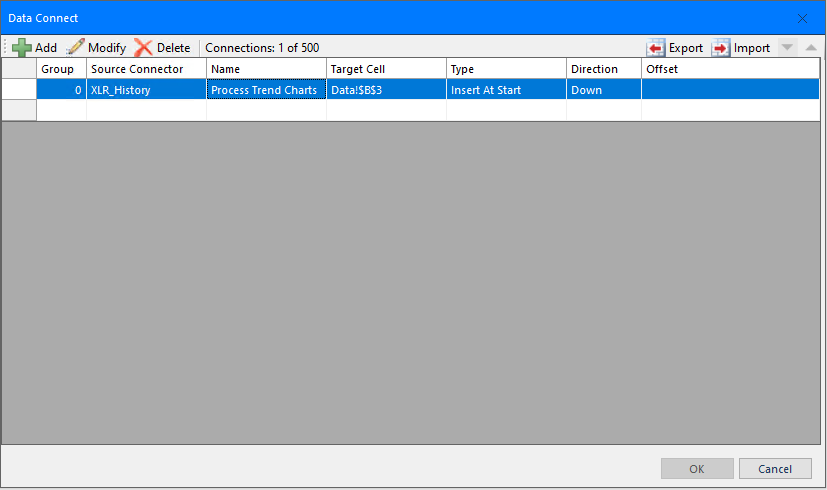 |
Up to 500 Data connections can be configured for a single template with each connection returning a single value or in the case of a data group multiple rows and columns.
Menu Options
To create a new connection, click the Add button. To modify and existing connection, click Modify. To delete connections, select the rows and click Delete.
If bulk changes are required, click Export which exports the grid to a worksheet. Note that it is not recommended to add new connections on this sheet. Make the changes on the worksheet and then click Import to bring the settings back.
When grid entry is made, a comment is automatically added to the cell to reflect the setting. The comments are purely cosmetic and can be removed or Reset. Comments can be turned off by clicking the arrow to the left of Reset. Comments are not supported in the standalone Template Studio.
Add/Modify a Connection
When Add or Modify is clicked the following dialog is opened:
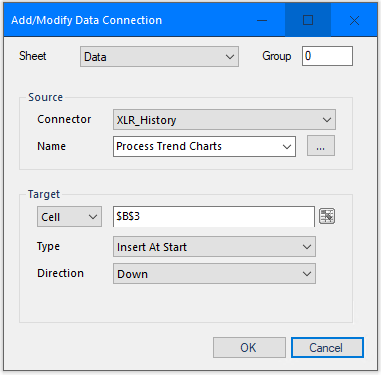 |
The Sheet indicates which worksheet the connection applies to. By selecting Any Sheet, the connection is applied to all worksheets. The Any Sheet setting is typically used in cases where multiple worksheets use the same connection. When a template update occurs involving a worksheet, only the connections with Scope set to the worksheet or Any Sheet are updated.
The Group is another mechanism to control which connections are active at any one time. By default, all connections are assigned to group 0 (all groups). When a template update occurs with a group number (UpdateGroupBook and UpdateGroupSheet), only the connections configured with that specific group number (or group 0) are updated.
Example: Update a report every 15 minutes and export the totals at the end of the day.
Assign the connection for the 15-minute updates to group 1 and the export to group 2. In the Scheduler add actions that refer to group 1 every 15 minutes and group 2 every day.
Group numbers between 0 and 99 can be assigned.
Source
This section defines the data source of the connection. Select a Connector and a data group given by Name. If no data groups are defined, select <add group…> and then click the browse […] pushbutton to define a new group.
Array/Clone Connections
In the case of a Real Time connector the <add tag…> is used for single values or arrays.
For arrays the syntax is Name[start, direction, end] where Start is the start register Direction is the symbol | (array is placed in a column) or – (array is placed in a row) and end is the end register.
Example:
[01|12]Temp | 01Temp to 12Temp in a column |
Pressure[1-5] | Pressure1 to Pressure5 in a row |
In addition, Variables can be used as part of a Real Time connection. For example, when the connection Flow{RG000} is used, the current value of RG000 is substituted in the Real Time connection. If the current value of RG000 is “01”, then the value for “Flow01” is used in the report.
The Expressions and Variables Connectors are always listed and represent date/time keywords and project variables.
Target
This section defines the target placement of the Source. Select a Cell where the source is placed by either entering it directly or placing the cursor in the edit box and then clicking the cell on the worksheet.
As an alternative to a cell reference like $A$1, Cell can be specified as a named cell or range by toggling the option to Name. For more information, see the Named Cells/Ranges section in DESIGN, Template Studio.
The following Placement Types are available:
Direct
The Source is placed directly into the cell given by the Cell.
Offset
The Source is placed in a row or column (see Direction) relative to the Cell according to the value of the Offset. The Offset can be an XLReporter counter variable (e.g., CR000) or a time-based calculation (e.g., mM/15, 15-minute offset of the month).
Append
The Source is appended onto the end of the existing data in the row or column relative to the Cell according to the Direction.
Insert At Start
The Source is inserted at the Cell in the specified Direction. Any content below or to the right of the insertion is moved down or across.
When inserting, if the top row/left column is blank, that row/column is used by the connection. For example, if the connection is configured to cell $B$4 with Direction Down and returns 24 rows by 4 columns, if cells $B$4:$E$4 is empty, 23 rows of data are inserted starting in $B$4:$E$4.
When inserting, if the Direction is Down and the row(s) inserted are part of an outline that is collapsed, the outline remains collapsed after the rows are inserted and the data is written.
Insert At End
The Source is inserted at the end of the existing data in the row or column relative to the Cell according to the Direction. Any content below or to the right of the insertion is moved down or across.
When inserting, if the top row/left column is blank, that row/column is used by the connection. For example, if the connection is configured to cell $B$4 with Direction Down and returns 24 rows by 4 columns, if cells $B$4:$E$4 is empty, 23 rows of data are inserted starting in $B$4:$E$4.
When inserting, if the Direction is Down and the row(s) inserted are part of an outline that is collapsed, the outline remains collapsed after the rows are inserted and the data is written.
Insert At Start (full)
The Source is inserted at the Cell in the specified Direction by inserting entire rows or columns (depending on Direction). Any content below the Cell row or to the right of the Cell column of the insertion is moved down or across.
Insert At End (full)
The Source is inserted at the end of the existing data by inserting entire rows or columns in the row or column relative to the Cell according to the Direction. Any content in rows below the Cell row or to the right of the Cell column is moved down or across.
Understanding Insert Placement
There are many advantages to using the Insert Placement settings for data connections, especially in conjunction with data groups that return an unknown number of rows or columns. These include:
The formatting from the topmost row (or leftmost column depending on Direction) is applied to every other row (or column) inserted into the worksheet.
If the data connection is a data group any columns (or rows) contained within the range of the data connection that contain formulas are automatically filled down (or across) for the number of rows (or columns) inserted.
Consider the following template:

Values in the B, C, D, F and G columns will come from the underlying data group. Columns E and H are formulas to average the Zone 1 and Zone 2 values of the Mixer and Extruder, respectively.
The Columns tab of the underlying data group is configured like this:
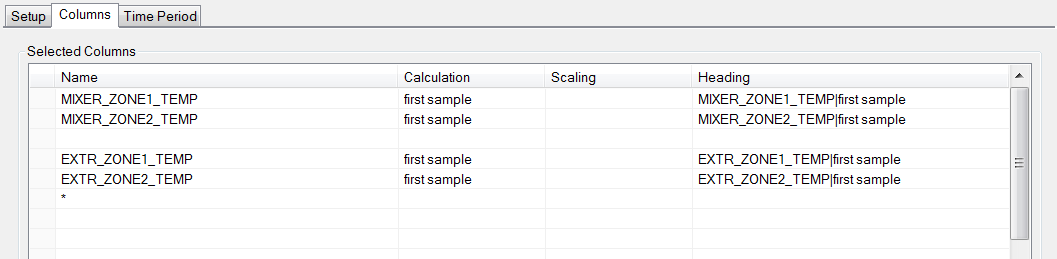
Notice an empty row is left between the Mixer and Extruder items. This is to accommodate the formula in the E column of the worksheet. Also notice the * in the last column. This is configured to accommodate the formula in the H column of the worksheet.
If this data group is configured with any of the Insert Placement types (and Direction Down), the formulas in the E and H columns on the worksheet will automatically fill down based on the number or rows inserted for the group.
Any worksheet formula or chart that references where the data is inserted are automatically adjusted for the number of rows (or columns) inserted. Basically, the cell references should encompass the first two rows (or columns) where the data connection is configured.
Consider the following template:
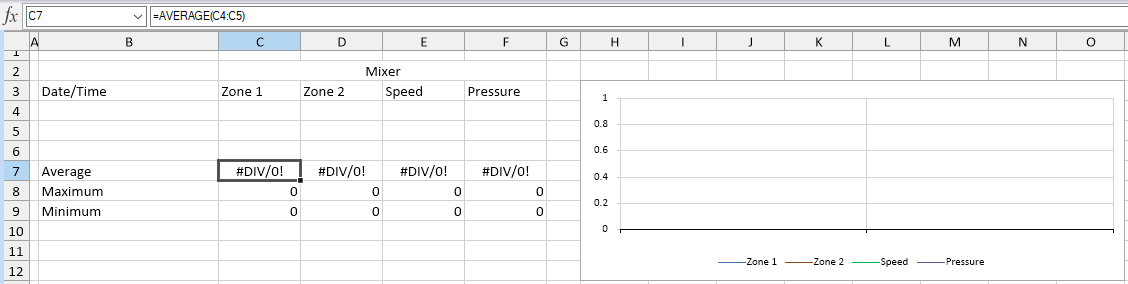
The range from $C$7:$F$9 contains summary formulas to get the Average, Minimum and Maximum from the range of data starting in row 4. Notice that the range for the formula is C4:C5.
The data series of the chart are also configured for the top two rows of data.
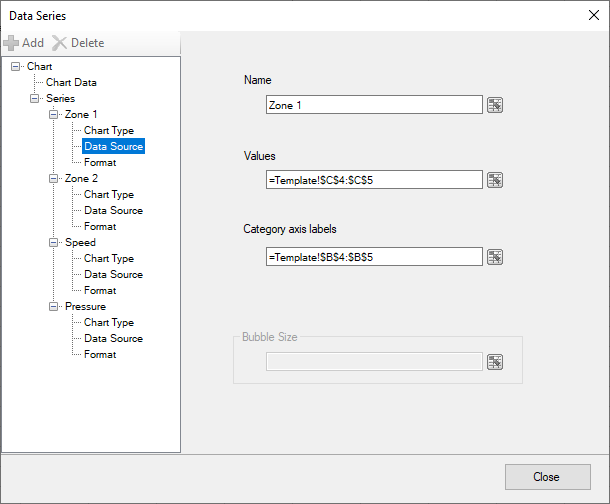
Notice that both the Values and Category axis labels are configured for the first two rows of data.
If the data connection configured for cell $B$4 is configured with any of the Insert Placement types, the formulas and chart series will all automatically adjust to the number of rows inserted into the report.
Insert At Start vs. Insert At End
If the report is only updated once, either Insert At Start or Insert At End can be used as either produces the same result.
However, if the report is updated multiple times, Insert At Start should be used to order the data descending so the latest results are at the top. Insert At End should be used to order the data ascending so that oldest results are at the top.
Do keep in mind that if the data group itself returns multiple rows, the order of records returned from the group should be on the timestamp Ascending or Descending depending on the Placement specified.
Full Insert
The full options available with the Insert At Start and Insert At End Placement types insert entire rows (or columns depending on Direction) before data is written to the report. Here are the typical scenarios where a full insert should be used:
The row height of the top row is not the default height and every row inserted must adopt this row height.
There are cells that are not directly underneath (or to the right) of the range to insert but must be shifted based on the number or rows (or columns) inserted.
Data Group Connections
When a data group is added to the template, the number format of the cells where the data is written is updated to reflect what the group returns.
If the column in the group returns a timestamp, the cells in that column are formatted as either a date, time or date and time depending on the Time Period of the group. If the column returns a number, cells in that column are formatted as a number with 2 decimal places.
If the number of rows from the group can be determined, that number of rows is formatted in the template. However, if the number of rows cannot be determined, only the top row is formatted.
For example, a group is configured to return a timestamp and the hourly averages of four pump stations over the day. The data group connection is configured for cell $B$4.
On the template worksheet cells $B$4:$B$27 are formatted as time while cells $C$4:$F$27 are formatted as a number with 2 decimal places.