Distributed Edition
When installing the Distributed edition, installation requires information about how the system is set up.
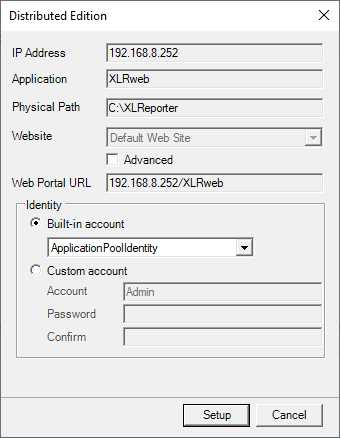 |
IP Address is the IP address of the local machine that users will enter to access the web portal. This is only configurable if there are multiple IP addresses detected on the system.
Website defines the site in IIS where the XLRweb application is installed. By default, this is Default Web Site but if you would like to change this to another site defined in IIS, check Advanced and select the Website from the list.
The Web Portal URL is the URL any user will use to connect to the web portal based on the settings above. This can be copied to the clipboard to use after installation is complete.
Identity
These settings define the user account under which the web portal runs. By default, this is set to ApplicationPoolIdentity which is a built-in, very low-level user. If XLReporter needs to access data or publish reports to other places on the network that require a higher-level user, this can be changed to either another Built-in account or a Custom account which is a configured user on the machine or domain.
System Check
If these settings need to be changed after installation, this application can be launched from System Check. System Check is available in the Project Explorer from the right-side Tools tab in the Diagnostics section.
Once in System Check, select Tools, Set up Web Portal to access this application and make any changed needed.
Note, Windows Administrator privileges are required to access this application.