SQL Server Prerequisites
Verify Database
To verify, open Microsoft SQL Server Management Studio and connect to the SQL Server instance where the WIN-911 database is configured. Typically, this is on the same machine where WIN-911 is installed and the instance is named WIN911.
Once connected:
Expand the LOG database. The exact name of this database is the name of the machine + “.” + LOG.
Expand Tables
Select the Strategies table.
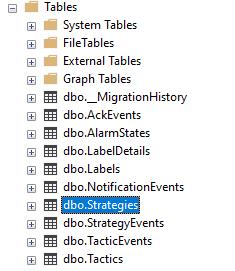
Right click the Strategies table and choose SELECT TOP 1000 Rows. This will display data from the table representing the alarms logged by WIN-911.
SQL Server Considerations
When using SQL Server there are some things to take into consideration including remote connectivity and user authentication. For information on what to consider, see DATA CONNECTIVITY, Microsoft SQL Server in the Document Library.
For Authentication, by default only Windows Authentication is configured for this SQL Server instance. This may present issues if:
XLReporter is not installed on the same machine
XLReporter is installed on the same machine but the user logged in does not have access to the SQL Server instance or the WIN911 database.
XLReporter’s Scheduler is set to run as a Windows Service with the LocalSystem or other built-in Windows user account.
Running reports from the XLReporter Windows or Web Clients from a remote machine.
In these cases, using SQL Server Authentication would be preferable as there is no reliance on the logged in Windows user.