Prerequisites
Installation
Connectivity Pack
The WinCC Connectivity Pack must be installed on the machine where the server is logging alarms. The license can be verified in the SIMATIC Automation License Manager from the SIMATIC program group.
If XLReporter is not installed on the machine where the server is logging, the WinCC Connectivity Pack must also be installed on the machine where XLReporter is installed.
Open PCS 7
If Open PCS 7 is installed, XLReporter must be installed on the same machine to retrieve alarm data from any WinCC/PCS 7 station configured within Open PCS 7. The license can be verified in the SIMATIC Automation License Manager from the SIMATIC program group.
Name
When retrieving alarm data, the Name of the server is required as part of the setup. This depends on 1) the PC where the alarms are being logged 2) if the Connectivity Pack or the Open PCS 7 interface is used.
The Name contains either the computer name (Connectivity Pack) or a symbolic name (Open PCS 7). This is determined by opening the WinCC Explorer on the machine where the alarms are being logged.
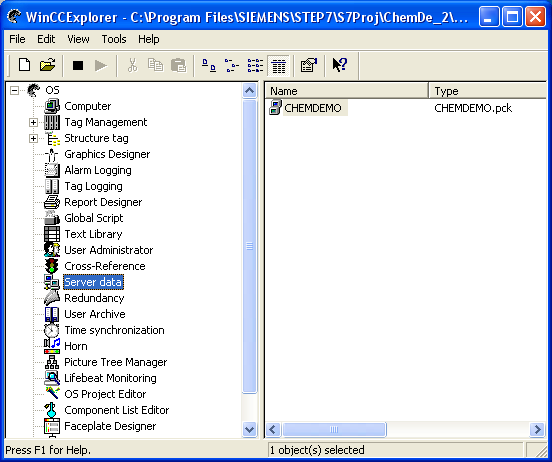 |
Expand OS, select Server data, right click, and choose Configure.
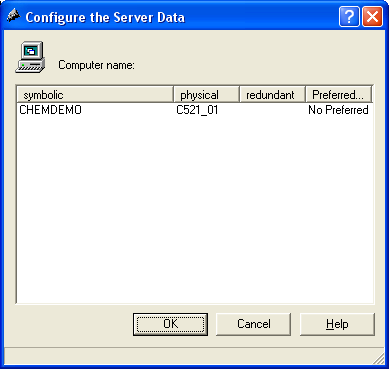 |
The symbolic column shows the Symbolic Name, and the physical column shows the Computer Name.
Database
When retrieving alarm data, the Database name is required as part of the setup. This can be found as the value of stored in the @DatasourceNameRT tag.
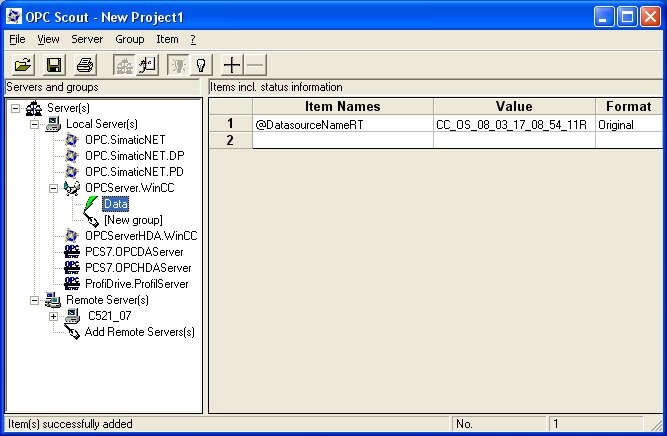 |
This value can be read using the OPC Scout application provided by SIMATIC and available from the SIMATIC program group. Expand Server(s) and double click either the WinCC OPC Server (OPCServer.WinCC) or the PCS 7 OPC server (PCS7.OPCDAServer).
Enter a Group Name.
Click OK.
The group should now appear as a branch under the OPC server. Double click the group name to open the OPC Navigator. Browse into the Internal Tags and select @DatasourceNameRT and click OK. This should now appear in OPC Scout along with the Value.
Since this value is required later, make a copy on the clipboard.
Verify Connectivity
To verify access to the alarm data a connection must be made to the WinCC OLE DB provider and a query run. There are many applications that can test this. The following describes using Microsoft Excel.
Note the WinCC OLE DB provider is a 32-bit driver to verify with Excel, Excel must be 32-bit.
Open Microsoft Excel.
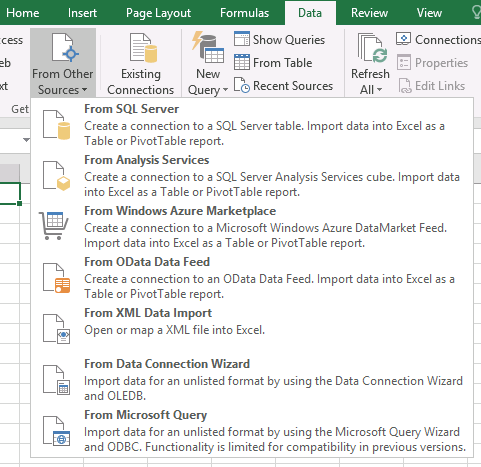 |
Under the Data tab, in the Get External Data section, click From Other Sources and select From Data Connection Wizard.
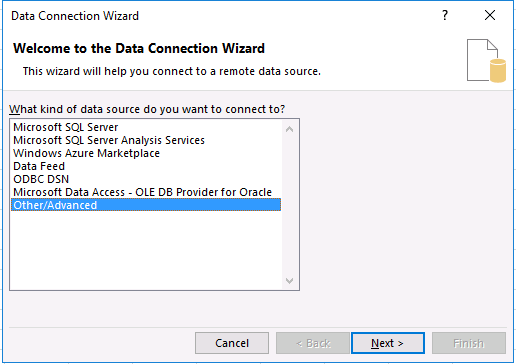 |
In the Data Connection Wizard select Other/Advanced and click Next.
In Data Link Properties,
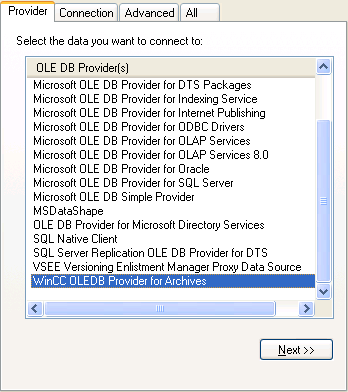 |
Under the Provider tab select WinCC OLEDB Provider for Archives.
Click Next.
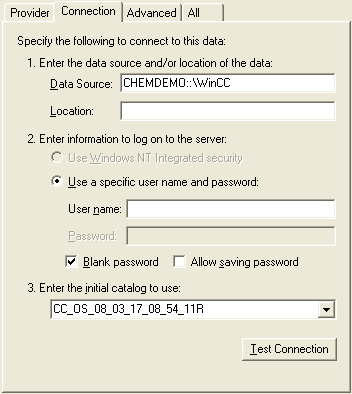 |
Under the Connection tab, specify the Data Source.
It is essential that the Data Source is set correctly based on Interface and location of the Alarm server relative to the machine connecting from:
Interface | Alarm Server | Data Source |
|---|---|---|
Connectivity Pack | Local | .\WinCC |
Connectivity Pack | Remote | Computer Name\WinCC |
Open PCS 7 | Local or Remote | Symbolic Computer Name::\WinCC |
Where Computer Name and Symbolic Name are the Name captured from the WinCC Explorer (see Name section above). The example here demonstrates a connection with the Open PCS 7 interface.
For the Initial Catalog, use the Database name retrieved from the @DatasourceNameRT value (see Database section above).
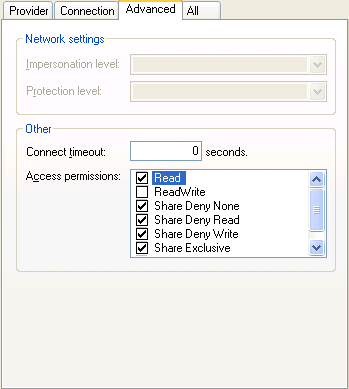 |
Under the Advanced tab, uncheck the ReadWrite checkbox.
Click OK.
If the message appears “Test connection failed because of an error setting the window handle property…” click Yes to continue. Accept any other error or warning that may appear.
In Data Connection Wizard,
From the list of tables select AlarmView.
Click Next.
Set a File Name.
Check Save password in file.
Click Finish.
In Import Data leave the defaults and click the Properties button.
In Connection Properties, under the Definition tab,
Check Save Password.
Change Command type to SQL.
Set Command text to:
ALARMVIEW:SELECT * FROM AlgViewENU WHERE DateTime >= ‘Yesterday’ AND DateTime <= ‘Today’ ORDER BY DateTime ASC
Where Yesterday and Today are timestamps for yesterday and today in the format YYYY-MM-DD HH:mm:ss. For example, if testing on January 2nd, 2020, the query would be:
ALARMVIEW:SELECT * FROM AlgViewENU WHERE DateTime >= ‘2020-01-01 00:00:00’ AND DateTime <= ‘2020-01-02 00:00:00’ ORDER BY DateTime ASC
Click OK.
Click Yes to any warning message that appears.
Click OK back in the Import Data window.
If there are issues or no data is returned, contact Siemens technical support to troubleshoot and correct.