Set up FactoryTalk View SE Data Agent
The FactoryTalk View Data Agent can be installed for FactoryTalk View SE version 10 to version 14.x on a FactoryTalk View SE stand-alone system, the FactoryTalk View SE server or any FactoryTalkView SE client. To obtain the FactoryTalkView SE Data Agent installation media, please contact SmartSights. You must provide your FactoryTalk View SE product serial number to be eligible.
After installation, the configuration for Data Agent must be updated so that any machine on the network can request data. To do so, open RA.DataAgent.SDK.Service.Host.exe.config using a text editor like Notepad. This file is typically found in C:\Program Files (x86)\Rockwell Software\RSView Enterprise\Data Agent SDK.
In the text file, replace every instance of localhost with the IP address of the machine, save the file and close it. After closing it is recommended to restart the Rockwell Data Agent Windows Service.
FactoryTalk View SE
For XLReporter to collect real-time data through the FactoryTalk View SE Data Agent, the application must be running.
Windows Firewall
If the Windows Firewall is enabled in the machine where the FactoryTalk View SE Data Agent is running, the Port Number specified in the RA.DataAgent.SDK.Service.Host.exe.config must be opened to connect.
To do so:
Open the Windows Firewall. Typically, the easiest way to do this is by typing Firewall into the search bar at the bottom left of Windows.
Click Advanced Settings
Right-click Inbound Rules and select New Rule.
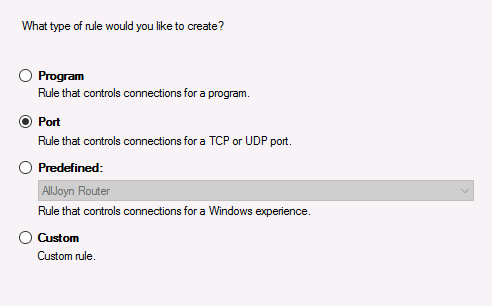
For the rule type select Port and click Next
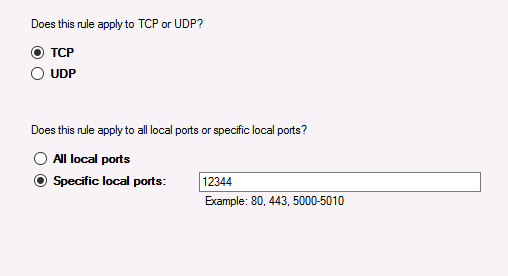
For Protocol and Ports select TCP protocol.
Select Specific local ports and specify the port number as found in the RA.DataAgent.SDK.Service.Host.exe.config (this is specified after the IP address and by default is 12344, e.g., 192.168.1.1:12344). Click Next.
Leave Allow the connection selected and click Next.
Apply the rule for every network type required and click Next.
Give the rule a Name and click Finish.