Backup a Database
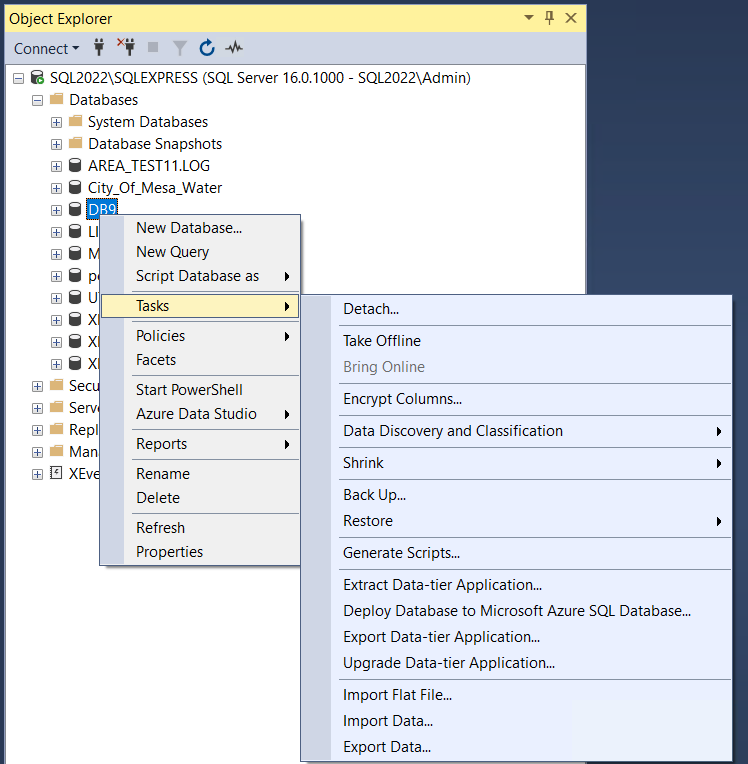
Open Microsoft SQL Server Management Studio and connect to the SQL Server instance. In the Studio, expand the instance. Expand Databases and right click the database in question.
Select Tasks, Back Up…
 |
This will open the Back Up Database window. In this window, you can configure the specifics about how you want to back up your database. For this example, we will accept the defaults.
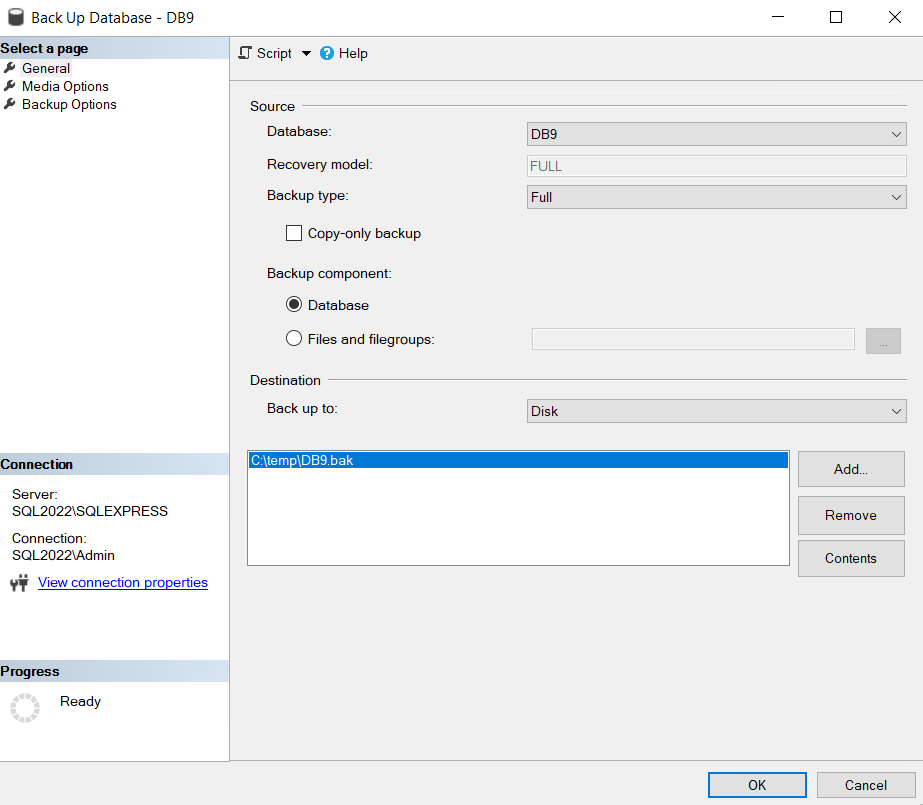 |
The database will be backed up to the specified disk location. If there is no location specified, select Add and pick a destination folder. Be sure to only select a single destination folder or it will split the back up into the two different locations.
Click OK at the bottom to begin the backup.
When the backup is complete, go to the specified folder to verify the .bak file was correctly created.