Connector
To configure the connector to the InTouch OPC UA server, from the Project Explorer select Connect, Connectors.
Click Add
Select AVEVA, InTouch Real-time values (OPCUA)
Click OK
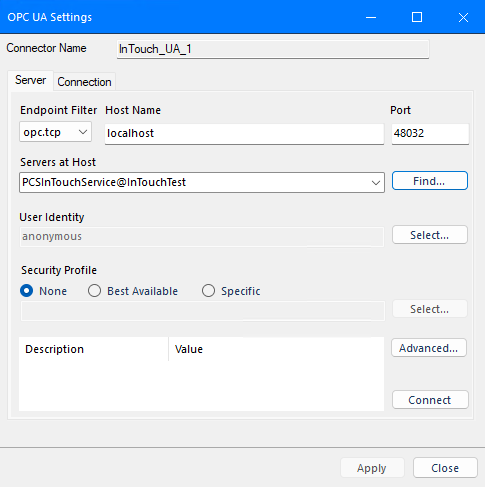 |
Under the Server tab, for Host Name, select or enter the name or IP address of the machine where the server is running. Enter the Port number as set up in InTouch.
For Servers at Host, click Find. Select the one that starts with PCSInTouchService@
For User Identity, click Select to specify.
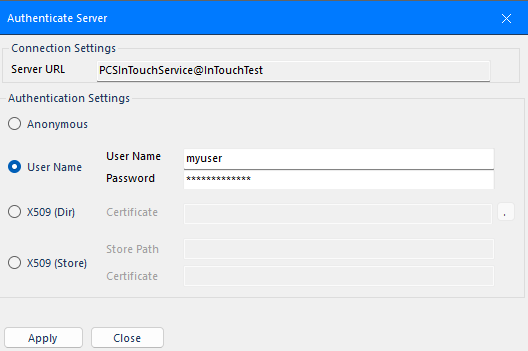 |
The setting here can depend on what was specified in the InTouch OPC UA Server configuration. However, if you want XLReporter to write values to tags in InTouch, you should select User Name and specify the Windows User Name and Password for the user you made a member of the InTouchHMIOPCUAWriteUsers group in Windows Computer Management. Apply these settings and close.
Select an appropriate Security Profile radio button. If Specific is chosen, click Select on the right to select a specific profile to use.
Click Get Endpoints to get the list of available endpoints, select the one that best fits the security settings configured for the server and click OK.
Click Connect to ensure connectivity. This may require an exchange of certificates between the client and the server. If prompted to exchange, click Yes. This action requires Windows administrator rights.
If the Connect fails, be sure that the client certificate is trusted by the server and then attempt to Connect again.
The Advanced button is provided to enable/disable some of the security checks done against the UA server connecting to.
 |
By default all options are selected. It is recommended to keep all of these settings enabled for the highest security.