Template Library Wizard
Select a Template from the Library
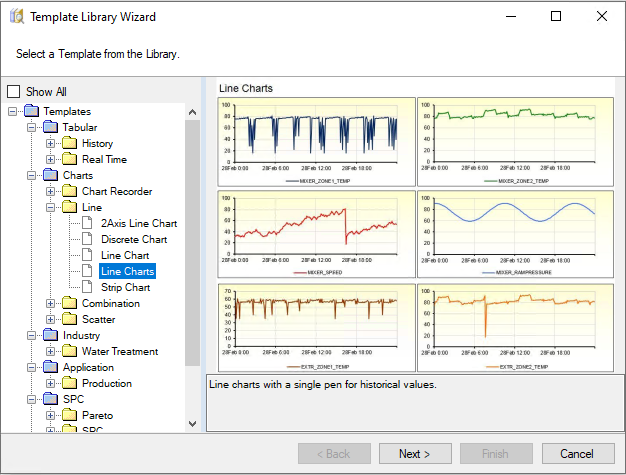 |
The available library templates listed is based on the connectors configured in the current project. For example, if the project only contains a real time data connector, the library templates listed are those that only require a real time connector.
In addition, the list of library templates is filtered based on the Data Source Vendor and Industry set for the project. The Show All checkbox toggles this filter off to show every template applicable based on the connectors define.
Select the Template Name and Connector
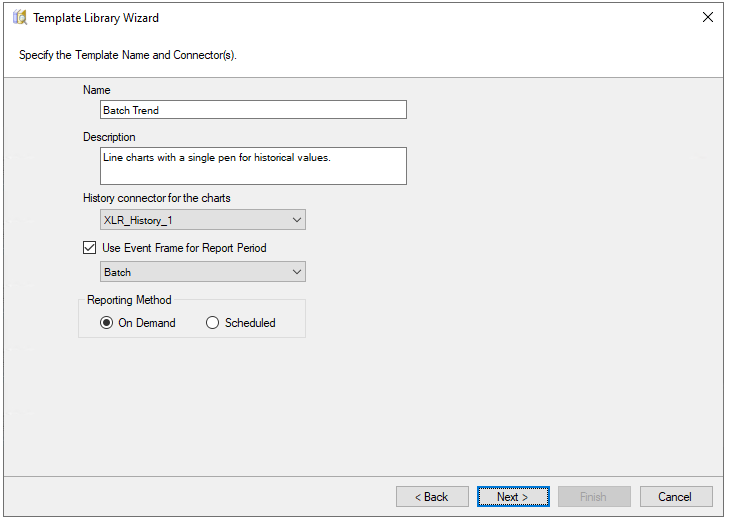 |
Enter a Name, a Description and the Connector(s) used to access data.
If the library template is configured for a history connector and there are Event Frames used in the project, the Use Event Frame for Report Period is enabled. By checking, all the configured Event Frames in the project are listed. For more information on Event Frames, see the CONNECT, Setup Event Frames in the document library. For more information on using Event Frames with library templates, see the Templates Using Event Frames section below.
The Reporting Method determines if the template is to be used On-Demand or Scheduled.
Customize the Content of the Template
The template may have a set of values that can be customized. This can range from captions and labels in cells to the addition/removal of items. For Scheduled templates, the tag names are specified.
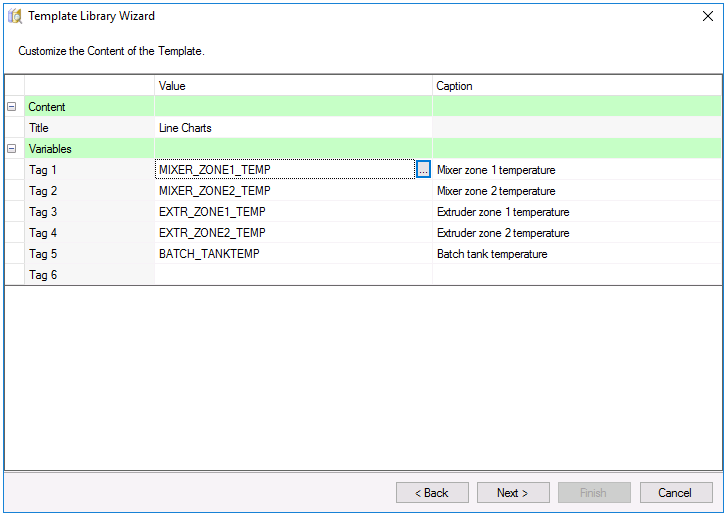 |
Not all tag names need to be specified.
The next steps are only applicable to a Reporting Method of Scheduled.
Setup Time Period
These settings define the overall Period of the report as well as the Interval used for the data spacing in the report.
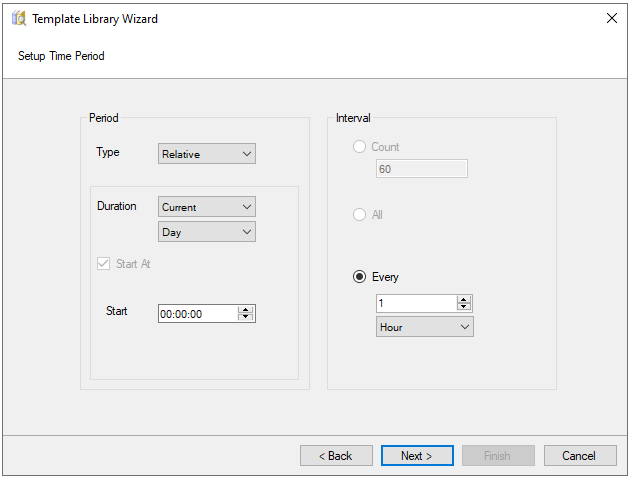 |
Some templates may not allow all these settings to be modified. In addition, the Type and Interval options may change depending on the nature of the template, the data connector source(s) or if an Event Frame is used for the Time Period.
Setup Report Name
These settings define the Report Names for the template for the WORKBOOK and possibly WORKSHEET.
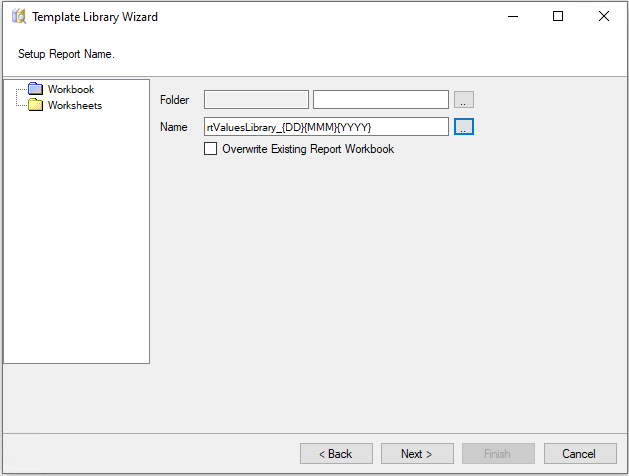 |
It is recommended to accept the default values. Modifying the Workbook setting to introduce a sub folder or changing the month from {MMM} to {MMMM} is perfectly acceptable.
For more information on Report Names, see DESIGN, Template Studio in the document library.
Setup a Schedule
These settings define the schedule lines used to generate reports from the template.
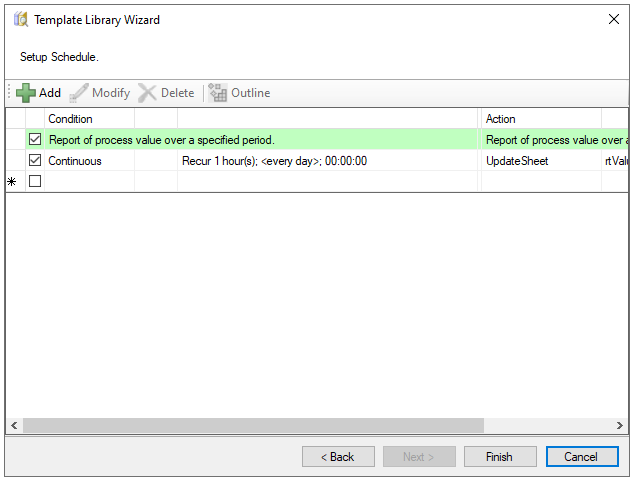 |
For templates that are period on time the schedule is usually complete. However, for templates based around process events, the schedule lines may contain keywords like <StartEvent>, <ReportName> or <CollectEvent>. In these cases, the keywords must be replaced (typically with tags from the real time data source) before the template is finished.
If additional publishing options are required like publishing to PDF or emailing a completed report, these actions can be added to the schedule before clicking Finish.
For more information on scheduling, see Deploy Scheduled Reports.