Panels
The user specifies values for variables from data input panels. For example, one template may require a Date panel (for the report time period) while another may require a Tag panel (for tag selection).
The panels are displayed in the Left view of the user interface. Each panel has a collapse button at the top left corner to hide it from view.
Date Interval
The Date Interval panel enables to user to specify a start date and having the corresponding end date calculated based on the start and the interval configured for the panel.
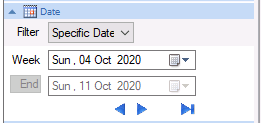 |
When a setting is made with the panel, it internally sets the values Start Date, Start Time, End Date and End Time which can be assigned to variables.
If Add Period List is set for the panel, a list of commonly used time periods is provided to select from. For details on each setting, see the Date Calendar section below.
Note the Period setting here is used to set the Start Date and Start Time. The Interval set for the panel determines the End Date and End Time. For example, if the panel is set up with the Interval as Daily in the designer and the Period is set to Last Month in the panel, the Start Date and Start Time are set to 1 month from the current time and the End Date and End Time are set to 1 day later. So, if this were run on January 1st, 2020, at midnight, the start would be December 1st, 2019, at midnight and the end would be December2nd 2019 at midnight.
Date Calendar
The Date Calendar panel enables the user to specify a time period.
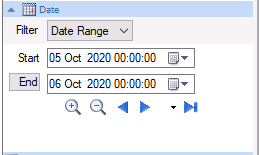 |
When a setting is made with the panel, it internally sets the values Start Date, Start Time, End Date and End Time which can be assigned to template variables.
If Add Period List is set for the panel, a list of commonly used time periods is provided to select from. The following options are available:
Date Range
The date range is specified using the controls provided. See the Date Range section below for details.
Last Day
The time period spans the last day from the current date/time. When selected, this automatically triggers a Refresh of the template.
Last Week
The time period spans the last week from the current date/time. When selected, this automatically triggers a Refresh of the template.
Last 2 Weeks
The time period spans the last 2 weeks from the current date/time. When selected, this automatically triggers a Refresh of the template.
Last 3 Weeks
The time period spans the last 3 weeks from the current date/time. When selected, this automatically triggers a Refresh of the template.
Last Month
The time period spans the last month from the current date/time. When selected, this automatically triggers a Refresh of the template.
Last X Days
The time period spans the last X days from the current date/time where days is specified. By default, this is set to 10 days. When selected, this automatically triggers a Refresh of the template.
Date Range
If the Period list is set to Date Range or Add Period List is not enabled, the panel appears as:
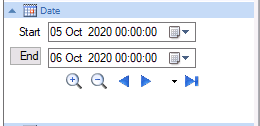 |
The Start can be entered manually or configured by using the date picker provided. When the start is edited, the end is automatically adjusted based the start date and time plus the span. By default, the span is 1 day.
The End can be entered manually or configured using the date picker provided. In addition, the End can be toggled to Span by clicking the End button. The span value is in the form [DD] hh:mm:ss. It can be edited manually or selected from the drop-down list provided. When the span is edited, the end date and time is automatically adjusted.
The zoom control  decreases the span by the Zoom In % setting (50% by default). The zoom control
  increases the span by the Zoom Out % setting (100% by default).
The pan buttons 
 adjust the start and end date based on the Pan % (50% by default) of the interval of the panel. To set the panel to the current time, click
Tag
The Tag panel enables to select tags directly from a Connector or from a connector’s Catalog.
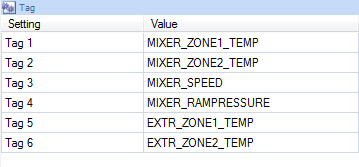 |
When a setting is made with the panel, it sets the value to the template variable assigned to the selected row.
One or more tags may be selected when browsing for tags. If multiple tags are selected, subsequent tags are listed beneath the current selection. To remove a tag name, clear the Value column.
Parameter
The Parameter panel is used to select a wide range of value types.
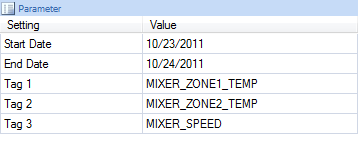 |
When a setting is made with the panel, it sets the value to the template variable assigned to the selected row.
Input controls appear according to the panel configuration. For example, if a parameter is configured for a database query then when the Value column is clicked, the query is made, and a drop-down list of values is shown.
Database
The Database panel is used to select values from a record that results from a database group.
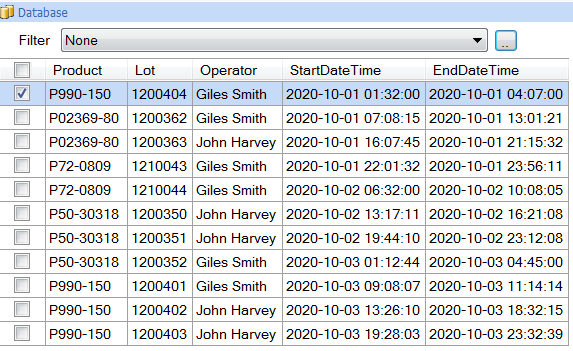 |
The Filter setting is provided to help get the list of values to select from. The following are always available:
None
No filtering is applied. Every record returned from the database group or text file is displayed.
Record Count
The limit of the number of rows returned. By default, this is set to 10.
If used with a database group and the group itself has a limit (e.g., SELECT TOP 20), this filter has no effect.
If the Use As Filter setting is enabled in the panel, the following Filter options are also available:
Current
The record set returned from the database group is filtered to only show the most recent record. When this option is selected the grid is automatically refreshed and a Refresh of the template is automatically triggered.
Previous
The record set returned from the database group is filtered to only show the second most recent record. When this option is selected the grid is automatically refreshed and a Refresh of the template is automatically triggered.
Date Range
A set of date controls are provided for the user to specify the time period over which to retrieve records. Once Refresh (…) is clicked, every record between the start and end is displayed.
Last Day
The record set returned from the database group is filtered to only show records from the last day (based on current time). When this option is selected the grid is automatically refreshed.
Last Week
The record set returned from the database group is filtered to only show records from the last week (based on current time). When this option is selected the grid is automatically refreshed.
Last 2 Weeks
The record set returned from the database group is filtered to only show records from the last 2 weeks (based on current time). When this option is selected the grid is automatically refreshed.
Last 3 Weeks
The record set returned from the database group is filtered to only show records from the last 3 weeks (based on current time). When this option is selected the grid is automatically refreshed.
Last Month
The record set returned from the database group is filtered to only show records from the last month (based on current time). When this option is selected the grid is automatically refreshed.
Last X Days
The record set returned from the database group is filtered to only show records from the last number of days specified until the current time. By default, this is set to 10. When this option is selected the grid is automatically refreshed.
If the database group has filtering configured for the timestamp column that filtering is replaced with the selected option to not cause any conflict.
By default, when a template using this panel is initially loaded, the panel is filtered to a Record Count of 10. This applies both to the Windows and Web On Demand Reports.
To Refresh the template for a single record in the grid do one of the following:
Highlight the row and click Refresh above the panel.
Double click the row.
Check the row and click Refresh above the panel.
To Refresh the template for multiple records at one time check each desired row in the grid and click the Refresh button above the panel. Note, this functionality is not available is the Single Selection option is set for the panel.
The grid can be re-ordered based on any visible column by clicking the column header. The arrow in the column header indicates whether it is ordered ascending or descending.