Connector
The connector defines the OPC UA HA server to connect to.
 |
Enter the Host Name where the server resides and enter the Port number as set up in the server. The Endpoint Filter can be changed as necessary, however opc.tcp should be correct for most endpoints. Server at Host shows all available servers based on the settings. Select the one you wish to connect to. Select the Connection tab at the top.
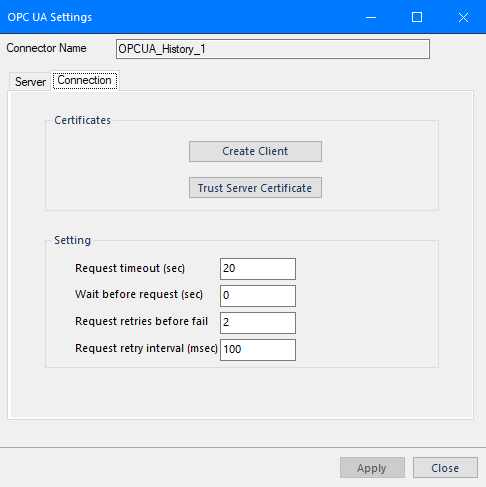 |
The Client Certificate is automatically created on installation. If required, to recreate the certificate select Create Client Certificate. For most OPC UA HA servers, the default settings will be sufficient, but if the server requires more advanced certificate settings, specify them with the Advanced button. Click Create to create the client certificate.
|
Navigate back to the Server tab of the connector. Set Host Name to the name or IP address of the server machine.
Typically information about the Port number to use can be found in the OPC UA HA server settings.
The Servers at Host dropdown displays all the available servers based on the Host Name and Port.
Click the Select button next to the User Identity field.
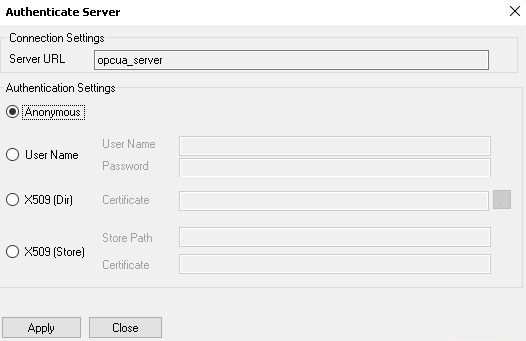 |
Depending on the security settings over the Server, select an appropriate User Identity and click Apply.
Select an appropriate Security Profile radio button. If Specific is chosen, click Select on the right to select a specific profile to use.
Click Connect to ensure connectivity. This may require an exchange of certificates between the client and the server. If prompted to exchange, click Yes. This action requires Windows administrator rights.
If the Connect fails, be sure that the client certificate is trusted by the server and then attempt to Connect again.
The Advanced button is provided to enable/disable some of the security checks done against the UA server connecting to.
 |
By default all options are selected. It is recommended to keep all of these settings enabled for the highest security.